
This guide walks every Veri-Vault surface in the order you'll encounter it — from the dashboard tile through the /vault overview, the per-snapshot browser, the side-by-side compare view, the baseline manager, the scheduling page, the restore selection / approval / execution flow, the activity log, and the IR Tabletop integration that closes the disaster-recovery loop.
1 · What Veri-Vault is
Veri-Vault is a Microsoft 365 / Intune configuration snapshot vault — not a mail or file backup product. It captures a point-in-time JSON snapshot of your tenant's configuration surface every time a Veri-Guard or Veri-Tune compliance scan runs (and on demand whenever you click "Backup Now"), indexes those snapshots by date and source, lets you browse and search them, compares any two to surface what changed in between, and — on Enterprise — restores selected policies under Just-in-Time write permissions with a two-admin approval gate.
The snapshot surface covers Conditional Access policies, named locations, authentication methods, security defaults, Intune device-compliance and device-configuration profiles, Intune Settings Catalog profiles, App Protection (MAM) policies, Exchange transport rules and anti-spam, Teams meeting and messaging policies, SharePoint sharing settings, and Defender Safe Links / Safe Attachments / anti-phishing. What's explicitly not captured: email message bodies, file contents, audit log entries, user passwords, auth tokens, device hardware telemetry. Veri-Vault watches your configuration, never your content.
Veri-Vault is not a compliance-score product. There is no score donut — every snapshot is either captured or not captured, and the diffs between snapshots are the output you act on. The score that matters is the count of unexpected changes per period and how fast you can roll one back.
The default operating mode is read-only. Snapshot capture is a pure Graph read. The only write moment is Restore, which requests Just-in-Time write permissions, deploys every Conditional Access policy in report-only mode as a hard safety guarantee, requires a second admin's approval through a dry-run preview before any write actually fires, and surrenders the elevated grant the moment the restore completes. Plus a 90-day / 1-year / 3-year retention envelope sized to the plan tier — Professional 90d, Enterprise 1y, MSP 3y.
2 · Where you'll find Veri-Vault in your portal
Veri-Vault lives behind one card on your dashboard.
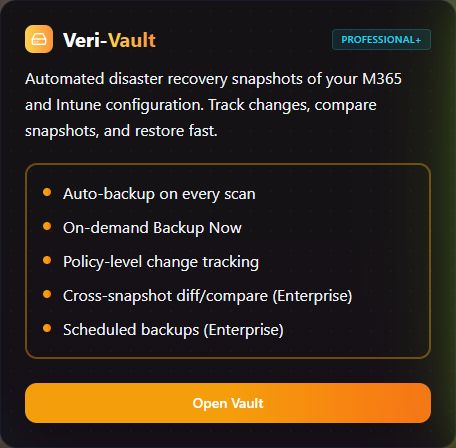
Clicking "Open Vault" lands you on the Veri-Vault overview at /vault. This is the home page for every Veri-Vault surface — a tab strip at the top exposes Overview, Backups, Compare, Baselines, and Scheduling, and the body of the Overview tab is what's pictured below: a "Configuration Snapshot Vault" hero band, a sync-notice info panel, a three-stat strip (Total Snapshots, Total Storage, Latest Backup), an eight-card workflow grid that is the conceptual model for the product, and a "Generate DR / Restore Tabletop" card that bridges into the IR Tabletop feature.
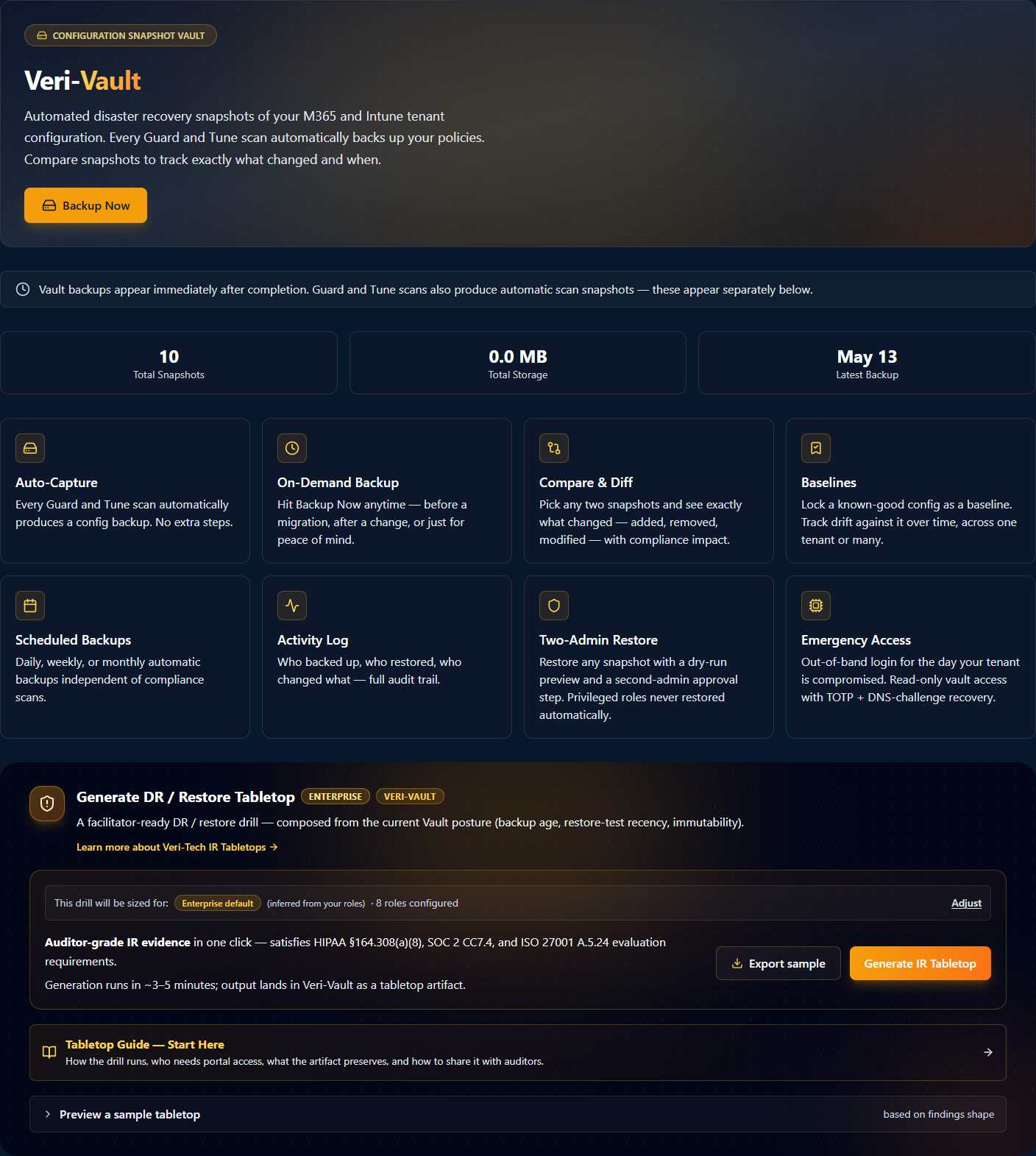
The eight cards in the middle of the overview are the conceptual model for the entire product. §3 walks each one in turn.
3 · How Veri-Vault works
The eight workflow cards on the /vault overview group into two tiers: four always-on capabilities (Auto-Capture, On-Demand Backup, Compare & Diff, Baselines) and four Enterprise-only operations (Scheduled Backups, Activity Log, Two-Admin Restore, Emergency Access). Walk each one in order — they're roughly in capture → browse → compare → restore → recover order, the same flow a real disaster-recovery exercise follows.
Step 01 — Auto-Capture
Auto-Capture is the foundational feature: every Guard and Tune scan emits a configuration snapshot as a side effect. If you never click "Backup Now," you still have a snapshot for every compliance scan you've run — which is enough to compare any two points in time. The /vault/backups page calls these out as "Automatic Scan Snapshots" (§7).
Step 02 — On-Demand Backup
The On-Demand Backup CTA in the /vault hero captures a snapshot directly via Graph reads. Typically 30 to 90 seconds wall-clock for a fully-populated tenant. The snapshot lands as a "Vault Backup" row in the /vault/backups list (the manual table at the top, separate from the Automatic Scan Snapshots table below).
Step 03 — Compare & Diff
The Compare view is where snapshots become an investigation tool — not just an archive. Side-by-side baseline + current, with the diff filterable by category (Identity / Intune / Exchange / Teams / SharePoint / Defender) and exportable to CSV. §8 walks the page.
Step 04 — Baselines
A Baseline is a labelled snapshot — typically the configuration of a reference tenant or a known-good point in time. MSPs use baselines to enforce consistency across customer tenants; single-tenant enterprises use them to lock a configuration in for the duration of an audit. §10.1 covers the Baselines page.
Step 05 — Scheduled Backups
Scheduled Backups decouple the snapshot cadence from your compliance-scan cadence. Configure once at /vault/scheduling (§10.2); each scheduled run lands in Recent Backups identical to a manual Backup Now.
Step 06 — Activity Log
The Activity Log is the audit-grade record of every privileged action against the vault. Useful for compliance reviews and post-incident timelines; §10.3 walks the page.
Step 07 — Two-Admin Restore
Two-Admin Restore is Veri-Vault's primary safety guarantee. Restoring even a single Conditional Access policy on production-tenant scale is consequential; the two-admin gate ensures the change passes a real review before any write fires. §9 walks the three-step flow (select → approve → execute).
Step 08 — Emergency Access
Emergency Access is the "the tenant is on fire and my admin account is locked out" path. The emergency account is provisioned outside the main directory and authenticated by a TOTP seed you save offline. Use it to reach Veri-Vault when you have nothing else; restore the last good snapshot.
4 · Data handling and Graph permissions
Two things are true of Veri-Vault's data handling and they're both enforced at the Graph permission boundary:
- The default operating mode is read-only. Veri-Vault's standing permissions read your Intune + Entra configuration — never your user content. No email message bodies, no file contents, no audit log entries, no user passwords, no auth tokens, no device hardware telemetry.
- Write permissions are Just-in-Time, and only fire on Restore. Snapshot capture is a pure Graph read. The Restore flow is the only path that requests write scopes, and it requests them at the moment of execution, after the two-admin approval gate fires.
Standing read scopes (active for snapshot capture):
Policy.Read.All— Conditional Access policies, named locations, authentication methods, security defaultsDeviceManagementConfiguration.Read.All— Intune Settings Catalog policies, Configuration Profiles, Compliance PoliciesDirectory.Read.All— group + user resolution for assignment context
Just-in-Time write scopes (only activated by a fully-approved restore execution):
Policy.ReadWrite.ConditionalAccess— Conditional Access policies are always created or updated in report-only mode during a restore, regardless of the snapshot's original stateDeviceManagementConfiguration.ReadWrite.All— for Intune Settings Catalog, Configuration Profile, and Compliance Policy restores
The Microsoft consent screen at the JIT moment enumerates every scope line by line; the elevated grant lapses the instant the restore completes. No standing write access from Veri-Vault is possible.
5 · Safety controls and restore guarantees
Restoring configuration on a live tenant is consequential. Veri-Vault's safety story is structured around four locks that fire in sequence:
- Lock 1 — Two-admin approval gate. The admin who selects what to restore at
/vault/restore/[snapshotJobId]is never the admin who approves the dry-run at/vault/restore/approve/[requestId]. The workflow refuses to execute if the same identity is on both sides. - Lock 2 — Mandatory dry-run. No restore can submit until a dry-run preview has been computed. The preview lists every item that would be created, every item that would be updated, every item with a conflict against the current tenant state, and the per-category impact summary.
- Lock 3 — Report-only deployment of Conditional Access. Every Conditional Access policy in the restore is created or updated in report-only mode, regardless of the original snapshot state. You promote policies to enforced manually, after observing the report-only run for at least a few sign-ins. This is a hard guarantee — there is no UI path to skip it.
- Lock 4 — Auto-revoke after success; one-hour TTL on failure. When the restore worker completes successfully, Veri-Vault discards the elevated tokens. On a failed or abandoned restore, the access token Microsoft issued expires on its standard one-hour TTL — no path through the product extends or persists the grant.
Plus a few cross-cutting controls:
- Retention envelope tied to tier. Snapshots retained 90 days on Professional, 1 year on Enterprise, 3 years on MSP. Storage cost is per-snapshot, capped by the retention window.
- Append-only Activity Log. Every backup, restore, emergency-access login, and export is logged with full identity context. Admins cannot delete or modify entries.
- Emergency Access account is provisioned outside the main directory. Compromise of the main directory doesn't compromise emergency access.
- The IR Tabletop integration produces locked, SHA-256-signed audit evidence. Every drill run is recorded as a tamper-evident artifact for compliance reviews.
6 · Snapshot anatomy
A Veri-Vault snapshot is a structured JSON object indexed by jobId and executedAt. The category structure is uniform across every snapshot regardless of source (auto-captured during Guard/Tune scans, or on-demand via Backup Now):
- Identity & Access — Conditional Access policies, Named Locations, Authentication Methods Policy, Authorization Policy, Security Defaults, Auth Strength Policies, Cross-Tenant Access Policy, Admin Consent Request Policy
- Directory — Group Lifecycle policies, group + role assignments referenced by other categories
- Privileged Identity Management — eligible / active role assignments, PIM policies
- Privileged Access — administrative-unit memberships
- Intune / Endpoint Management — Device Configurations, Compliance Policies, Settings Catalog Policies, App Protection (MAM) policies, Enrollment Configurations, Feature Update Profiles, Quality Update Profiles, Autopilot Deployment Profiles
- Exchange Online — transport rules, anti-spam policies, connectors, mailbox audit configuration
- Microsoft Defender — Safe Links, Safe Attachments, anti-phishing policies
- Microsoft Teams — meeting policies, messaging policies, app permission policies, federation / external access settings
- SharePoint — sharing settings, site collection configuration
Each category lists the policy count visible in its snapshot. The _meta block at the top of every snapshot pins the source (vault-backup / guard-scan / tune-scan / scheduled), the source job ID (for tracing back to the originating Guard or Tune scan), the products that contributed to the snapshot, and the precise capture timestamp. The same _meta block is what the Compare view (§8) uses to anchor its before / after labels.
What is not in a snapshot: any user, group, role, or device that isn't referenced by a policy in one of the above categories. Mailbox contents, file contents, sign-in logs, audit logs — none of them. Veri-Vault stores configuration, not data.
7 · Browsing snapshots
The /vault/backups page is the canonical list of every snapshot in your tenant's vault. Stacked across two tables: manual Vault Backups at the top (from Backup Now + scheduled runs), Automatic Scan Snapshots below (from Guard / Tune scans).
7.1 · The Backups list (/vault/backups)
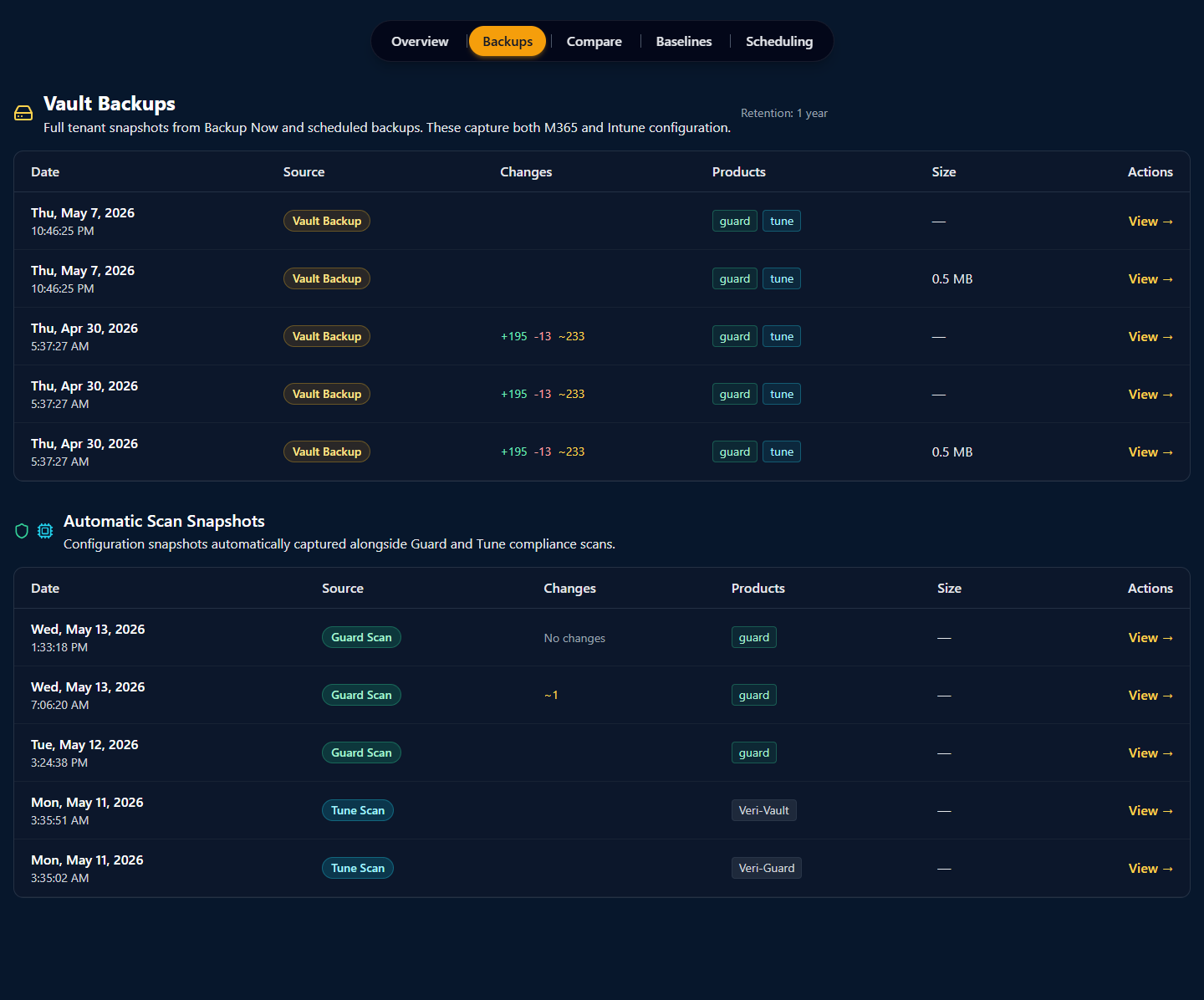
Read each row top-down:
- Date + time — capture timestamp.
- Source —
Vault Backup(manual + scheduled) orGuard Scan/Tune Scan(auto-captured). - Changes —
+N(added),-N(removed),~N(modified) compared to the previous snapshot in the same series. Devlab example:+195 -13 ~233on Apr 30 = 195 policies added, 13 removed, 233 modified vs. the prior snapshot. - Products — which Veri-Tech products' scans contributed (chip rendered for each).
- Size — total compressed size of the snapshot blob.
- Actions —
View →opens the per-snapshot detail page.
The retention badge ("Retention: 1 year" in the devlab example) sits next to the table title and reflects your plan tier — 90d Pro / 1y Ent / 3y MSP.
7.2 · Per-snapshot detail (/vault/backups/[jobId])
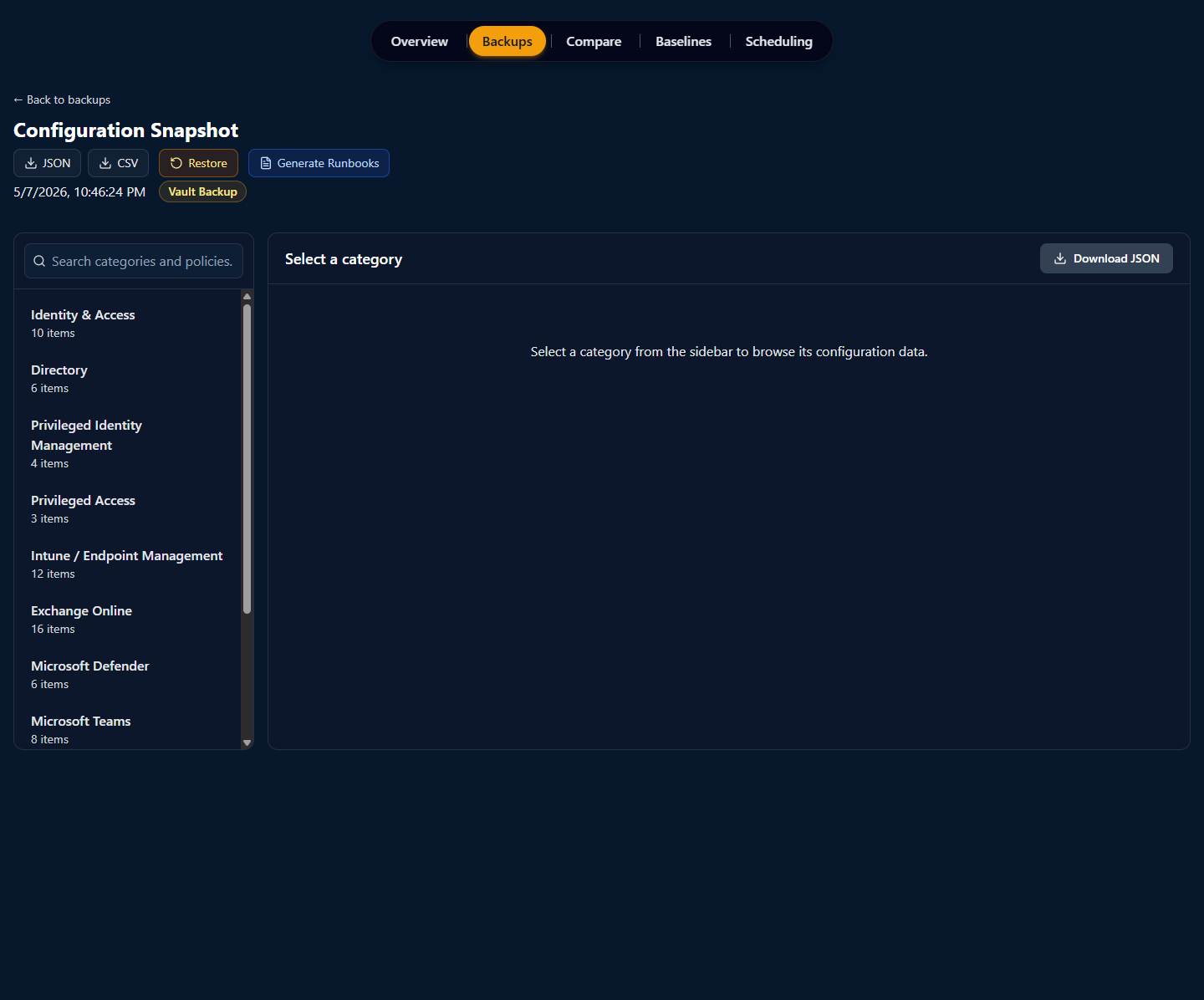
The per-snapshot detail page is where you actually look at what a snapshot contains. The left sidebar enumerates the categories from §6 with per-category item counts; clicking a category renders that section's policies on the right with a search box at the top of the sidebar that searches across all categories simultaneously.
Four actions on the snapshot:
- JSON — download the full snapshot as a single JSON file, useful for downstream tooling or git-committed config-as-code.
- CSV — download a flattened CSV of every policy across every category, useful for spreadsheet review.
- Restore — open the §9 flow against this snapshot.
- Generate Runbooks — produce a markdown runbook describing each policy and how to deploy it manually, useful when you want change-management to execute the restore by hand rather than via Veri-Vault's automated path.
8 · Comparing snapshots
The Compare page is where snapshots become an investigation tool. Pick a baseline and a current snapshot; Veri-Vault computes the structural diff between them, annotates each change with the compliance controls it affects, and surfaces the per-category counts.
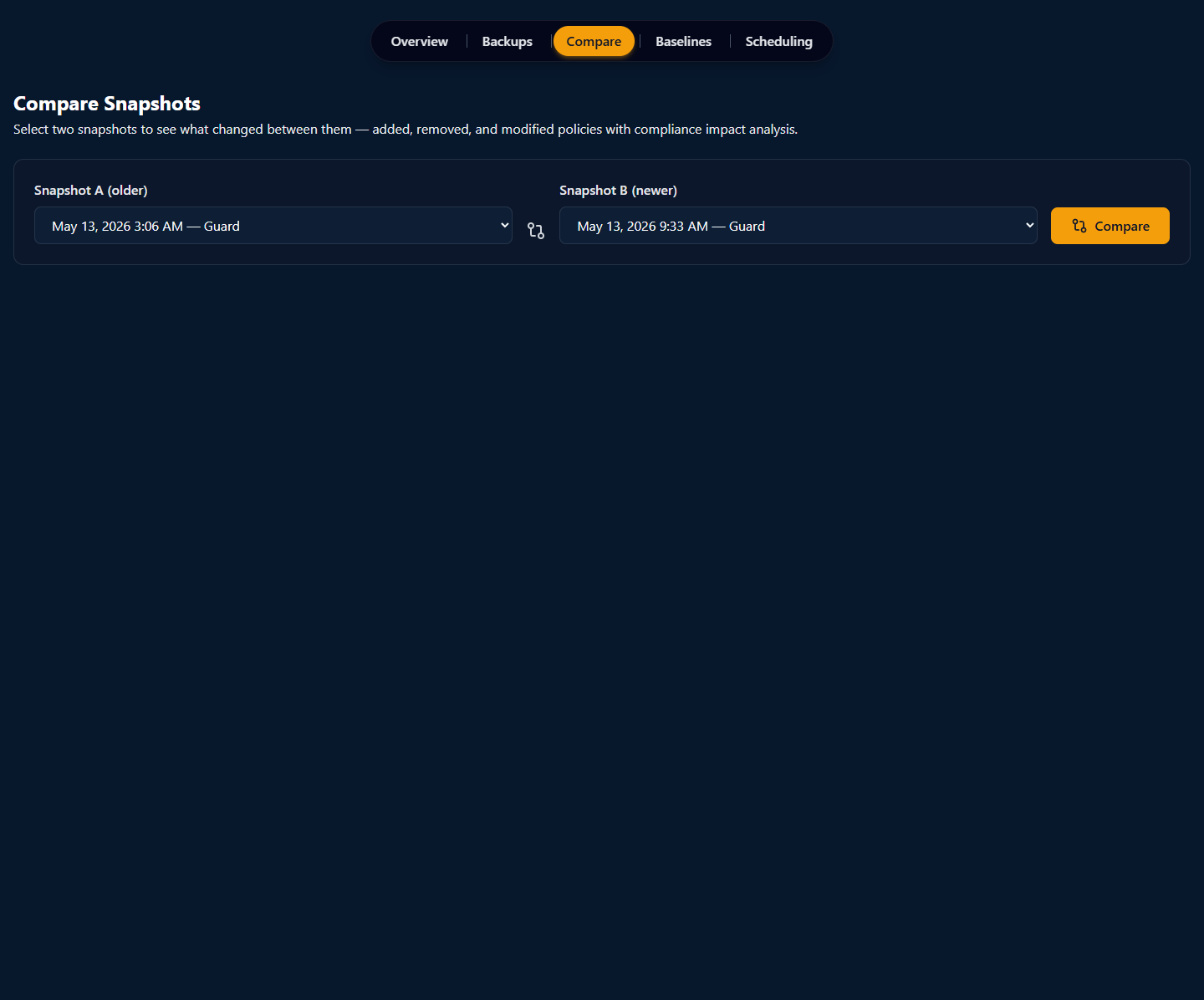
The output panel (once both snapshots are selected and the analysis runs) reads top-down:
- Headline counts — total Added, Removed, Modified across the snapshot. Useful for the "is this big enough to bring to the change-review meeting?" decision.
- Per-category breakdown — same Added / Removed / Modified counts but scoped to Identity / Intune / Exchange / Teams / SharePoint / Defender. The category that owns the most movement is usually where to look first.
- Per-policy diff — every changed policy as its own row with the before / after values shown side-by-side. Filter by category, severity, or framework.
- Compliance impact — each modified policy carries an annotation describing which controls (CIS, NIST, ISO 27001, SOC 2, HIPAA, etc.) the change affects, and whether the change moves you closer to or further from compliance with each.
- CSV export — the entire diff as a CSV for downstream tooling.
The Compare view is the only place in Veri-Vault where you make decisions about whether a change was intentional or drift. If it's drift, the natural next step is restoring from the baseline (§9). If it's intentional, you typically promote the current snapshot to a new baseline (§10.1) so future comparisons measure from the updated state.
9 · Restoring configuration
Restoring on a live tenant is a three-step flow with the two-admin gate at the center. The three steps are intentionally separate URLs so each can be linked, audited, and resumed independently.
9.1 · Restore selection (/vault/restore/[snapshotJobId])
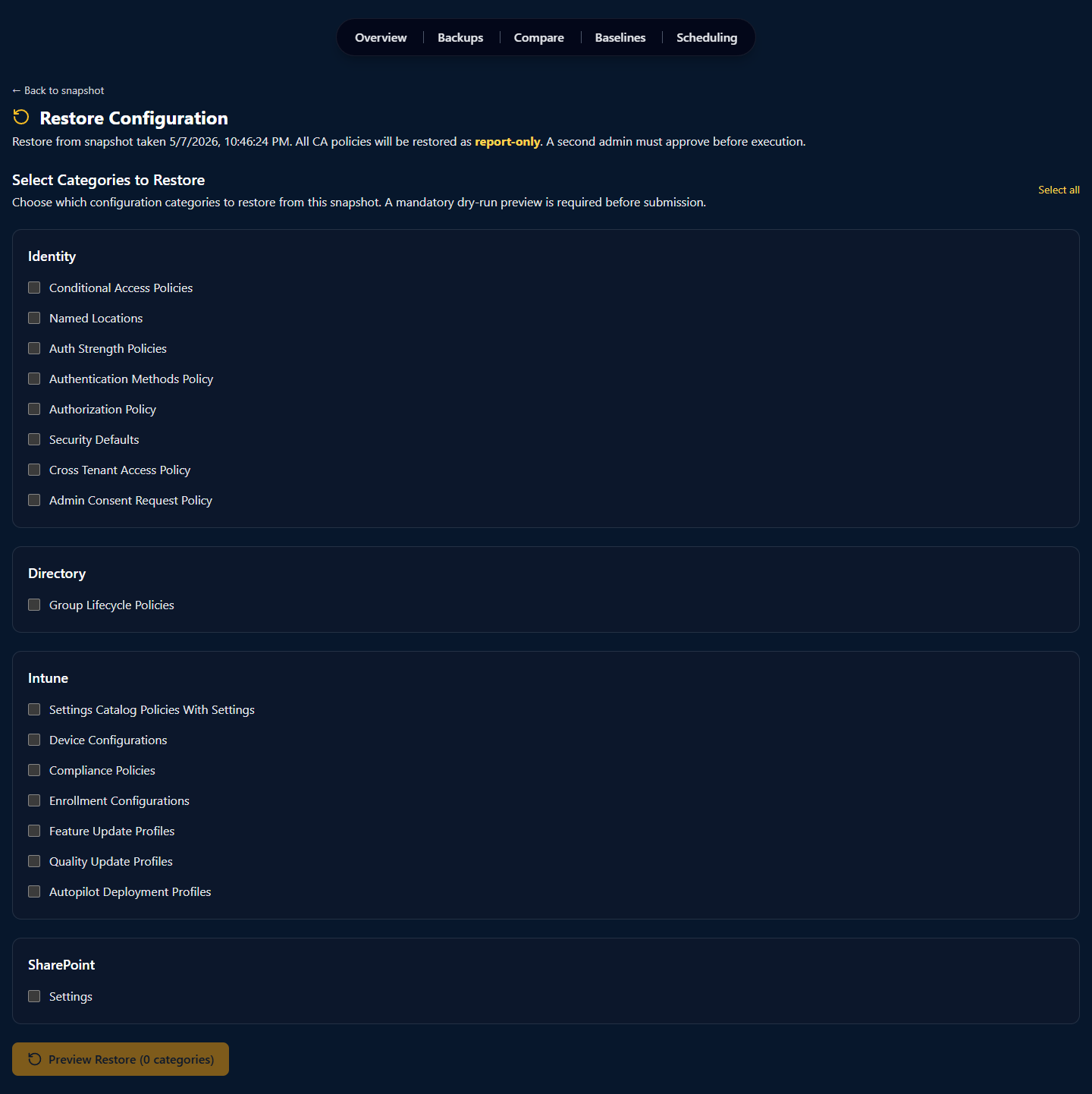
The selection page is where the initiating admin chooses which categories to restore. Two things to call out:
- The yellow callout is not aspirational — both clauses are enforced in the worker code. There is no UI path or API path that lets you skip the report-only deployment for Conditional Access or the second-admin approval gate.
- The Preview Restore CTA is mandatory. You cannot submit a restore directly from the selection page — you must first run the dry-run, which lands you on the approve URL where a different admin signs off.
9.2 · Approval gate (/vault/restore/approve/[requestId])
The approval page (URL receives a one-time requestId from the dry-run) is what the approving admin opens. Veri-Vault refuses to render the approve action if auth.user.id === requestor.id — same identity on both sides fails the gate before any write fires.
The approving admin sees:
- The dry-run diff preview — every item the restore would create, every item it would update, every item with a conflict against current tenant state. Per-category counts repeated.
- An expiration timer — restore requests expire after a short window (typically 1 hour) if not approved, so a stale dry-run can't be re-used.
- Approve / Deny actions — approve dispatches the worker; deny logs the decision in the Activity Log and ends the request.
Once approved, the restore enters the worker queue and the URL switches to the status page.
9.3 · Execution status (/vault/restore/status/[jobId])
The status page polls the worker every few seconds and renders real-time progress: which category is being processed, how many items have been written so far, how many remain. On success, the page transitions to a per-category result panel with the count of items created vs. updated vs. failed; on failure, the panel surfaces the failure reason inline. Either way, the elevated write grant is revoked the instant the worker exits.
The Veri-Vault Activity Log (§10.3) records the full chain — selection event, dry-run timestamp, approval event, execution start, execution end — as an append-only audit trail.
10 · Baselines, scheduling, and the activity log
The three Enterprise-only feature surfaces beyond Compare and Restore — Baselines for golden-config tracking, Scheduling for recurring backups, and Activity for audit-grade history.
10.1 · Baselines (/vault/baselines)
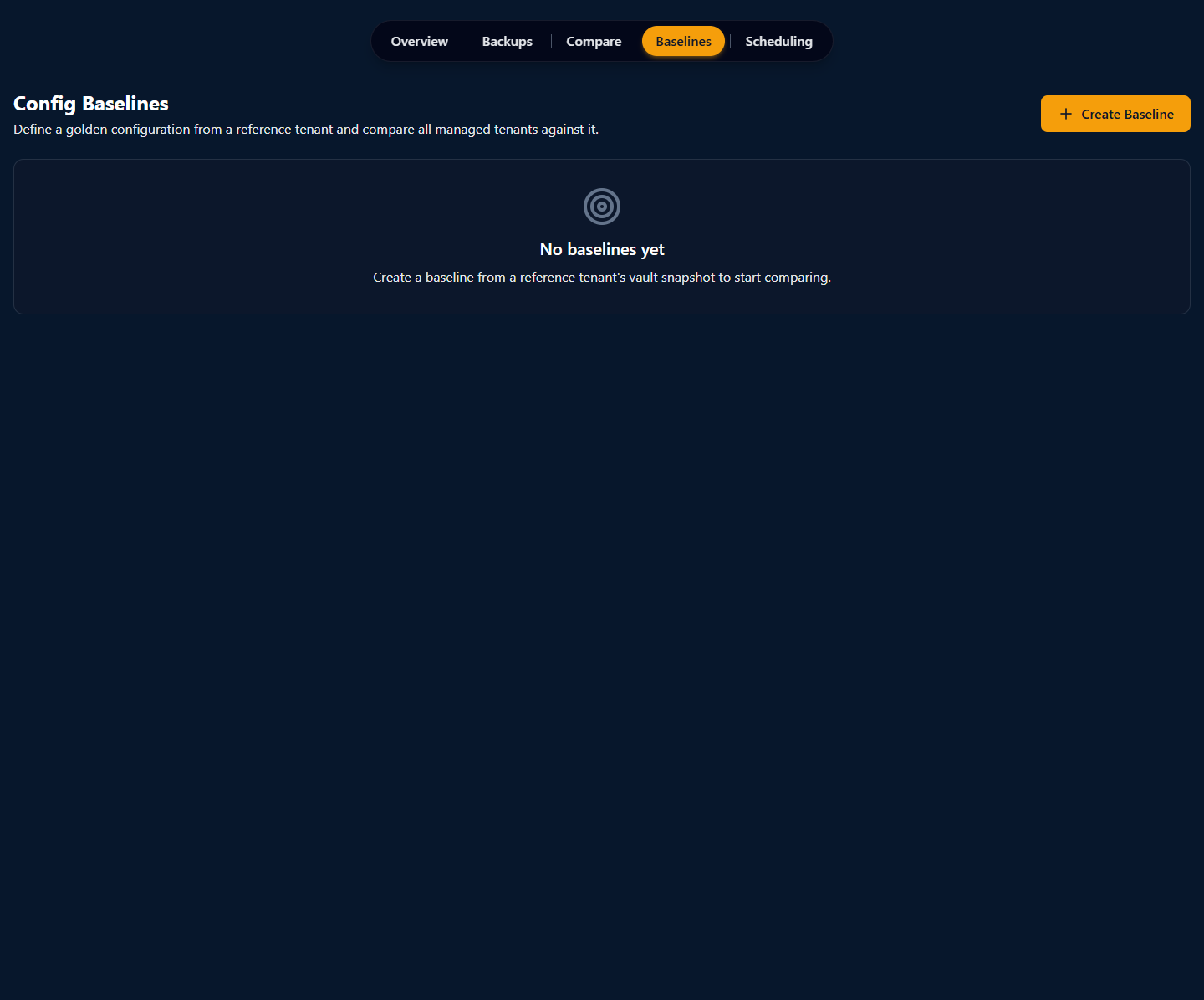
A baseline is created by promoting an existing snapshot — typically the configuration of a reference tenant or a known-good point in time. Baseline details live at /vault/baselines/[baselineId] and include a conformance table: per-target-tenant comparison against the baseline, with the same Added / Removed / Modified counts you get from Compare, plus a compliance-impact summary. For MSPs, this is how you find the "one tenant that's drifted off the reference" without manually opening every Compare view.
10.2 · Scheduling (/vault/scheduling)
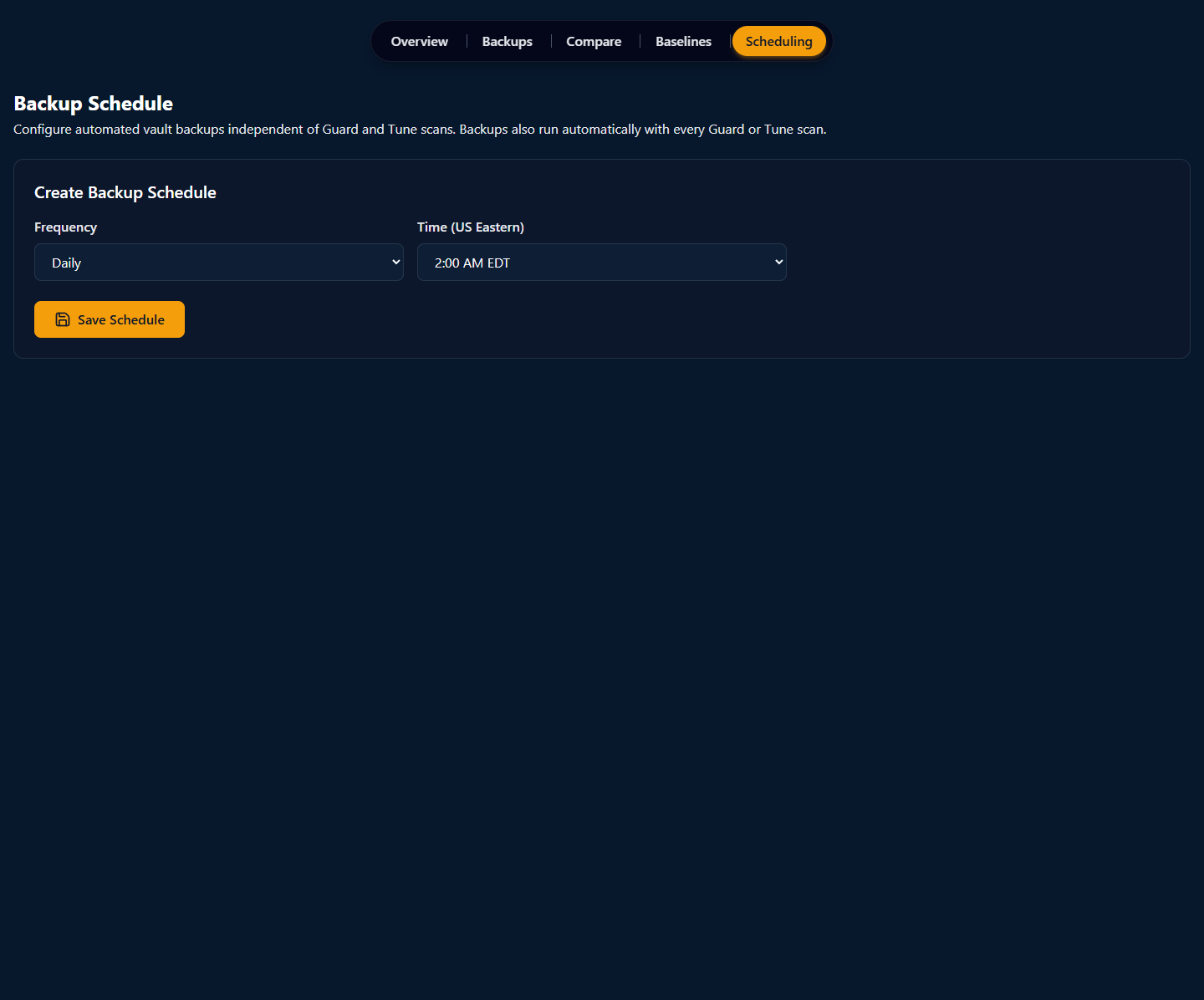
The Scheduling page is a single-form surface: pick a frequency, pick a time of day, save. Existing schedules render as cards above the create form with an Edit / Disable / Delete action set. A common pattern is a daily Vault Backup overlay on top of your weekly Guard scan cadence — so a sudden config change between Guard runs still has a snapshot to compare against.
10.3 · The Vault Activity Log (/vault/activity)
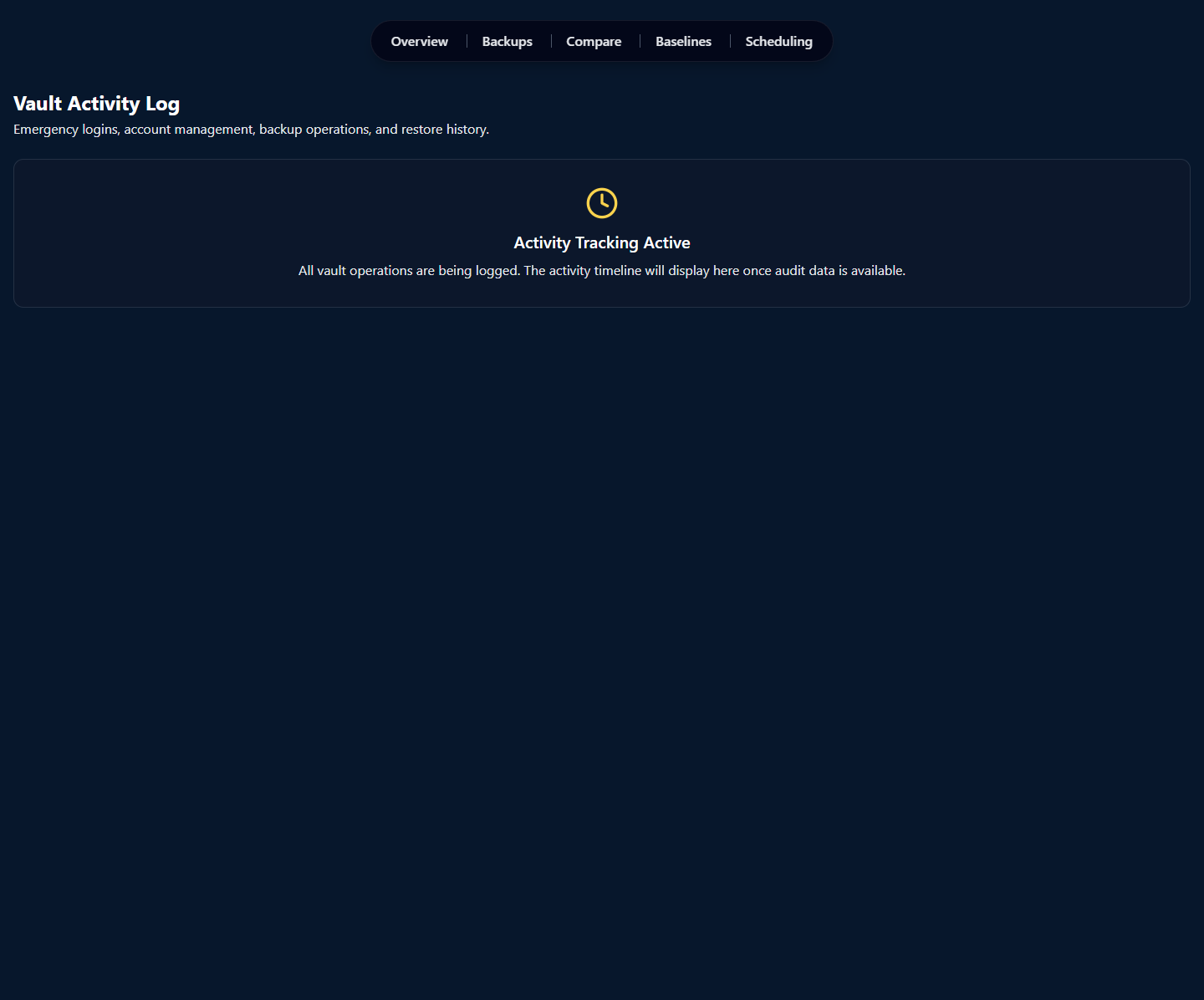
The Activity Log is the artifact you bring to a compliance review. Filter by event type (Backup / Restore / Emergency Login / Export), by admin identity, or by date range; every entry expands to show the full payload (which categories were restored, which dry-run was approved, which TOTP-backed emergency login fired). Append-only; there is no UI or API path to modify or delete entries. Aligns with SOC 2 CC7.2 (system operations monitoring) and HIPAA §164.312(b) (audit controls) as auditor-friendly evidence.
11 · Where to go next
You've now seen every page Veri-Vault puts in front of you. The fastest way to internalize the rest is to run a snapshot against your own tenant:
- Sign in and open Veri-Vault at
/vault. - Click "Backup Now" in the hero to capture your first manual snapshot, or open any prior Guard or Tune scan to see the auto-captured snapshot already in your vault.
- Click "View →" on a snapshot row to open the per-snapshot browser and walk the category sidebar.
- (Enterprise) Open
/vault/compare, pick two snapshots, click Analyze, and read the per-category diff. - (Enterprise + when you have a real restore use case) Open the §9 flow: select categories, run the mandatory dry-run, have a different admin approve, watch the execution status.
The IR Tabletop feature — the "Generate DR / Restore Tabletop" card on the /vault overview — is its own deeper surface (live facilitation, attendee read-only view, locked audit evidence with 6-year retention). The five-to-eight-step recipes for facilitating a drill live separately at /support/tutorials. If anything in this guide is unclear or you'd rather walk through it with a person, the Book a Call link in the page footer reaches an intro session.