
This guide walks every Veri-Tune surface in the order you'll encounter it — from the dashboard tile through the Veri-Tune overview, the new-assessment wizard, a live scan, the results page, the remediation flow, and the drift / history / scheduling pages that close the monitoring loop.
1 · What Veri-Tune is
Veri-Tune is a Microsoft Intune configuration assessment and remediation engine. It connects to your tenant over the Microsoft Graph API, reads the device-management configuration that's actually deployed — Configuration Profiles, Compliance Policies, App Protection (MAM) Policies, Security Baselines, Endpoint Security policies, and Settings Catalog policies — and scores it against community-curated baselines including the OpenIntuneBaseline (OIB) and Veri-Tech's own Veri-Tune Level-1 / Level-2 baselines for Windows, macOS, iOS / iPadOS, and Android.
Veri-Tune is unique in that it scores every control on two axes: Protection (the policy is actually enforced on devices) and Readiness (the policy is configured correctly in the tenant). A policy that's perfectly configured but unassigned to any device group lands at 100% Readiness and 0% Protection — a real gap that single-axis tools miss.
The default operating mode is read-only. When you choose to deploy a missing baseline policy, update a misconfigured setting, or assign an unassigned policy to a device group, Veri-Tune requests Just-in-Time write permissions, applies the change, and surrenders the elevated access. Standing access stays read-only — the same Just-in-Time model that runs Veri-Guard runs Veri-Tune.
2 · Where you'll find Veri-Tune in your portal
Veri-Tune lives behind one card on your dashboard.
Clicking through lands you on the Veri-Tune overview at /tune. This is the home page for every Veri-Tune surface — a tab strip at the top exposes Overview, Setup, New Scan, History, Compare, and Scheduling, and the body of the Overview tab is what's pictured below: a hero band with the four headline stats, the three-step process cards, the last-scan configuration row, and the Recent Activity log.
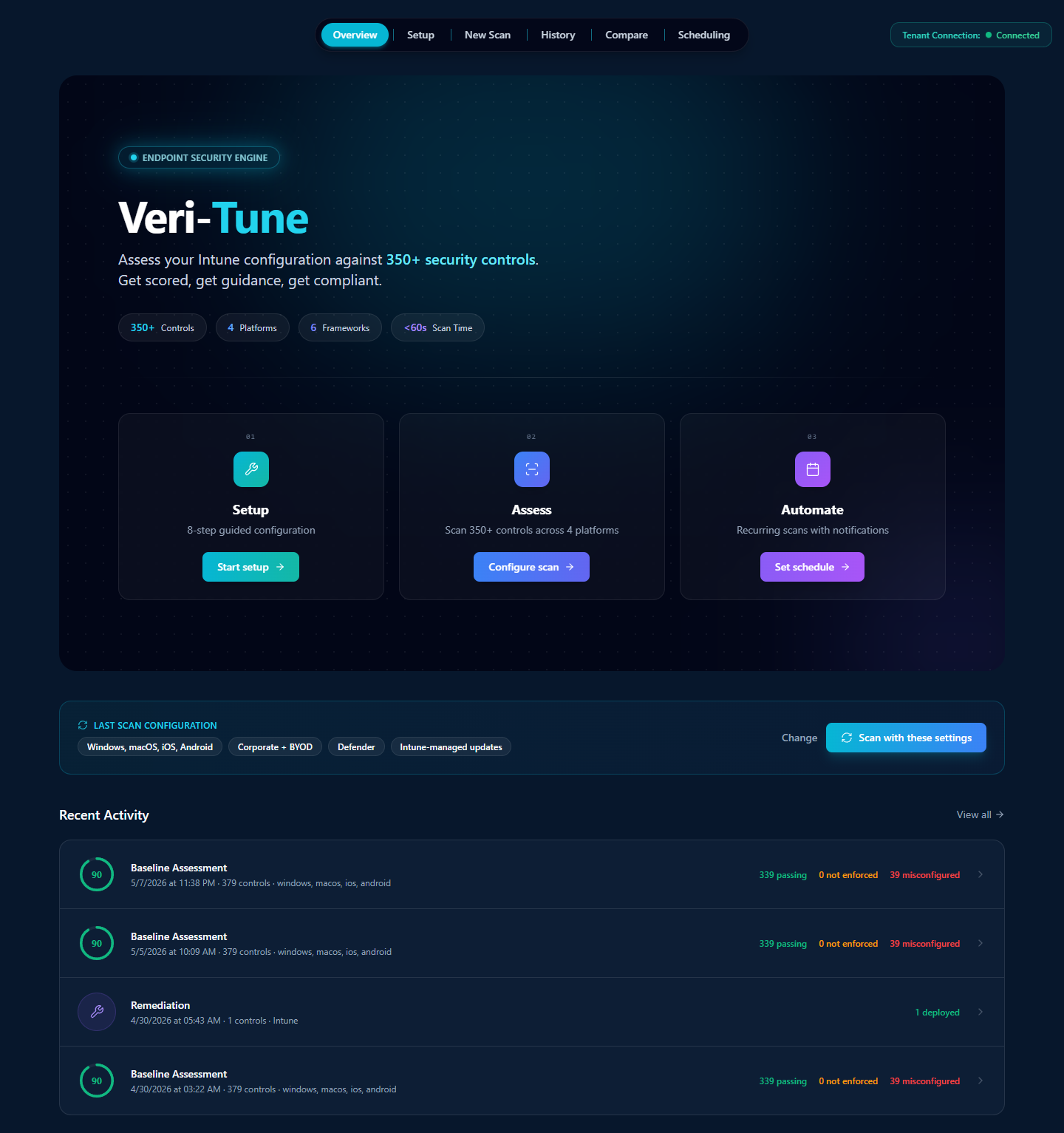
The three step cards across the middle of the overview are the conceptual model for the entire product. §3 walks each one in turn.
3 · How Veri-Tune works
Veri-Tune is organized around a three-step flow: a one-time guided setup of your Intune tenant, a parameterized assessment that scores it against ~379 controls, and (optionally) a recurring schedule that re-runs the assessment without you having to remember to.
Step 01 — Setup
From the Veri-Tune overview, click "Start setup" on the Step 01 card to open the Guided Setup page at /tune/setup. The page walks the prerequisites Intune needs before any device-policy assessment is meaningful: connect Intune via the Graph API, verify Intune licensing, set the MDM authority, enable Windows auto-enrollment, configure enrollment restrictions, set up Conditional Access, create an emergency-access account, choose the endpoint-security platform, brand the Company Portal, configure Autopilot, and so on. §7.1 walks the page in detail.
Step 02 — Assess
The New Assessment wizard (/tune/onboarding) is a five-step parameter selector — Managed Platforms, Device Ownership, Update Management, Endpoint Security, and a Review & Start screen — that pre-fills from your last scan so most of the steps are click-Next-to-confirm. The Graph API reads your tenant's full Intune configuration and finishes a four-platform scan in roughly thirty seconds. §7.2–§7.6 walk each wizard step.
Step 03 — Automate
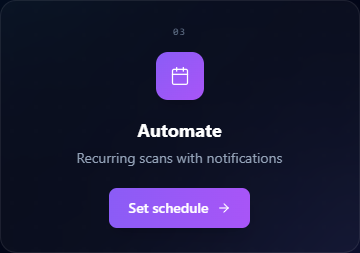
After your first scan, Veri-Tune can run the same assessment on a schedule (daily, weekly, monthly, or custom). Drift between the previous and current scores is highlighted on the Score Trends page; configurable email and webhook notifications fire when a run completes. §10 covers drift, history, and scheduling in detail.
4 · Data handling and Graph permissions
Two things are true of Veri-Tune's data handling and they're enforced at the Graph permission boundary:
- The default operating mode is read-only. Veri-Tune's standing permissions read your Intune configuration — never your device data. No telemetry events, no installed-app inventories, no diagnostic uploads, no user passwords.
- Write permissions are Just-in-Time. When you click Remediate, Update Settings, or Assign Existing Policies, Veri-Tune requests the specific write scope it needs, performs the change, and the elevated grant lapses. Your tenant never has standing write access from Veri-Tune.
Standing read scopes (active for assessment):
DeviceManagementConfiguration.Read.All— Configuration Profiles, Settings Catalog policies, baseline policiesDeviceManagementApps.Read.All— App Protection (MAM) Policies, App Configuration, app assignmentsDeviceManagementServiceConfig.Read.All— Intune service settings, MDM authority, enrollment restrictionsDeviceManagementManagedDevices.Read.All— managed device inventory and assignment statusGroup.Read.AllandDirectory.Read.All— to resolve assigned device / user groups
Just-in-Time write scopes (only activated by an explicit remediation click):
DeviceManagementConfiguration.ReadWrite.All— for Settings Catalog and Configuration Profile remediationDeviceManagementApps.ReadWrite.All— for App Protection Policy remediationDeviceManagementServiceConfig.ReadWrite.All— for tenant-level Intune service-settings changes
The Microsoft consent screen at the JIT moment enumerates every scope line by line; nothing is hidden behind a single coarse permission.
5 · Safety controls and remediation guarantees
Veri-Tune's automation model exists to not break your device fleet. The same eight guarantees that govern Veri-Guard remediation govern Veri-Tune:
- Per-policy scope. Every write operation targets one specific policy; bulk operations are explicit batches you assemble in the planner, not background mass writes.
- JIT write permissions. Granted at the moment of remediation and lapse with the access token's one-hour TTL. Standing access stays read-only.
- Disruption risk ratings are surfaced before every remediation click — calibrated to the specific change being deployed (low for App Protection updates, higher for Conditional-Access-adjacent compliance policies).
- Prerequisite checks automatically skip controls whose required Intune licenses or service prerequisites aren't present in your tenant.
- Policy assignment is opt-in. Newly created or updated policies are deployed but never assigned to a device group automatically — you assign them yourself via the Assign Existing Policies card or the Intune admin portal.
- Plan-Guided Remediation classifies every failing control into Auto-Deploy, Override (update existing), Runbook Only, or Accept Risk so you always see what's about to happen before granting write consent.
- Full audit trail logs every write with before-and-after values and the admin who authorized it.
- The plan-guided "Excluded" bucket captures controls that are missing licenses, end-of-life, require your input, or are not applicable — you're never asked to consent to write operations that are guaranteed to fail.
6 · Baselines and frameworks covered
Veri-Tune assesses against a per-platform control registry. As of the current release, the registry version is v4.5.0 with ~379 controls spread across:
- Windows — ~265 controls. OpenIntuneBaseline (OIB) Windows + Veri-Tune Windows L1 / L2 + EIDSCA-mapped device-side controls.
- macOS — ~35 controls. CIS Apple macOS benchmark + Veri-Tune macOS L1 / L2.
- iOS / iPadOS — ~43 controls. Veri-Tune iOS L1 / L2 + App Protection Policy (MAM) baseline.
- Android — ~50 controls. Veri-Tune Android L1 / L2 + Android Enterprise work-profile baseline + App Protection Policy (MAM) baseline.
Beyond per-platform baselines, every control is cross-mapped to the relevant compliance framework so one Veri-Tune assessment populates evidence for every framework you report against:
- CIS Microsoft 365 (Intune-mapped sections)
- NIST 800-53 and NIST CSF (configuration-management and access-control families)
- ISO 27001 (Annex A.8 asset management, A.9 access control)
- SOC 2 Type II (Trust Services Criteria CC6 logical access)
- HIPAA (Technical Safeguards — paired with the HIPAA add-on for full coverage)
- CISA SCuBA (mobile / endpoint configuration baselines)
The exact registry version and platform set used for any given scan is shown next to the H1 on the results page — so an audit reviewer can always reproduce the registry state behind a specific evidence package.
7 · Running your first scan
From the moment you click "Start setup" or "Configure scan," the next surfaces — the guided setup page, the five-step new-assessment wizard, and the in-flight scan progress — are the entire first-scan experience.
7.1 · Guided Setup (/tune/setup)
The Guided Setup page is the prerequisite checklist Intune needs before a device-policy assessment is meaningful. The page header carries a progress counter ("4 of 13 complete" in the devlab example below) and the highest-priority "NEXT STEP" card tells you what to do next.

Each prerequisite row is a self-contained gate: a one-line description of what Intune needs, an "Action Needed" / "Active" / "Complete" status, an inline explanation of what Veri-Tune will check for, and four actions — Open Microsoft Learn (deep-link to the relevant Microsoft docs page), Scan Prerequisites (re-check this specific item only), I've configured this (manual mark-complete), or Skip for now.
The full thirteen-step list covers tenant connection, licensing, MDM authority, Windows auto-enrollment, enrollment restrictions, Conditional Access, an emergency-access account, the endpoint-security platform choice, Company Portal branding, Autopilot Deployment Profile, Enrollment Status Page, Autopilot Device Group, and Autopilot Device Registration. You don't need every step done before running a scan — but unmet prerequisites surface as failed controls in the assessment, so working through them up front gives you a cleaner first scan.
7.2 · New Assessment wizard, step 1 — Managed Platforms (/tune/onboarding)
Click "New Scan" in the tab strip (or "Configure scan" on the Step 02 card) to open the New Assessment wizard. Step 1 picks the device platforms to scan.
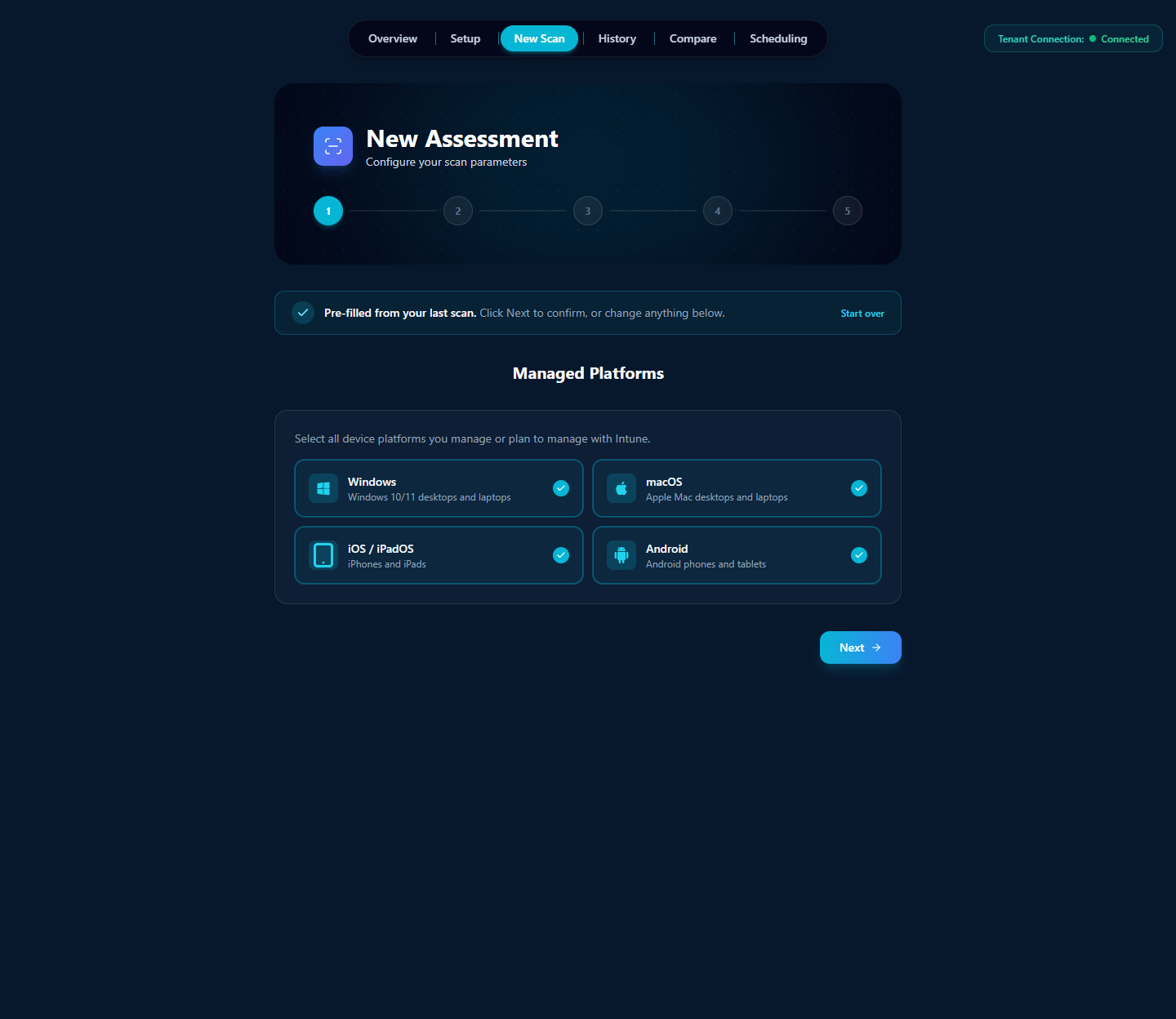
The four platforms are independent — selecting macOS only is valid for a Mac-only tenant, but the scan will only execute the ~35 macOS controls and the score will reflect that smaller registry. The wizard pre-fills from your last scan's selection so most subsequent runs are a click-Next confirmation.
7.3 · Step 2 — Device Ownership
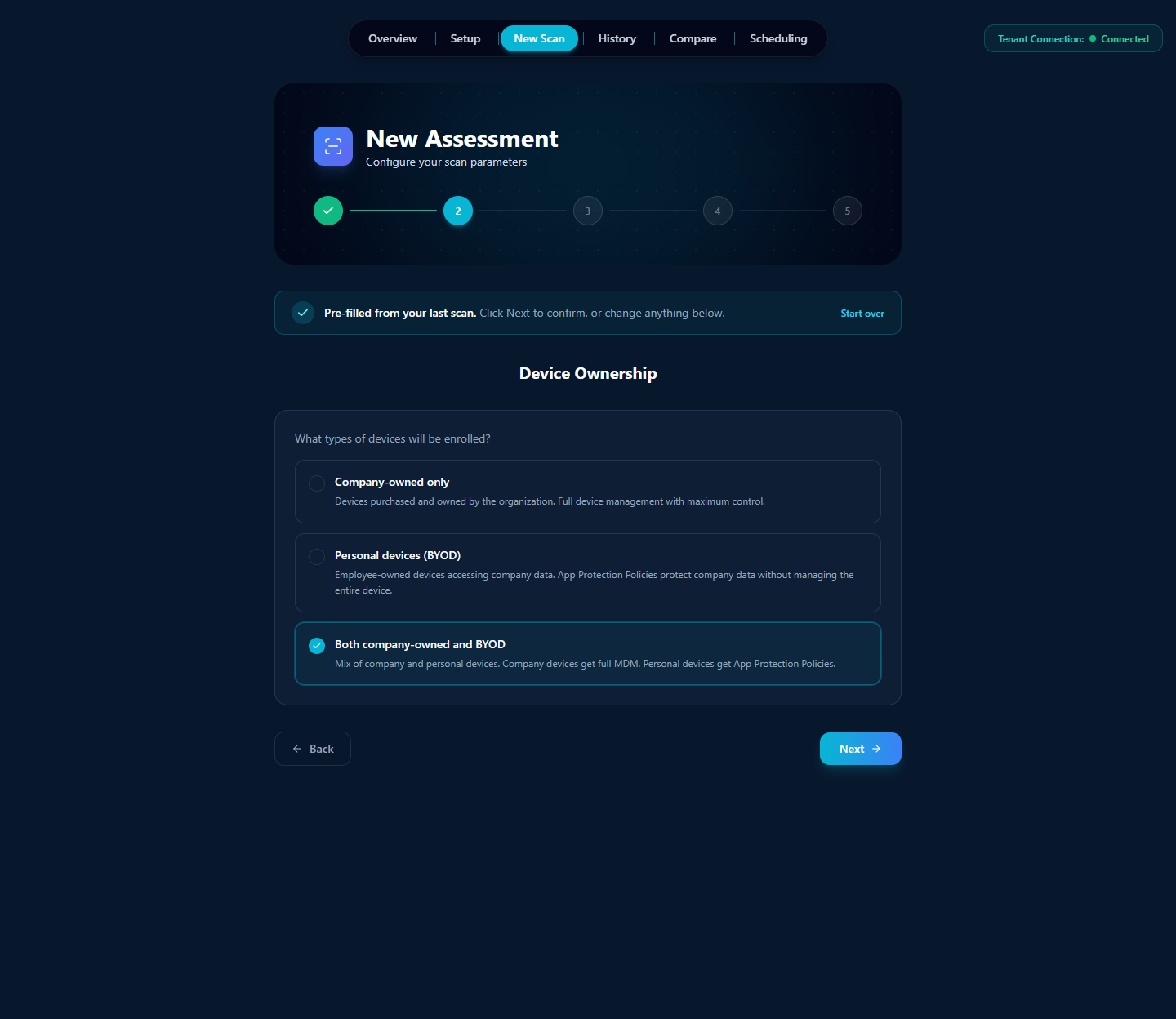
The choice between Company-owned, BYOD, and Both is meaningful: full-MDM controls (Configuration Profiles, Compliance Policies that apply at the device level) run for company-owned devices, and App Protection Policy (MAM) controls run for personal devices. The "Both" option runs both control sets and the assessment scores them together — the right choice for most enterprises mixing corporate-issued laptops with employee phones.
7.4 · Step 3 — Update Management
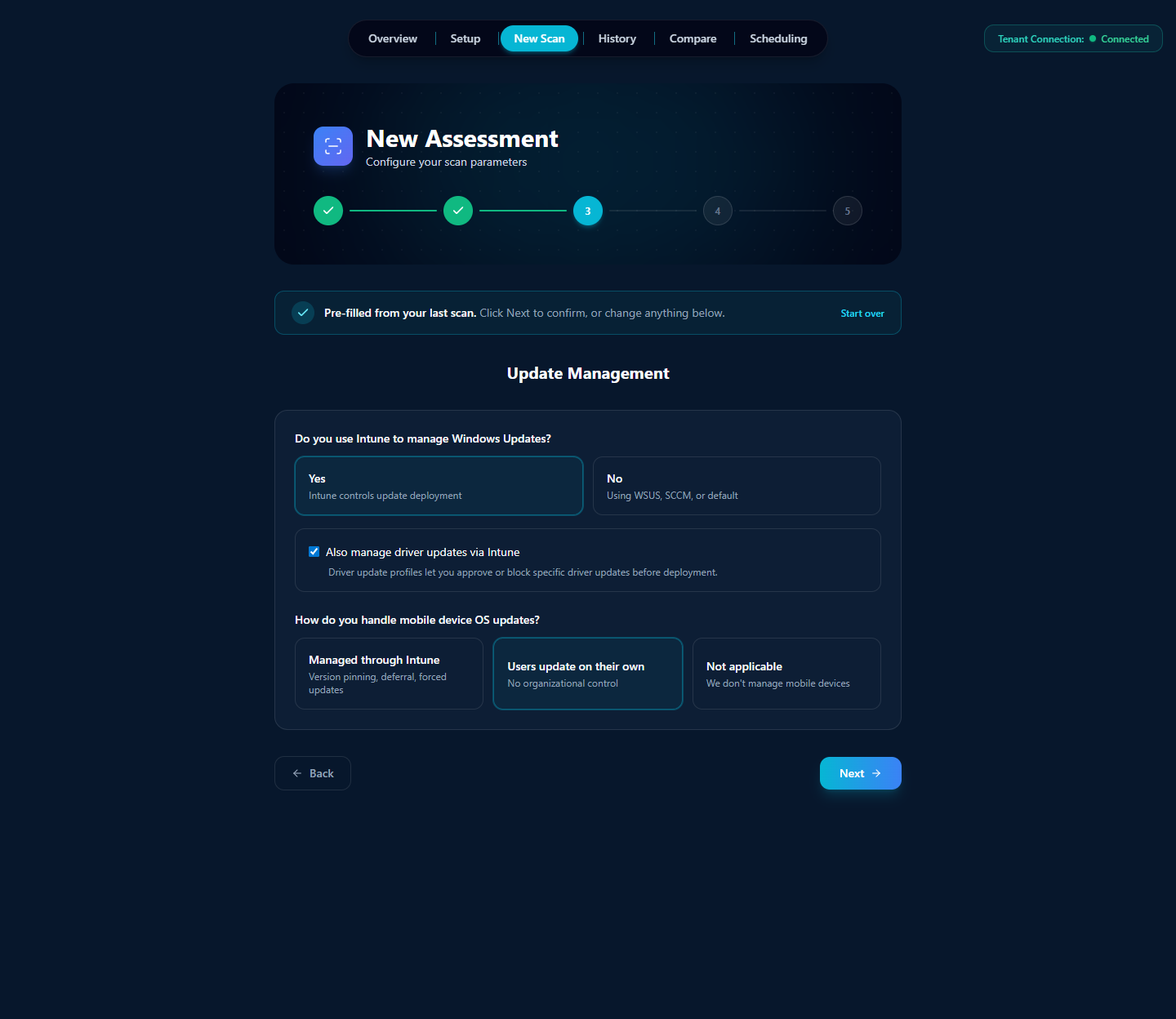
If you don't use Intune for Windows updates (you're on WSUS, SCCM, or relying on Windows Update default behavior), the Update Ring controls are excluded from your scan and your score; same for mobile OS updates. The driver-update toggle adds the Driver Update Profile controls.
7.5 · Step 4 — Endpoint Security
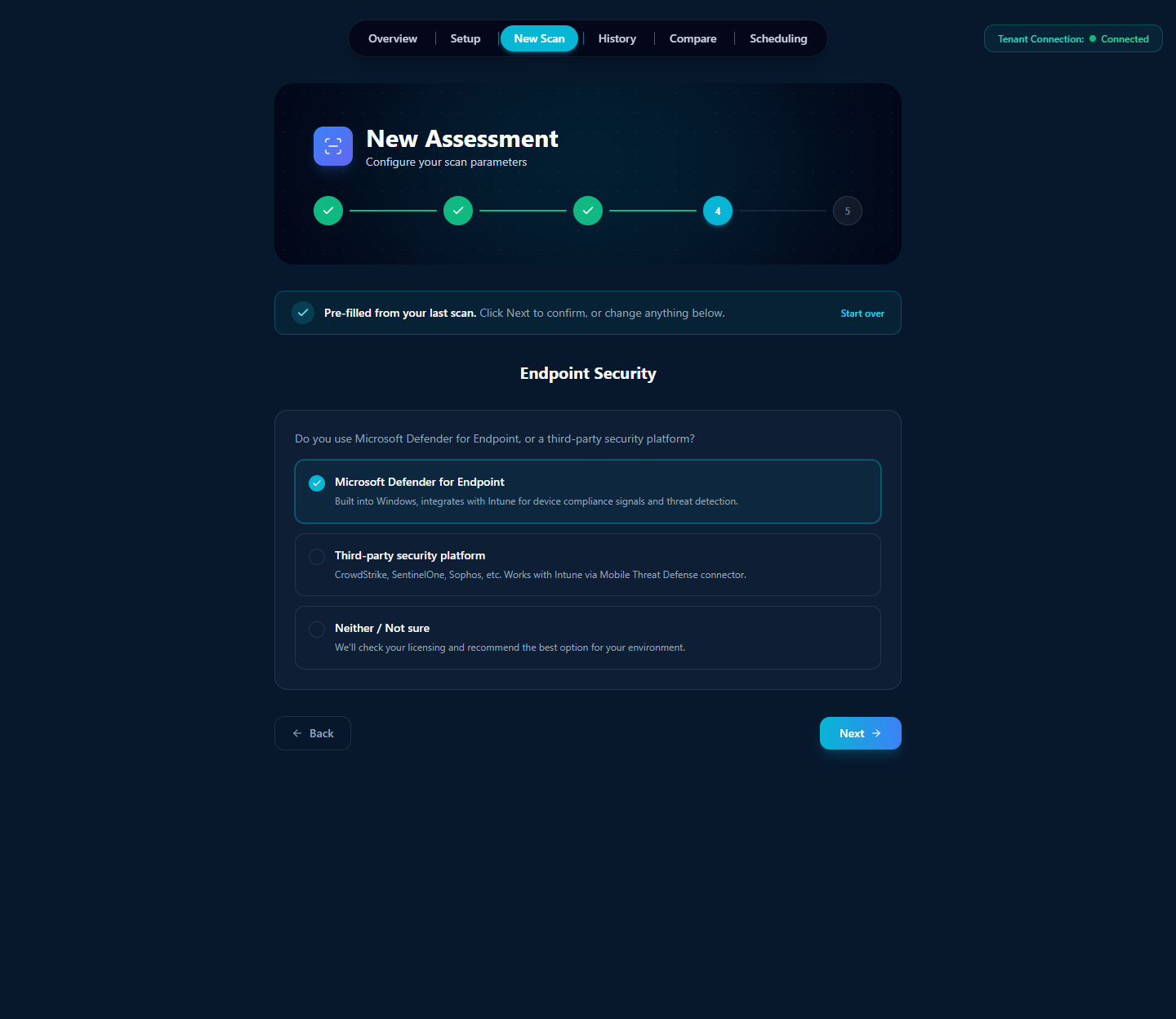
The choice changes which Endpoint Security controls run: Defender-specific compliance signals only score for Defender tenants, MTD-connector controls only score for third-party MTD tenants. "Neither / Not sure" runs the assessment in a license-aware mode that detects what's actually present.
7.6 · Step 5 — Review & Start
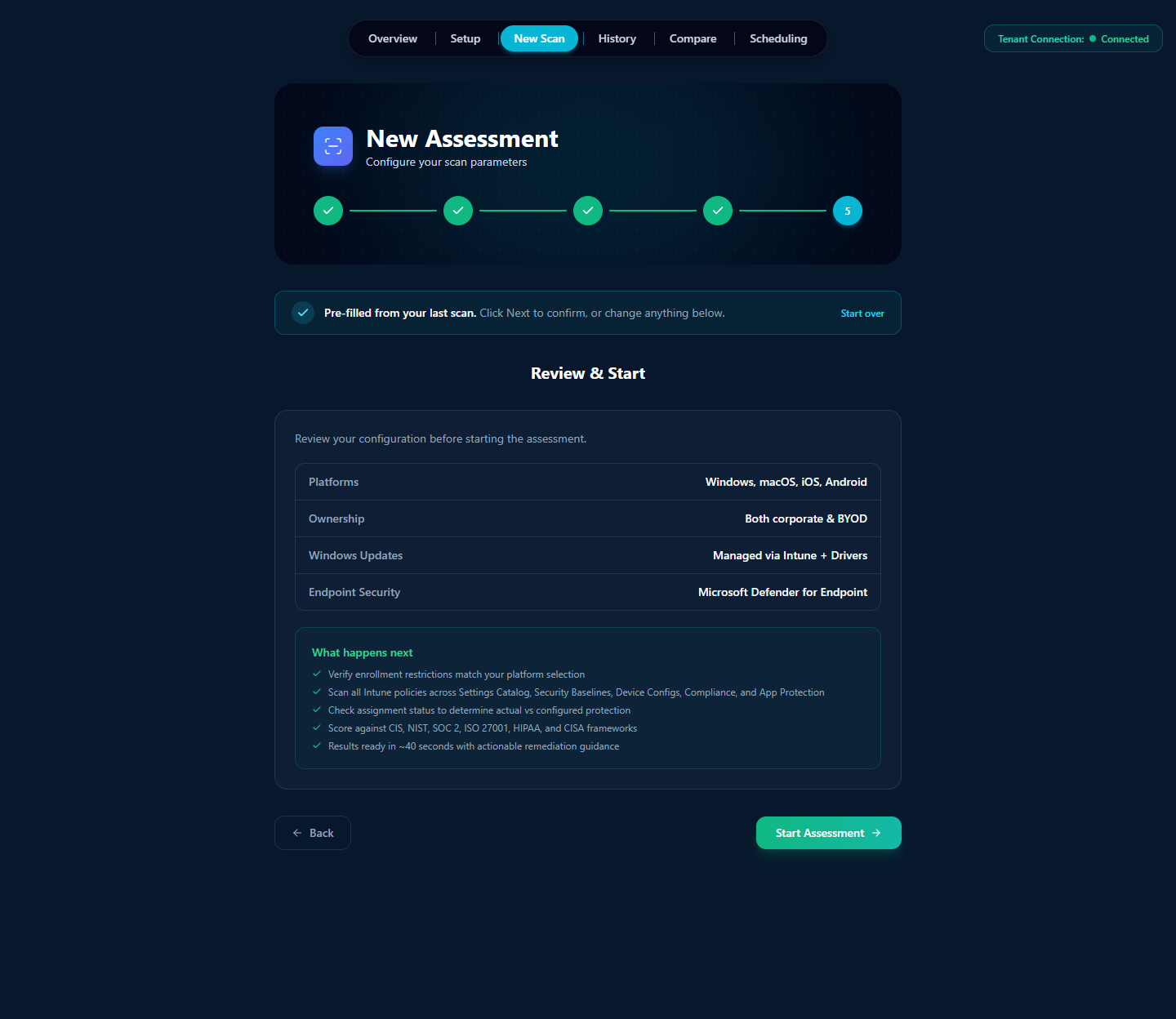
Click "Start Assessment." Veri-Tune connects to Graph, runs the registry against your tenant in roughly thirty to sixty seconds, and auto-advances to the results view at /tune/[jobId]. That's §8.
8 · Reading the results
The results page (/tune/[jobId]) is the densest surface in the product. Every analysis tool, export action, attestation builder, and the formal scored compliance picture itself all live on one scrollable page. Read top to bottom, the page organizes itself into three bands:
- Page header + cross-product entry-points — the H1 with the registry version and Job ID, an Export menu, the Generate Device-Compromise Tabletop card, the Policy Insights summary, and the Remediation Planner entry.
- The scored picture — Assessment Score (Protection + Readiness donuts), Assign Existing Policies (the JIT-revoked-but-still-ready cleanup), Cross-Product Controls (controls owned by other Veri-Tech products that affect your Tune score), and the Remediation Impact Estimator.
- The detail surfaces — Framework Compliance, Control Results table, and Remediation History.
The rest of this section walks each in that order.
8.1 · Page header and Export

The H1 carries the live control count for this scan (379 in the devlab example because all four platforms + corporate + BYOD were selected). The line below pins the exact registry version, scanned platforms, and ownership scope so the same scan parameters are auditable later. The Job ID is the unique identifier you cite in support tickets and your own change records.
8.2 · Generate Device-Compromise Tabletop
Veri-Tune ships a Device-Compromise tabletop generator that takes your scan data and produces a facilitator-ready incident-response exercise — scenarios drawn from the actual device-policy gaps in your tenant, injects timed for a live drill, and a scoring rubric to grade your team's response.
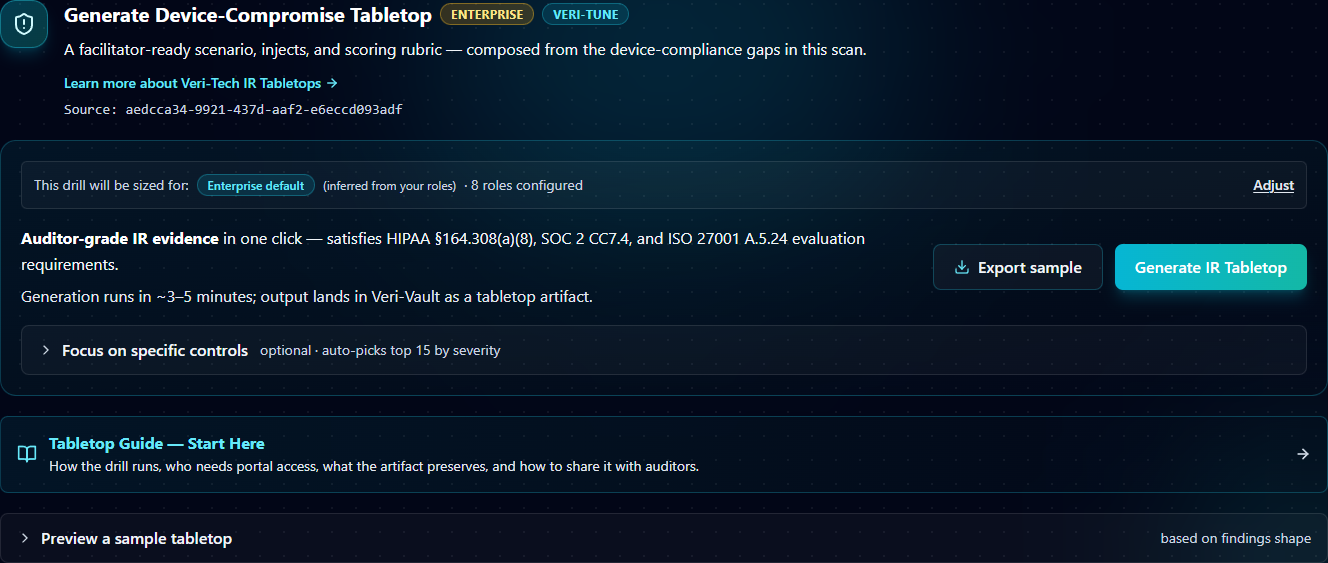
Click "Generate IR Tabletop" and the exercise runs as a Veri-Vault tabletop session — facilitator dashboard, attendee read-only view, the works. Generation takes three to five minutes; output lands in Veri-Vault as a tabletop artifact you can share with auditors or run live with your team.
8.3 · Policy Insights
The Policy Insights summary surfaces an underappreciated source of Intune risk: settings that exist in multiple policies and disagree on the correct value.

The detailed view (/tune/[jobId]/policy-insights) lists every conflicting or redundant setting with the policies that contain it, the values each policy sets, and a remediation hint — typically consolidate the conflicting policies into one source of truth or delete the inactive duplicate.
8.4 · Remediation Planner entry
The Remediation Planner card is a thin entry point — it generates an AI plan that classifies every failing control for auto-deployment, runbook generation, or risk exception, and queues them up for the full Remediation flow. The deep walkthrough of the planner — Plan-Guided Remediation, Selection Summary, Projected Impact, the action table, the JIT consent moment — lives in §9.

From the results page, just know: click "Plan Remediation for N Controls," wait twenty to thirty seconds for the AI to classify each failing control, then click "Open Remediation Planner" to land on the full flow. The full multi-step remediation story is §9.
8.5 · Assessment Score
Below the cross-product entry points sits the formal scored picture of your tenant — the Assessment Score panel.
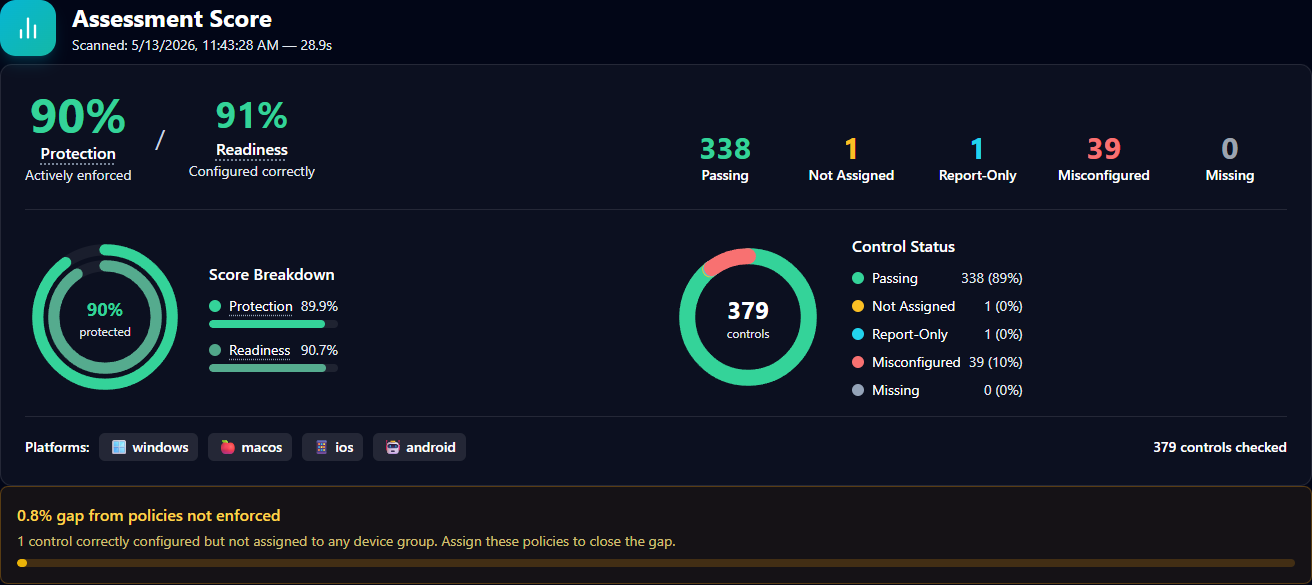
Two donut charts pack a lot of information into a small area; here's how to read them:
- Protection (90% in the example) — Actively enforced. The percentage of controls whose policy is both configured correctly and assigned to a device or user group. This is the "what's actually protecting your fleet right now" number.
- Readiness (91% in the example) — Configured correctly. The percentage of controls whose policy is configured correctly, regardless of assignment. The gap between Readiness and Protection is your unassigned-but-correct surface — policies you've built but haven't deployed.
- Passing / Not Assigned / Report-Only / Misconfigured / Missing — the raw control-level counts. Not Assigned is the count of controls Readiness counts but Protection doesn't; Report-Only is for compliance policies in monitoring-only mode; Misconfigured is policies with wrong values; Missing is controls with no matching policy at all.
- The amber band at the bottom flags the gap to close: "1 control correctly configured but not assigned to any device group. Assign these policies to close the gap." Click "Assign Existing Policies" (next subsection) to do that in one step.
The dual-axis model is the difference that matters most in Intune: a tenant can have a beautifully configured Compliance Policy that nobody has deployed, scoring 100% on Readiness and 0% on Protection. Single-axis tools either overcount (treating Readiness as the score) or undercount (treating Protection as the score). Veri-Tune shows both.
8.6 · Assign Existing Policies
Right under the Assessment Score sits the Assign Existing Policies card — the one-click cleanup for the gap the amber band just flagged.
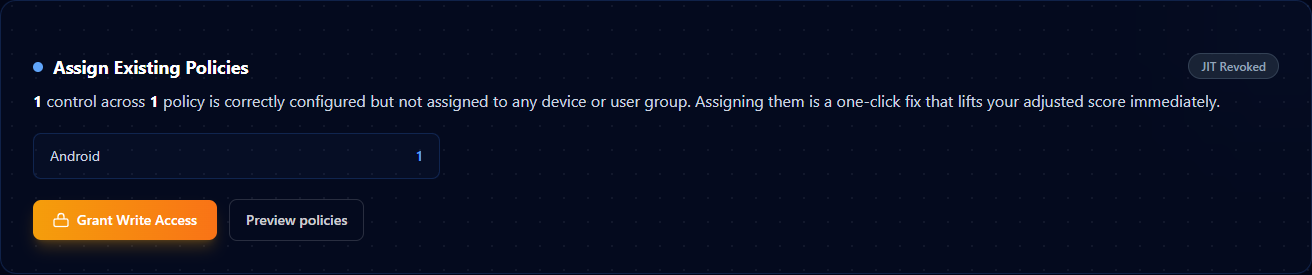
Click "Preview policies" to see exactly which policies would be assigned and to which groups; click "Grant Write Access" to initiate the JIT consent flow scoped to the assignment-only writes. The JIT consent for Assign Existing is narrower than the consent for full remediation — it only requests the device-management write scopes needed for assignment, nothing else.
8.7 · Cross-Product Controls

A small subset of Tune controls have their primary configuration in another Veri-Tech product (typically Veri-Guard for Conditional Access prerequisites or Defender-side configuration). The Cross-Product Controls card surfaces those so you don't try to remediate them inside the Veri-Tune planner — the remediation lives in the owning product's flow.
8.8 · Remediation Impact Estimator
The Remediation Impact Estimator is the planning tool — it lets you preview which controls move the score most before you actually run the remediations.
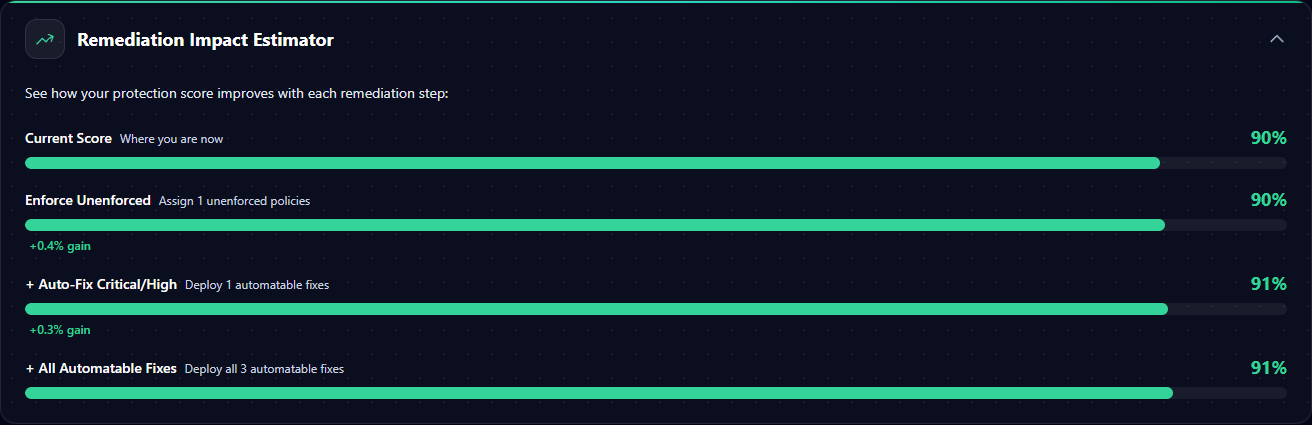
The six tabs are different lenses on the same underlying data:
- Quick Wins — controls that move the score most for the least disruption. Sort and pick the top of the list to maximize score lift per JIT consent batch.
- Severity Risk Matrix — controls plotted on a disruption-risk vs score-lift grid. Pick the upper-left quadrant (high lift, low disruption) for safe one-pass remediation.
- Severity Distribution — histogram of failing controls by severity. Useful when leadership asks "how many critical issues are outstanding."
- Top Failing Policies — clusters failing controls by their underlying Intune policy, so you can see which one or two policies own most of the deficit.
- Category Treemap — visual breakdown by control category (Identity, Endpoint Security, Compliance, etc.) for prioritization conversations with the owning team.
- Framework Radar — the framework view (CIS / NIST / ISO / SOC 2 / HIPAA) plotted radially so you can see which framework's mapped controls are weakest.
8.9 · Framework Compliance

The Framework Compliance card is the surface to share with an auditor: one row per framework, one progress bar per row showing how many of the framework's mapped controls passed. If an auditor only wants ISO 27001 evidence, expand the framework, filter the Control Results table below to ISO 27001-mapped controls only, and export.
8.10 · Control Results
The full control table sits below the framework grid. Each grouped row is one of the five status buckets (Misconfigured, Not Enforced, Passing, Report-Only, etc.), and expanding a group shows every individual control with its severity, framework mappings, current value vs expected value, and a per-control remediation drawer.
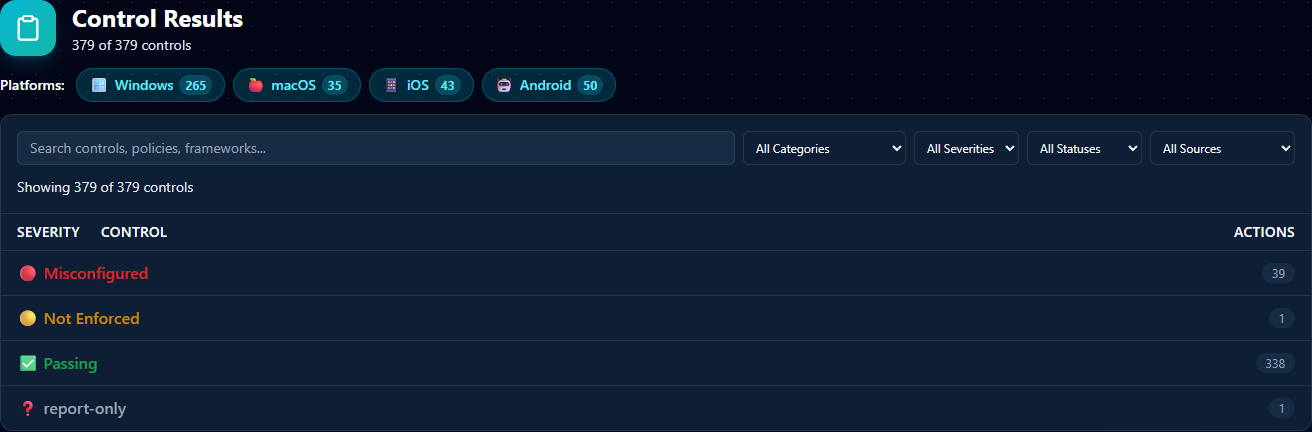
The platform chips at the top show the per-platform control counts (Windows 265 / macOS 35 / iOS 43 / Android 50 in the devlab example). The four filter dropdowns scope the table — All Categories (Identity / Endpoint Security / Apps / Compliance / etc.), All Severities (Critical / High / Medium / Low / Informational), All Statuses (the same five buckets), and All Sources (OIB / Veri-Tune L1 / L2 / CIS / etc.). Click any status group row to expand it and see every control in that bucket.
8.11 · Remediation History

The Remediation History card is the audit trail per assessment — every prior remediation run, what it deployed, when, and the JIT-revoke confirmation. Useful at audit time to demonstrate that the score lift between two scans is attributable to specific deployments rather than tenant drift.
9 · Remediation
Two paths through Veri-Tune remediation, and the right one depends on whether the failing control has a deployable Intune policy fix.
Path A — Plan-Guided Remediation (Auto-Deploy + Override). For controls Veri-Tune knows how to write directly via Graph (Configuration Profiles, App Protection Policies, Settings Catalog policies), the planner classifies each as either Auto-Deploy (create a new policy) or Override (update an existing policy that has the wrong value). You click Deploy, Veri-Tune requests JIT write permissions, applies the changes, and the elevated grant lapses.
Path B — Runbook Only. For controls whose remediation requires admin-portal UI work that Graph can't replicate, or controls that need human judgment (license changes, role assignments outside Intune), Veri-Tune generates a runbook your team executes by hand. The runbook lands inside your existing change-management process.
9.1 · The Remediation Planning page
Clicking "Plan Remediation for N Controls" on the results page (and waiting twenty to thirty seconds for the AI plan to generate) lands you on the full Remediation Planning page at /tune/[jobId]/remediate?planJobId=.... The page is the staging area where you decide which controls to remediate and how.

Layout top-down: page header → Assign Existing Policies (the same one-click assignment cleanup from §8.6, surfaced here too) → Plan-Guided Remediation summary → Selection Summary + Projected Impact + Severity Breakdown + Disruption Risk Heatmap → action table → sticky bottom CTA. §9.2–§9.7 walk each in order.
9.2 · Assign Existing Policies (on the planner page)
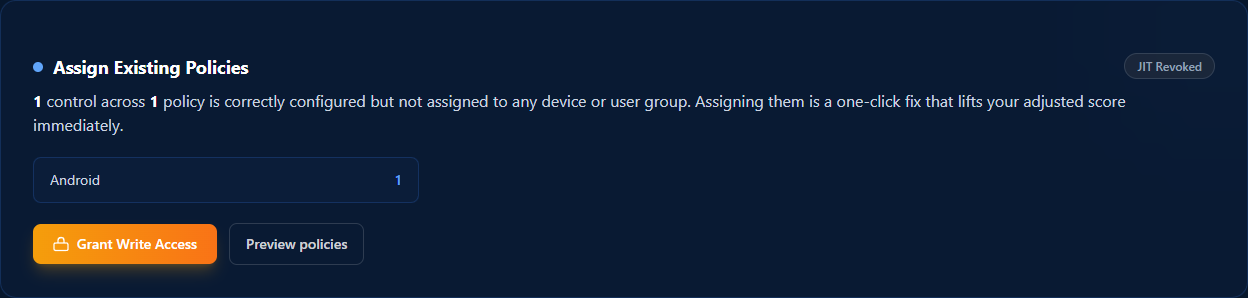
Same card as on the results page (§8.6) — surfaced again here because assigning unassigned policies is typically the first thing to do before the broader remediation. Click "Grant Write Access," consent to the assignment-only scope, and your Protection score lifts the moment the writes complete.
9.3 · Plan-Guided Remediation summary
Below Assign Existing sits the Plan-Guided Remediation summary panel — the AI's classification of every failing control.

The three chips:
- Auto-Deploy — failing controls where no matching Intune policy exists in your tenant. Veri-Tune will create a new policy with the correct values.
- Override — failing controls where a policy does exist but has wrong values. Veri-Tune will create a new policy with the correct values (rather than mutating the existing one — this preserves your audit trail and lets you remove the broken original on your own schedule).
- Excluded — controls Veri-Tune deliberately doesn't try to auto-remediate. Reasons surface inline: missing license, end-of-life, requires your input, or not applicable.
Click "Generate new plan" if you've changed scope and want the AI to re-classify. The plan output is advisory — you can override any control's classification before deploying.
9.4 · Selection Summary, Projected Impact, Severity Breakdown, Disruption Risk Heatmap
This block is the most information-dense panel on the page — four side-by-side visualizations of what your current selection will do.
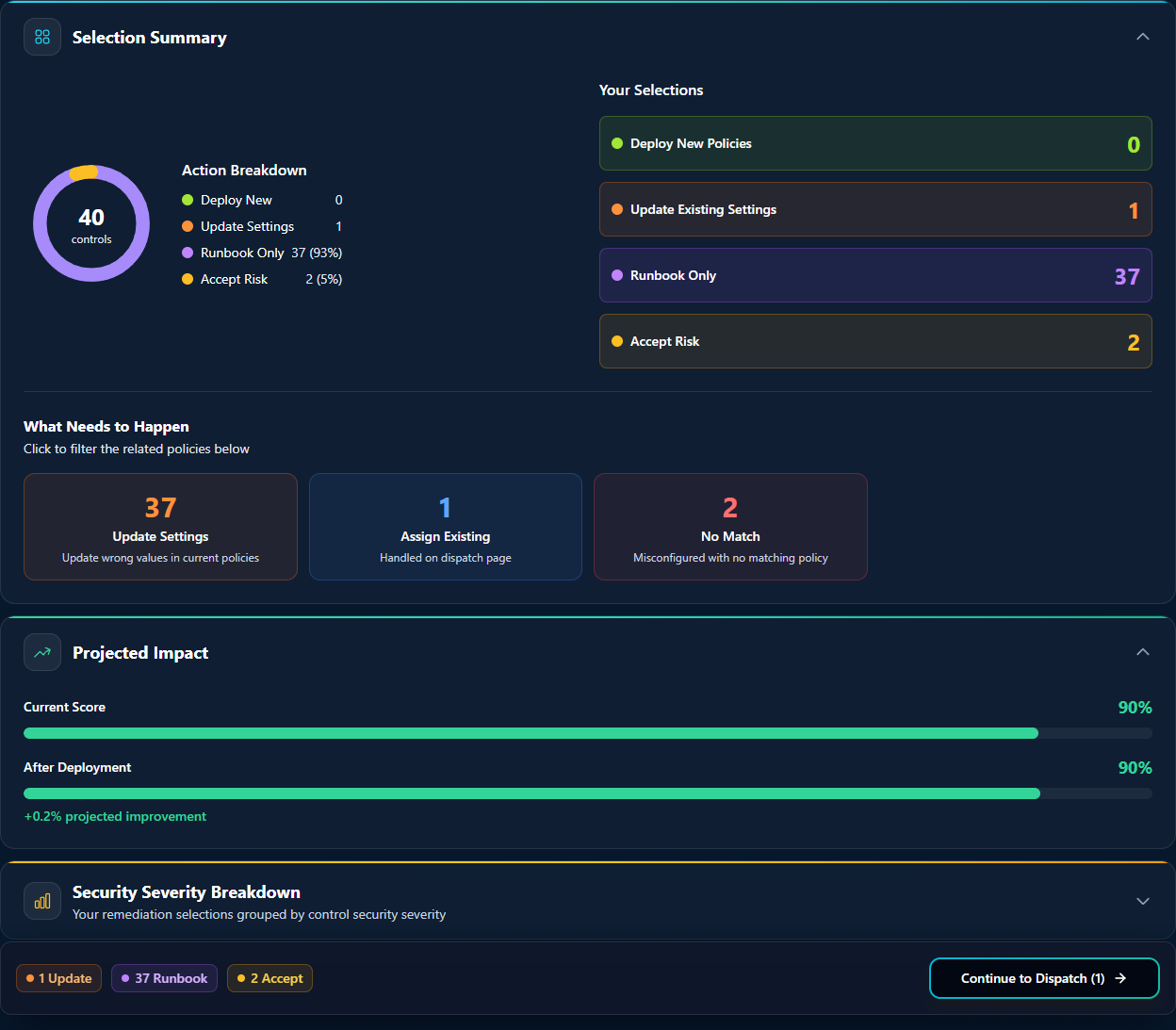
Read top-down:
- Selection Summary — the headline count of controls in scope (40 in the devlab example).
- Action Breakdown — per-classification counts and percentages so you can see the shape of the remediation at a glance: 0 Deploy New, 1 Update Settings, 37 Runbook Only (93%), 2 Accept Risk (5%).
- Your Selections — if you've manually overridden any classifications (e.g., moved a control from Runbook Only to Accept Risk), this row shows your final selection.
- What Needs to Happen — the click-to-filter chips for the action table further down: 37 Update Settings, 1 Assign Existing, 2 No Match.
- Projected Impact / Security Severity Breakdown / Disruption Risk Heatmap — the score-lift, per-severity-count, and disruption-vs-impact visualizations that help you justify the remediation to leadership before you commit.
9.5 · The action table
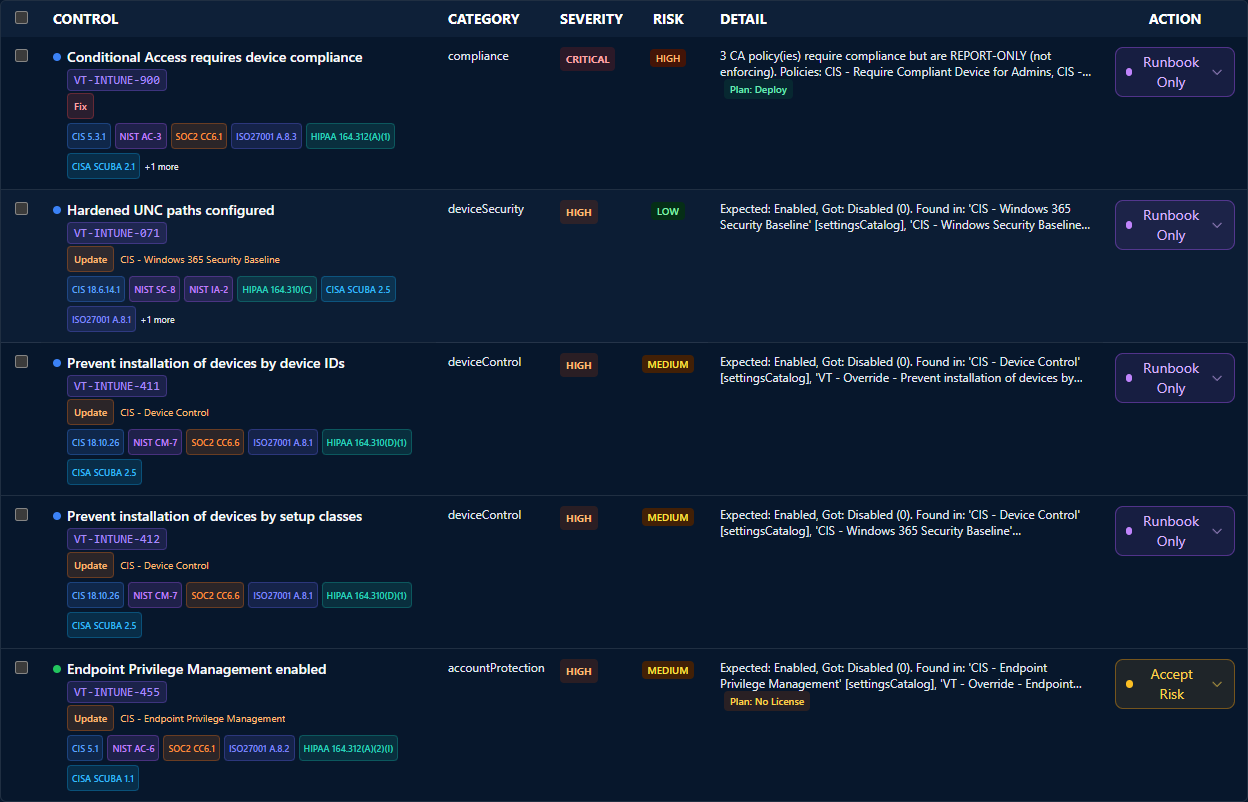
Each row is a single failing control. The Action dropdown lets you override the AI-generated plan per row — useful when a control the AI classified Auto-Deploy needs to be runbook-only because your change-management policy requires manual deployment, or when a control classified Runbook Only is one you've already decided to accept risk on.
9.6 · The sticky bottom CTA

The sticky bar at the bottom of the page surfaces the deploy CTA no matter how far down the action table you've scrolled. Click Continue and you're at the deployment confirmation step — Veri-Tune surfaces the final action breakdown one more time, you click Grant Write Access, and the OAuth consent flow opens.
9.7 · The JIT model: delegated, time-bounded, revocable
This is the same Just-in-Time consent model that runs Veri-Guard remediation, with one Veri-Tune-specific note: the requested write scope is scoped to device-management writes only (DeviceManagementConfiguration.ReadWrite.All, DeviceManagementApps.ReadWrite.All, DeviceManagementServiceConfig.ReadWrite.All). Veri-Tune does not request — and the consent screen does not enumerate — Conditional Access, RBAC, or any non-Intune write scopes. If a remediation needs those scopes, that remediation lives in Veri-Guard's flow (see §8.7 Cross-Product Controls), not here.
The four-part JIT guarantee is the same as Veri-Guard's:
- Just-in-Time grant. The OAuth flow only fires when you click "Grant Write Access" in the planner. There is no standing write consent on your tenant before this moment, and no path through the product that grants standing write access at any other time.
- Just-this-batch scope. The elevated permission is used only by the worker that processes this one dispatch. A second click on Remediate triggers a fresh consent prompt and a fresh grant, even for the same controls.
- Just-this-admin context. Every Graph write is performed under the identity of the admin who granted consent. Your tenant's Microsoft audit logs attribute the change to your admin's UPN.
- Auto-revoke after success; one-hour TTL on failure. When the worker successfully finishes, Veri-Tune discards the tokens it received from the consent flow. On a failed or abandoned dispatch, Veri-Tune does not currently force-revoke at the moment of failure; the access token Microsoft issued then expires on its standard one-hour TTL, and the delegated grant becomes unusable when it does.
Revoke at any time using the standard Microsoft paths — myapps.microsoft.com for per-user revoke, the Entra admin center → Enterprise applications → Veri-Tech for org-wide revoke, or delete the enterprise app entirely to pull every grant. The trust boundary is at the Entra layer; Veri-Tech can't hide, suppress, or work around those revoke paths.
10 · Drift, history, and recurring scans
After your first scan, three pages close the monitoring loop: Score Trends (for drift between two specific scans), History (for the full assessment timeline), and Scheduling (for recurring scans).
10.1 · Score Trends (/tune/drift)
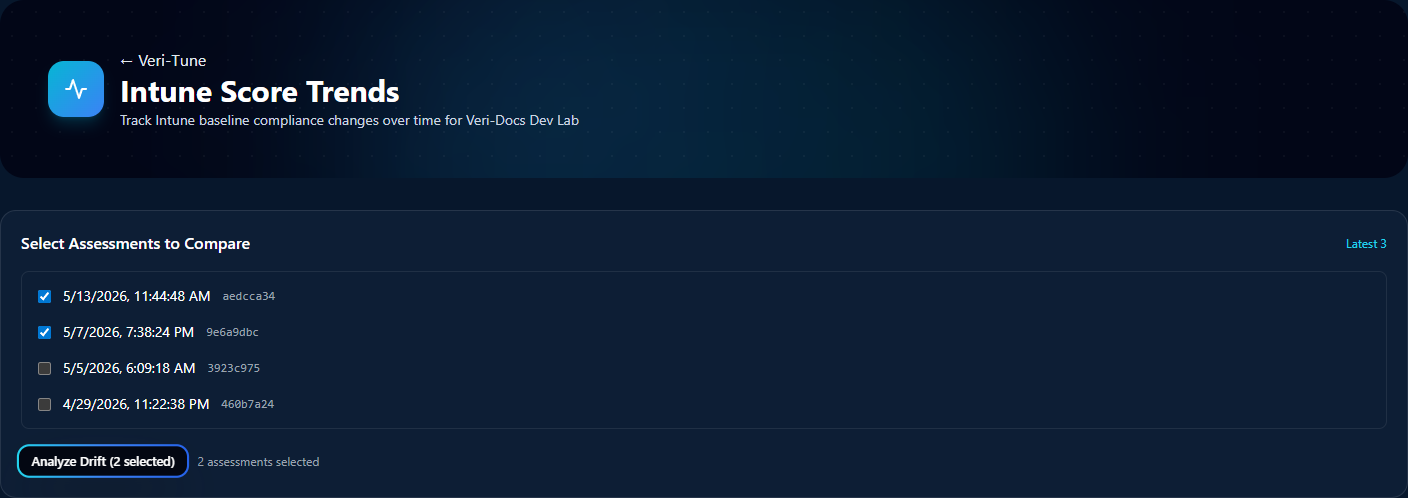
The Score Trends page is the surface for analyzing drift between any two prior scans. Pick a baseline and a current scan from the per-tenant list and click Analyze Drift.
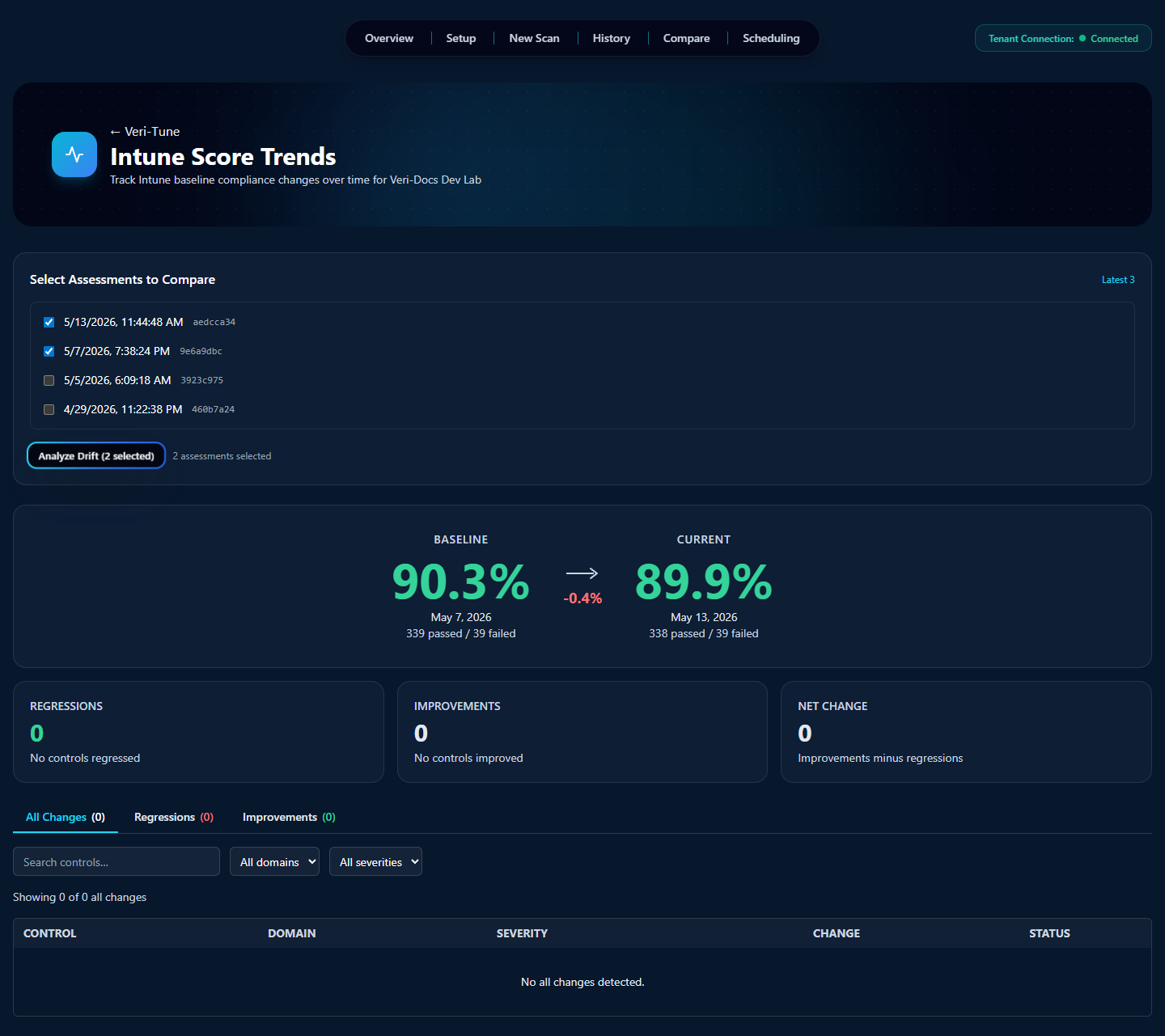
The output panel breaks the comparison into Regressions (controls that flipped from passing to failing), Improvements (failing → passing), and No-Op (no change). Each row in the table shows the control, the domain, the severity, the change direction, and the post-change status. This is the artifact most useful when investigating whether a recent Intune change had unintended downstream effects.
10.2 · Assessment History (/tune/history)
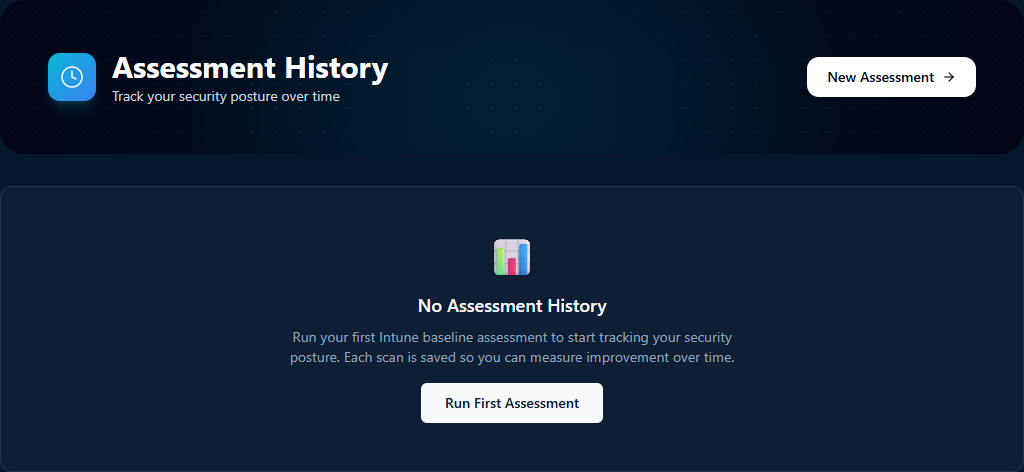
History is the per-tenant assessment log. Each prior scan is a row with timestamp, registry version, platforms, ownership scope, and score; clicking a row jumps to the full results page for that scan. On a brand-new tenant the empty-state CTA points you back to running a first assessment.
10.3 · Compare Assessments (/tune/compare)
The Compare page is the side-by-side variant of Drift — two scans rendered next to each other rather than as a delta. Useful when you want the full results of both, not just what changed.
10.4 · Scheduling (/tune/scheduling)
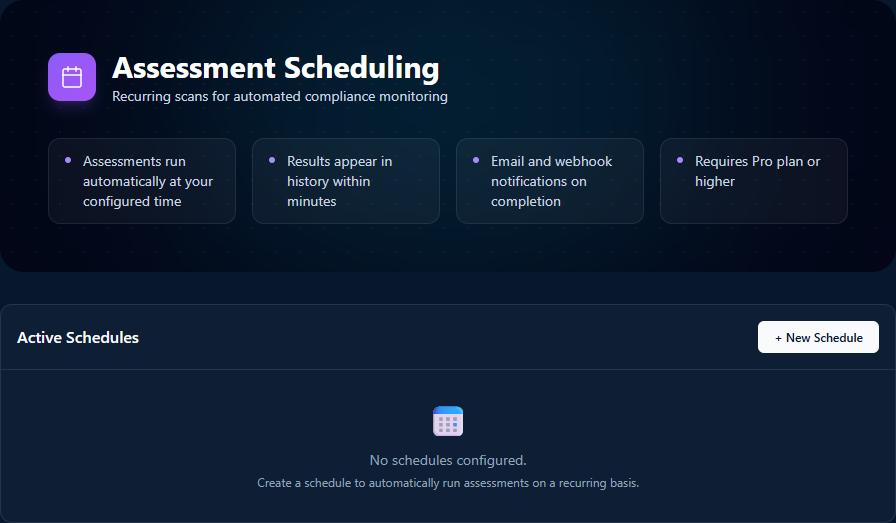
The Scheduling page is where you set up the Step 03 (Automate) recurring cadence. Click "+ New Schedule" to pick a frequency (daily / weekly / monthly / custom), the same five wizard parameters from §7, and the notification destinations (email and / or webhook). Each schedule's runs land in History as if you'd manually triggered them; webhook payloads are HMAC-signed so your downstream tooling can verify authenticity.
11 · Where to go next
You've now seen every page Veri-Tune puts in front of you. The fastest way to internalize the rest is to run an assessment against your own tenant:
- Sign in and open Veri-Tune at
/tune. - Work through the prerequisite checklist on
/tune/setup(or skip it for now if your tenant is already configured). - Click "Configure scan" on the Step 02 card; pre-filled wizard, click Next through to Start Assessment.
- Wait roughly thirty seconds; read the results.
- Pick the top of the Quick Wins list; either copy the runbook into a change ticket, or click Plan Remediation and walk through the JIT consent flow.
If anything in this guide is unclear or you'd rather walk through it with a person, the support tutorials at /support/tutorials cover the most common Veri-Tune tasks in narrower five-to-eight-step recipes, and the Book a Call link in the page footer reaches an intro session.