
This guide walks every Veri-Patch surface in the order you'll encounter it — from the dashboard tile through the Veri-Patch overview, the prerequisite checker, the telemetry setup wizard, the live update-policy viewer, the compatibility scan, the per-device readiness results, the Administrative-Unit-scoped device group sync, and the reports / scheduling / trends pages that close the operational loop.
1 · What Veri-Patch is
Veri-Patch is a Microsoft Intune / Windows Update for Business operational-readiness engine. It connects to your tenant over the Microsoft Graph API, reads the WUfB configuration that's actually deployed — Feature Update Profiles, Quality Update Profiles, Expedited Update profiles, Driver Update Profiles, and the diagnostic-data (telemetry) Settings Catalog policies WUfB depends on — runs Microsoft's Windows Update for Business deployment-service compatibility assessment across your Intune-managed device fleet, and classifies every device as ready or blocked for the target Windows feature update, with the reason inline (app hold, driver hold, safeguard hold, or unknown).
Unlike Veri-Guard and Veri-Tune, Veri-Patch is not a compliance-score product. There is no Protection / Readiness donut. Every device gets one of two classifications, and the score that matters is the count of devices in each bucket. The output is a list, not a percentage.
The default operating mode is read-only. When you choose to create a missing update policy, write a telemetry Settings-Catalog profile your tenant needs for WUfB to function, assign an unassigned policy to a security group, or sync compatibility results into Entra security groups, Veri-Patch requests Just-in-Time write permissions, applies the change, and surrenders the elevated access. The group-sync writes are additionally scoped to a single Administrative Unit containing the two security groups you designate — so even with elevated permissions, Veri-Patch can only touch those two groups, never any other group in your tenant.
2 · Where you'll find Veri-Patch in your portal
Veri-Patch lives behind one card on your dashboard.
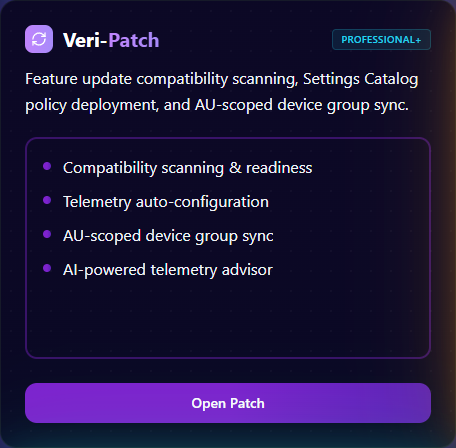
Clicking "Open Patch" lands you on the Veri-Patch overview at /patch. This is the home page for every Veri-Patch surface — a tab strip at the top exposes Overview, Verify, Configure, Telemetry, Reports, and Trends, and the body of the Overview tab is what's pictured below: an "Update Intelligence Engine" hero band with four stat chips, the four step cards, the Recent Scans log, and the Zero-Trust advisory banner.
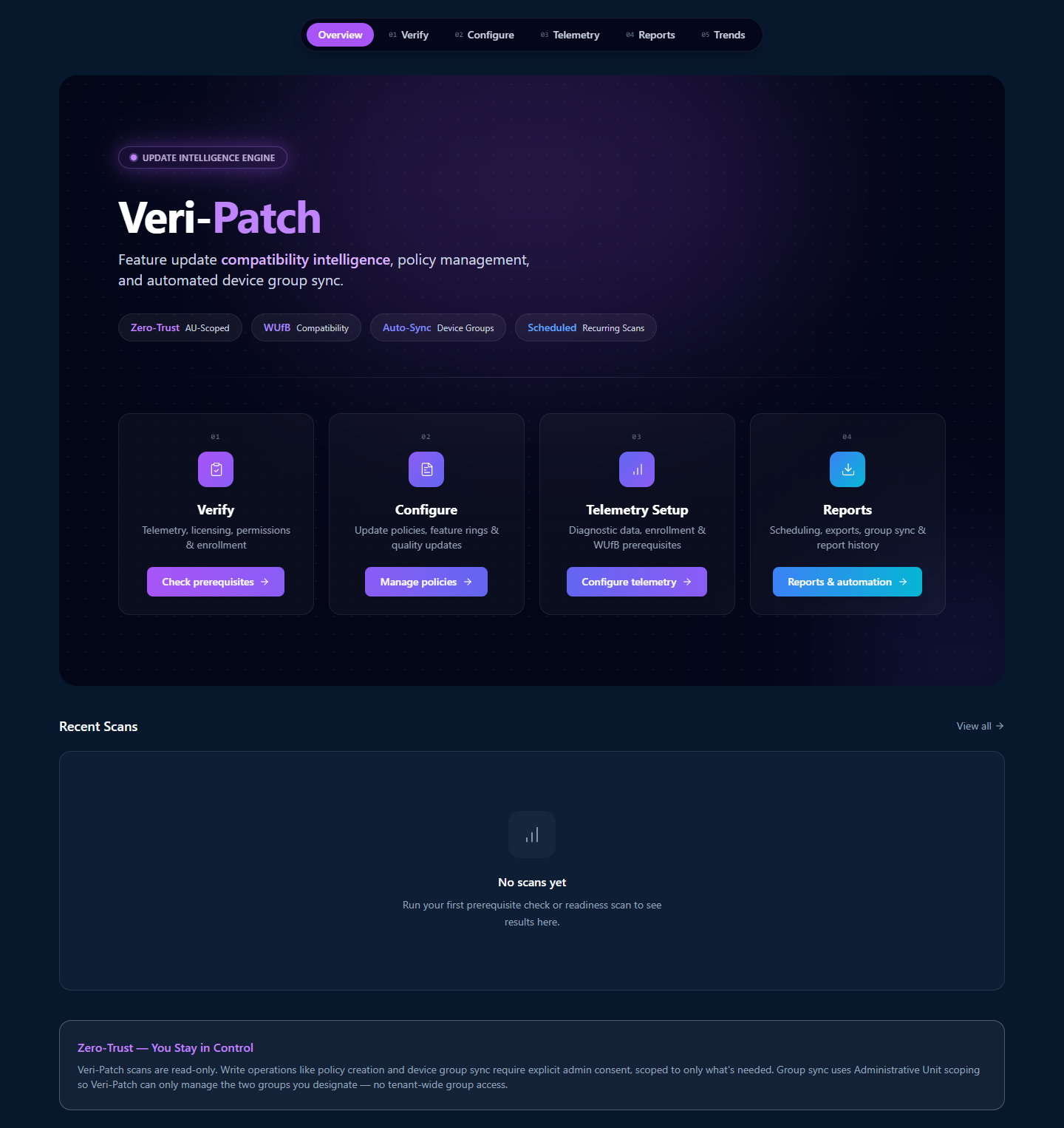
The four step cards across the middle of the overview are the conceptual model for the entire product. §3 walks each one in turn.
3 · How Veri-Patch works
Veri-Patch is organized around a four-step flow: verify your tenant has the WUfB prerequisites it needs, configure update policies (or take inventory of the ones already in Intune), set up the diagnostic-data telemetry that WUfB compatibility reports depend on, and then run recurring compatibility scans whose results feed Reports + Trends + automated device-group sync.
Step 01 — Verify
The Verify step lands you on the Prerequisites page (/patch/prerequisites), where you click "Run Prerequisite Check" to start an 8-check scan: WUfB licensing (Windows E3/E5 or M365 E3/E5), Intune license, the Graph read permissions Veri-Patch needs, Windows device enrollment status, WUfB reporting enabled in Intune, driver update profile presence, and driver inventory population. §7 walks the run and the result page.
Step 02 — Configure
The Configure step opens the Update Policies viewer (/patch/configure) which pulls every Windows Update for Business policy out of your tenant via Graph and renders it with assignment-status badges (assigned vs unassigned), KB / CVE links inline, and a direct "Assign to security group" affordance for any unassigned policy. §9 walks the page in detail.
Step 03 — Telemetry Setup
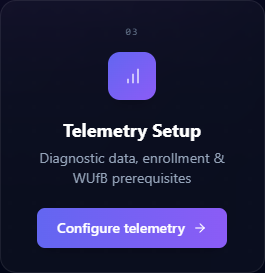
Microsoft's WUfB deployment service generates compatibility assessment data from the Windows diagnostic-data telemetry stream — which means a Settings Catalog profile setting "Allow Diagnostic Data" to Required (Basic) or Optional (Full) has to exist and be deployed to your Windows devices before any compatibility scan returns useful results. The Diagnostic Data Setup wizard walks you through choosing the level, deploying the profile, and verifying it lands. §8 covers the wizard.
Step 04 — Reports
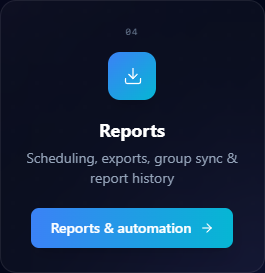
Once your prerequisites pass and telemetry data has populated, the Reports step (/patch/reports) is where you schedule recurring compatibility scans, export device lists as CSV (Entra bulk-import format or detailed), kick off the AU-scoped device group sync, and browse the report history. §10 walks each of those.
4 · Data handling and Graph permissions
Two things are true of Veri-Patch's data handling and they're enforced at the Graph permission boundary:
- The default operating mode is read-only. Veri-Patch's standing permissions read your Intune configuration + WUfB-relevant device metadata — never your user data or application data. No email, no files, no browsing history, no installed-app inventory.
- Write permissions are Just-in-Time, and the group-write permission is additionally scoped to one Administrative Unit. When you click Create Diagnostic Profile, Create Update Policy, or Sync Device Groups, Veri-Patch requests the specific write scope it needs, performs the change, and the elevated grant lapses. The group-sync writes are further scoped to an Administrative Unit containing only the two security groups you designate — see §5.
Standing read scopes (active for scanning):
DeviceManagementManagedDevices.Read.All— managed device inventory, OS versions, hardware compatibility dataDeviceManagementConfiguration.Read.All— WUfB configuration, update policies, compatibility dataDirectory.Read.All— license SKUs (for the licensing prerequisite check), group resolution for assignment status
Just-in-Time write scopes (only activated by an explicit click in the portal):
DeviceManagementConfiguration.ReadWrite.All— for creating update policies and the diagnostic-data Settings Catalog profileGroups Administratorrole scoped to an Administrative Unit — for adding / removing devices from the two AU-bound security groups
The Microsoft consent screen at the JIT moment enumerates every scope line by line; the AU-scoped role assignment is a separate one-time setup via the /patch/group-sync-setup wizard.
5 · Safety controls and Administrative Unit scoping
Veri-Patch's safety story has one feature the other Veri-Tech products don't: the Administrative Unit boundary on group-management writes.
- Scans are read-only. No device modifications, no policy changes, no group changes during scanning. The output of a compatibility scan is a list of devices and their hold reasons — nothing in your tenant changes.
- Write operations require explicit Just-in-Time admin consent. Creating an update policy or a diagnostic-data Settings Catalog profile triggers a Microsoft OAuth consent screen scoped to
DeviceManagementConfiguration.ReadWrite.All. Nothing else is requested. - The Administrative Unit boundary. Device group sync — the operation that adds compatible devices to one Entra group and blocked devices to another — runs under a
Groups Administratorrole assignment that is scoped to one Administrative Unit. You create the AU and add exactly two security groups to it; Veri-Patch's role assignment only authorizes group-management against members of that AU. Even with a compromised app token, Veri-Patch could not touch any other group in your tenant. - No standing write access. There is no path in the product that grants Veri-Patch persistent write permissions. Every write is a fresh JIT consent.
- Policy assignment is opt-in. New policies created via Veri-Patch are deployed but not assigned to any device group automatically — you do that yourself via the Configure page's group-assignment affordance (§9) or in the Intune admin portal.
- All group membership changes are logged in the audit trail. Every device sync is a recorded action: which devices were added, which were removed, who authorized the operation, when.
- Recurring scan schedules and auto-sync can be disabled at any time. No background process keeps running if you turn it off.
The AU scoping is the differentiating control. If your security team's review question is "what could Veri-Patch do to my tenant if its infrastructure was compromised right now?" — for group-sync writes, the answer is "modify membership of two specific groups inside one specific Administrative Unit. Nothing else."
6 · Update policy types covered
Veri-Patch operates against five Windows Update for Business policy families. Every one of these is read from your tenant during a scan, and four of the five can be deployed via Veri-Patch under JIT consent if missing.
- Feature Update Profiles — control which Windows feature update version (e.g., Windows 11 23H2 → 24H2) devices in a group are eligible for. The target version is what compatibility scans evaluate against.
- Quality Update Profiles — defer or expedite monthly security and quality updates, set the deadline for restart, configure pause windows.
- Expedited Update profiles — push a specific Windows quality update (typically a critical CVE patch) outside the normal cadence with a tight deadline.
- Driver Update Profiles — manage driver and firmware updates. The mode (
automaticvsmanualApproval) controls whether Intune auto-approves driver updates or whether you approve each one inside Intune. Veri-Patch reads the profile state but does not auto-approve drivers itself. - Windows Diagnostic Data Settings Catalog profile — the telemetry profile WUfB requires to generate compatibility data. Veri-Patch can create this profile under JIT consent through the Diagnostic Data Setup wizard.
The compatibility assessment itself is produced by Microsoft's Windows Update for Business deployment service from the diagnostic-data stream; Veri-Patch reads that assessment, classifies each device's blockers, and surfaces the result on the per-scan results page.
7 · Running your first prerequisite check
From the moment you click "Check prerequisites" on the Step 01 card, the next surface is the Prerequisites page at /patch/prerequisites.
7.1 · Prerequisites landing (/patch/prerequisites)
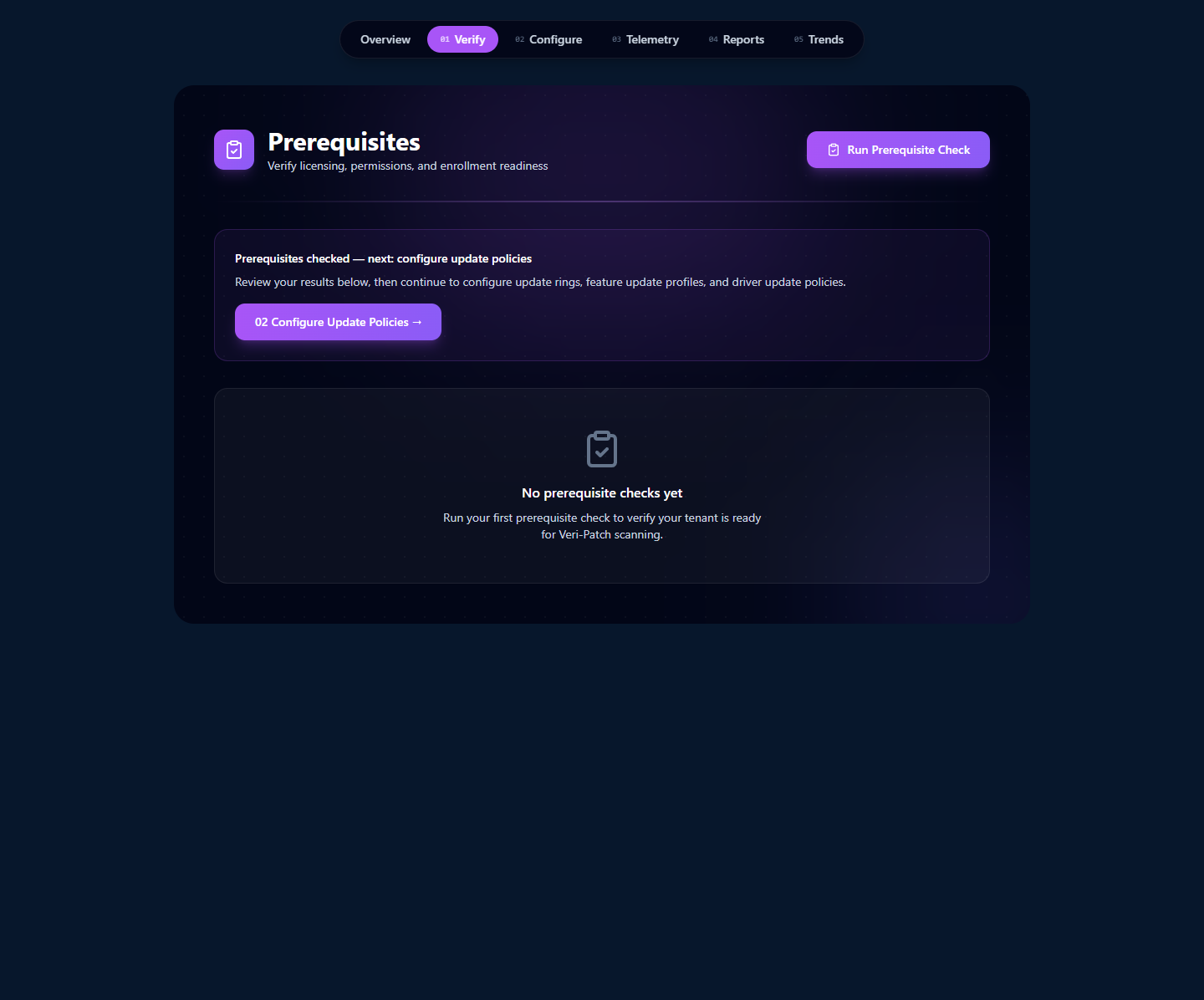
The page is intentionally lean. The hero carries the only action — Run Prerequisite Check — and the body is empty-state until you have a check history. Click the CTA.
7.2 · The scan in flight
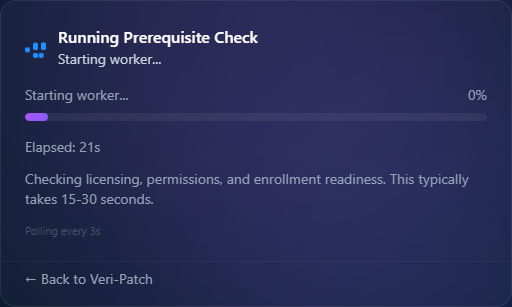
The prerequisite scanner reads license SKUs from the directory, attempts the Graph reads the product needs, lists enrolled Windows devices, checks for the WUfB reporting toggle in your Intune service config, and looks for an existing Driver Update Profile. Most checks finish in well under a second; the wall-clock floor is the worker spin-up + the polling cadence.
7.3 · The Prerequisite Check result page
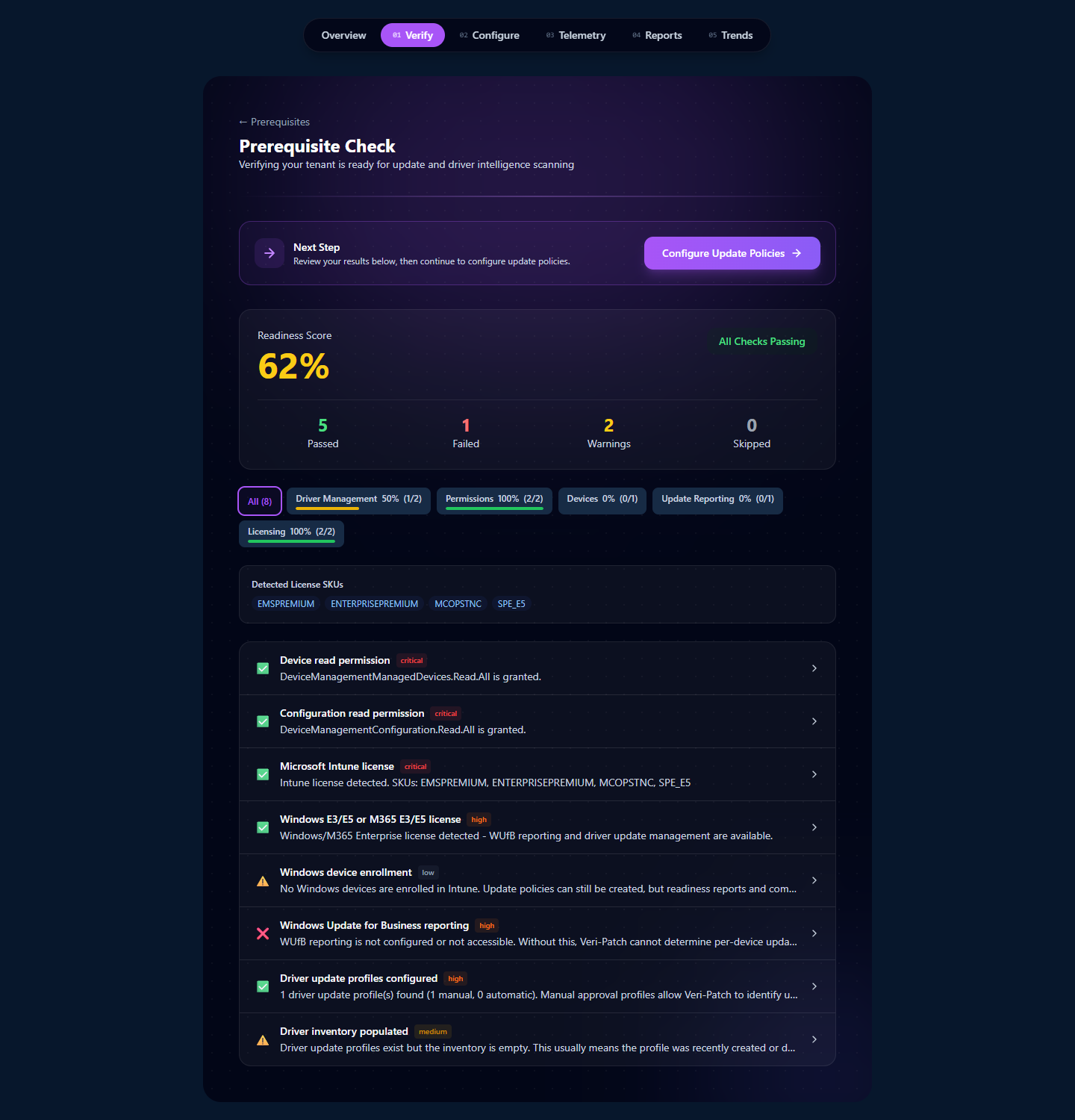
Read the result top-down:
- The Readiness Score donut — composite percentage across the 8 checks. 100% means every prereq is in place and your tenant can run a compatibility scan immediately; below 100% means at least one check needs attention before WUfB compatibility reports will populate.
- Pass / Fail / Warning / Skipped counts — Pass is a clean check; Fail is something WUfB blocks on (no Driver Update Profile, no diagnostic-data profile); Warning is "configured but not yet observed in the tenant" (license is present but no enrolled Windows devices use it); Skipped is a check that doesn't apply (e.g., a check that requires a license you don't have).
- Per-category chips — Driver Management, Permissions, Devices, Update Reporting, Licensing. The percent next to each chip is the per-category pass rate. Click any chip to filter the rows below.
- Detected License SKUs — the WUfB-eligible SKUs the directory enumerates for your tenant. This is what the licensing checks ran against.
- The per-check rows — one row per of the 8 checks with a green / amber / red status icon, the check name, an inline explanation of what was looked at and what was found, and (where applicable) a deep-link out to Microsoft Learn for the relevant configuration step.
The Next Step card at the top of the page is opinionated about the natural follow-up: review the failures, then click "Configure Update Policies" to land on the Configure page (§9).
8 · Setting up telemetry for compatibility scans
Two of the eight prerequisite checks ("Windows diagnostic data" and "WUfB reporting enabled in Intune") are about the telemetry feed that WUfB compatibility reports depend on. If either of those is failing, the compatibility scan at /patch/compatibility won't return useful data — it'll show a gate page directing you back to telemetry setup.
8.1 · The compatibility-scan gate when telemetry is missing
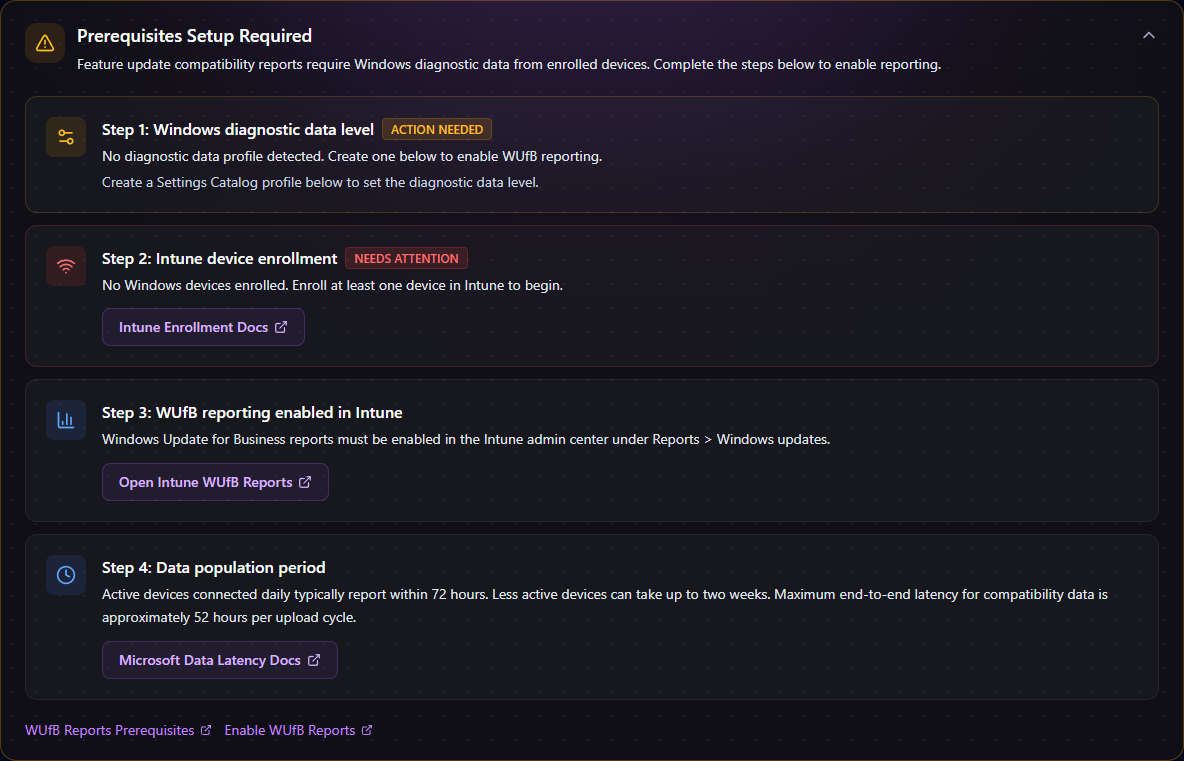
The four steps are not editorial — they're the actual blocking conditions for WUfB compatibility reports:
- Windows diagnostic data level — a Settings Catalog profile setting Allow Diagnostic Data to Required (Basic) or Optional (Full) must exist and be deployed.
- Intune device enrollment — at least one Windows device has to be Intune-enrolled. WUfB compatibility data only exists for managed devices.
- WUfB reporting enabled in Intune — the Intune service-config toggle for WUfB reporting must be on (Reports → Windows updates inside the Intune admin center).
- Data population period — even after the first three are done, Microsoft's data pipeline takes 72 hours for active devices, up to two weeks for less-active ones, and a maximum 52-hour end-to-end latency per upload cycle.
Each card carries the appropriate deep-link out: "Intune Enrollment Docs", "Open Intune WUfB Reports", "Microsoft Data Latency Docs". The first item — the diagnostic-data profile — is the one Veri-Patch can do for you. Click into the Telemetry tab to launch the wizard.
8.2 · The Diagnostic Data Setup wizard (/patch/setup/telemetry)

The five wizard steps:
- What is Diagnostic Data? — the educational step. Required (Basic) is the WUfB-functional minimum (device identity, update reliability metrics, compatibility data); Optional (Full) adds usage and inking/typing data. Most enterprises stop at Required; Optional is needed only if you want full Update Compatibility insights for advanced troubleshooting.
- Choose by Region — regional defaults pre-suggest a level based on whether your tenant is mostly EU (GDPR-conservative), US (CCPA-considerate), or elsewhere. You can override the regional default in the next step.
- Select Level — the explicit Required-vs-Optional choice that the deployed profile will set.
- Review — surface the final profile settings before deployment.
- Notify Role — pick the admin role(s) to notify when the profile is deployed; the wizard sends a templated note + a deep-link back into the audit trail.
Clicking through to the last step + confirming triggers a JIT consent for DeviceManagementConfiguration.ReadWrite.All. Veri-Patch creates the Settings Catalog profile under that consent and the elevated access lapses. The profile is created but not assigned — you assign it to a Windows-device group yourself, either via the Configure page's group-assignment affordance or in the Intune admin portal.
9 · Configuring update policies
The Configure page at /patch/configure is the live viewer for every Windows Update for Business policy in your tenant. It pulls each policy fresh from Graph on page load and renders it as a card with assignment-status badge, KB / CVE links inline (for quality and expedited updates), the target ring config (for feature updates), and a direct "Assign to security group" affordance for any unassigned policy.

On a tenant with deployed WUfB policies, each policy family renders as its own section: Feature Update Profiles, Quality Update Profiles, Expedited Updates, Driver Update Profiles, and the Diagnostic Data profile. Within each, every individual policy is a card with:
- Policy name + assignment status badge —
Assigned to N group(s)(green) orNot Assigned(amber). The unassigned-but-correct policies are the highest-leverage zero-risk gap to close. - Target version + deferral / deadline settings — the actual WUfB config the policy carries.
- KB / CVE links for Quality and Expedited Update profiles — inline links to the Microsoft KB article and any CVEs the update addresses.
- An "Assign to security group" affordance — for any unassigned policy, a live group search + assign button that runs the JIT-consented group write. This is the same JIT pattern as Veri-Tune policy assignment: scoped, time-bounded, auto-revoked after the operation completes.
On a tenant with no WUfB policies at all (the devlab example), the page surfaces an empty-state card pointing back to the prerequisites flow. Veri-Patch does not auto-create update policies for you — the Diagnostic Data profile is the only Settings Catalog profile the product writes; everything else is your team's policy decision, executed in Intune or via the Veri-Patch group-assignment affordance once you've created the underlying policy.
10 · Group sync, reports, and trends
The last three surfaces — /patch/group-sync-setup, /patch/reports, and /patch/trends — close the operational loop: set up the Administrative Unit so Veri-Patch can sync compatibility results into Entra security groups, schedule the recurring scans that keep those groups current, and visualize readiness trends over time.
10.1 · Administrative Unit Group Sync setup (/patch/group-sync-setup)
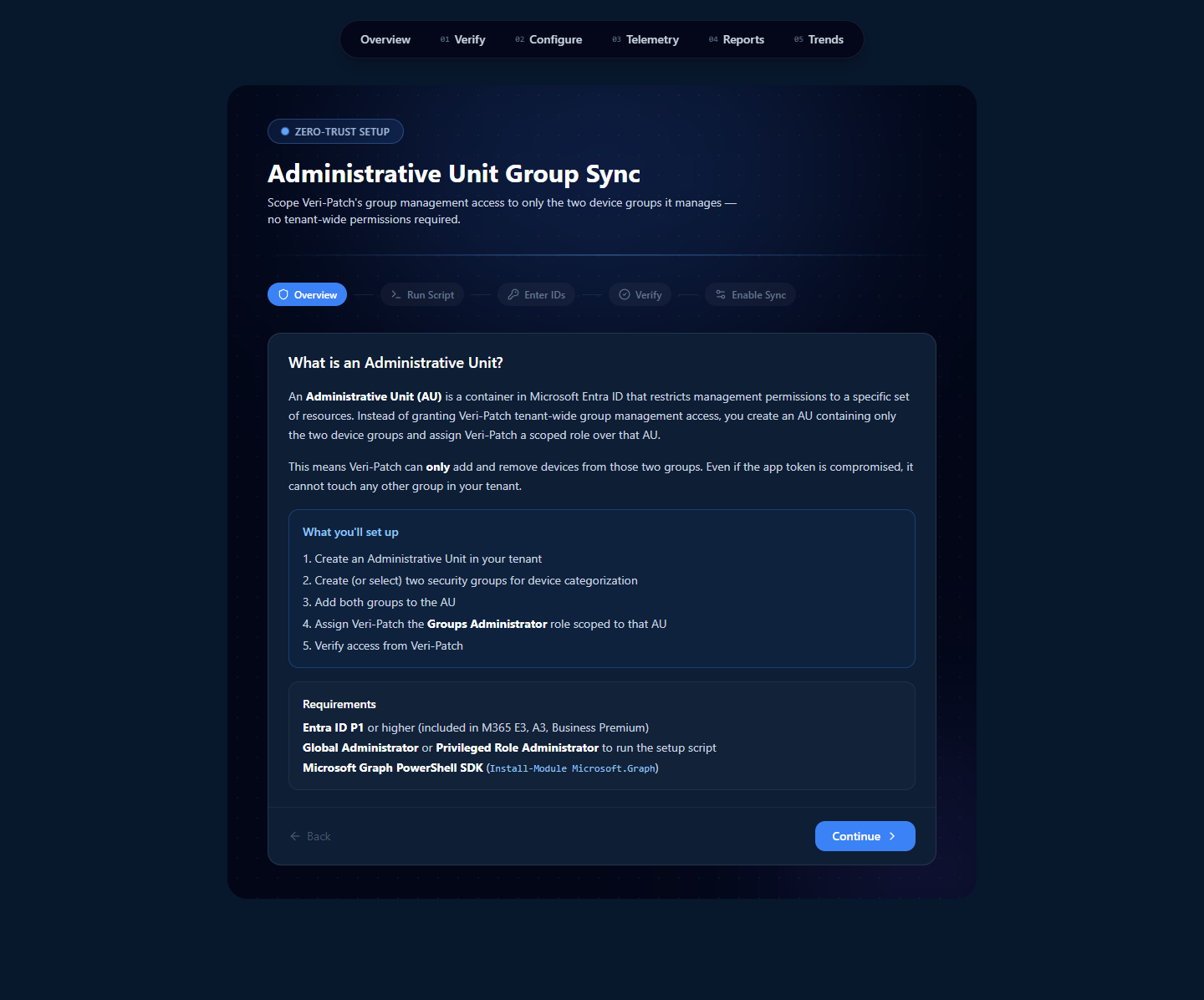
The wizard generates a single PowerShell script that you (a Global Admin or Privileged Role Administrator) run once against your tenant. The script:
- Creates an Administrative Unit named for Veri-Patch.
- Creates (or accepts existing) two Entra security groups: one for compatible devices, one for blocked.
- Adds both groups to the AU.
- Assigns Veri-Patch the
Groups Administratorrole scoped to that AU only.
After running the script, you paste the AU ID + two group IDs back into the wizard's Enter IDs step, Veri-Patch verifies access (read-only attempt against the AU), and the final step enables the sync. From that point on, scan results can update those two groups directly; no other group in your tenant is reachable from Veri-Patch's identity.
10.2 · Reports & Automation (/patch/reports)
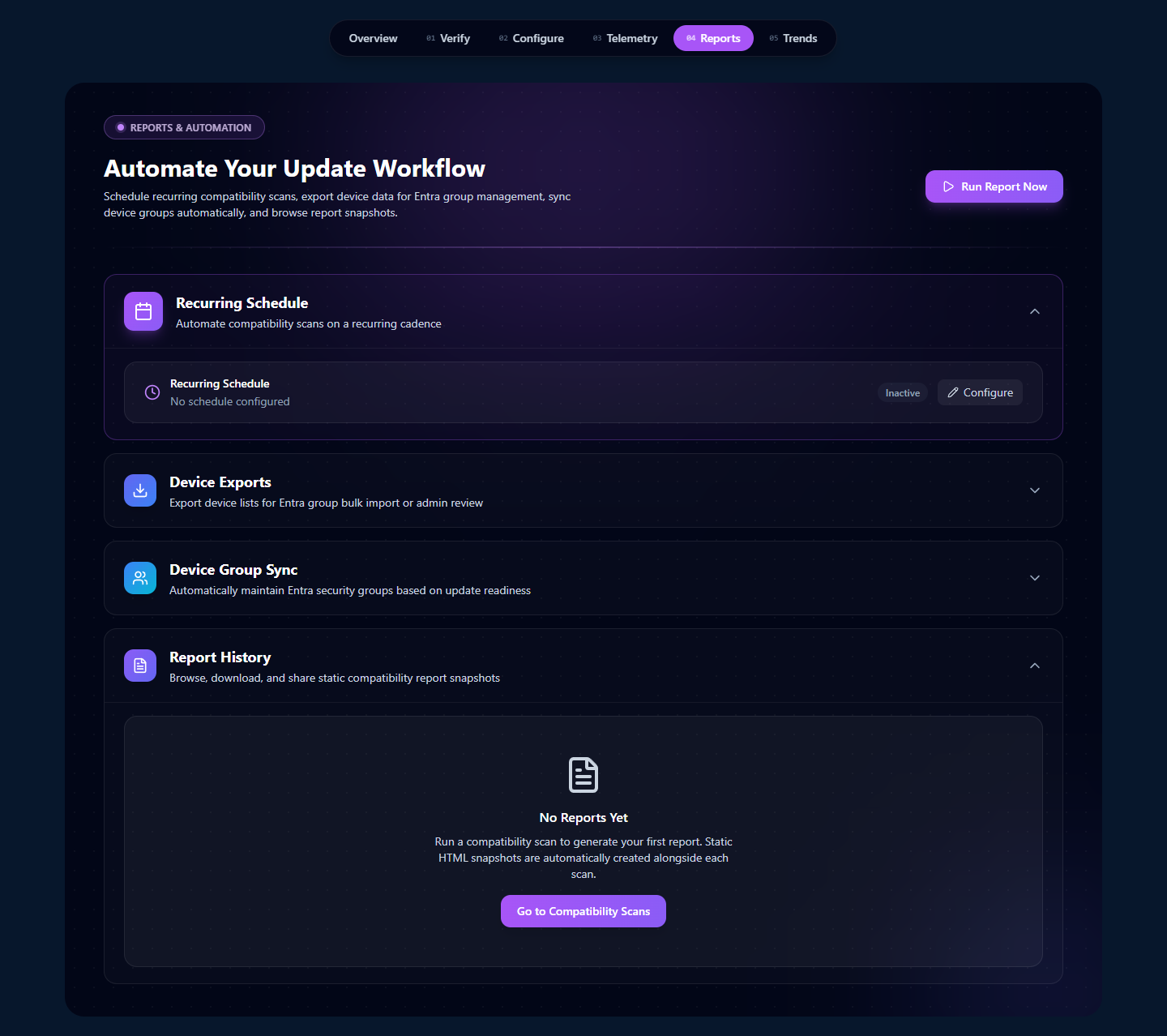
Each panel does one thing:
- Recurring Schedule — pick a frequency (daily / weekly / monthly / custom), pick the scope (which device groups + which target Windows feature version), pick notification destinations (email + HMAC-signed webhook). The next-run timestamp surfaces at the top of the panel.
- Device Exports — generate a CSV of the most recent compatibility scan's device list, either as Entra bulk-import format (the schema Entra accepts directly) or as a detailed CSV with every column (device name, OS version, hardware family, hold reasons). Useful for downstream automation that doesn't run inside Entra.
- Device Group Sync — run the AU-scoped sync once on demand, or toggle "Auto-sync after scheduled scans" so each completed scan updates the two AU-bound groups before the next run.
- Report History — every completed compatibility scan in this tenant's history, with timestamp, target Windows version, total device count, and a click-through to the per-scan result page. Empty on a fresh tenant.
10.3 · Trends (/patch/trends)
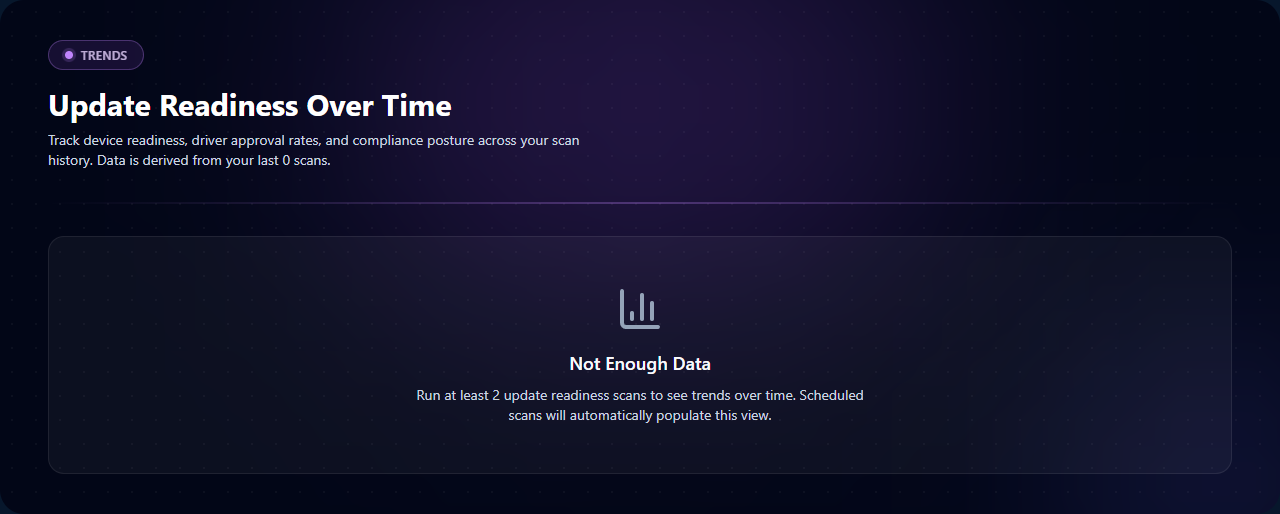
The Trends page is the read-most-recently-from-history visualization layer. Three charts (once data exists):
- Readiness over time — a line chart of the ready percentage across consecutive scans. A downward slope is the early-warning signal that a Windows version update bumped your driver compatibility down.
- Driver-approval rate over time — a line chart of the count of approved driver updates per scan, sourced from your Driver Update Profile state. A flat line suggests manual-approval mode + an unattended approval queue.
- Compatibility posture per ring — stacked bars per ring (broad / preview / pilot) showing the relative compatibility shape across your deployment rings. Useful for "should we widen the pilot ring?" conversations.
The page is data-derived — Veri-Patch doesn't store anything separate from your scan history; everything here recomputes from the recorded results.
11 · Where to go next
You've now seen every page Veri-Patch puts in front of you. The fastest way to internalize the rest is to run the prerequisite check against your own tenant:
- Sign in and open Veri-Patch at
/patch. - Click "Check prerequisites" on the Step 01 card; wait fifteen to thirty seconds for the result page.
- Work through any failing checks — typically the diagnostic-data Settings Catalog profile via the Telemetry tab, and the WUfB reporting toggle inside the Intune admin portal.
- Once your readiness score hits 100% and Microsoft has had 72 hours to populate compatibility data, run your first compatibility scan from
/patch/compatibility. - Set up the Administrative Unit group sync at
/patch/group-sync-setup, then schedule a recurring scan from/patch/reports.
If anything in this guide is unclear or you'd rather walk through it with a person, the support tutorials at /support/tutorials cover the most common Veri-Patch tasks in narrower five-to-eight-step recipes, and the Book a Call link in the page footer reaches an intro session.