
This guide walks every Veri-Docs surface in the order you'll encounter it — from the dashboard tile through the /docs hub, the Settings → Company Branding configuration that brands every generated SOP, the inventory scan that discovers your tenant's policies, the per-category selection screen, the in-flight generation job, the download page, and the searchable Document Library archive.
1 · What Veri-Docs is
Veri-Docs is a Standard Operating Procedure generator. It connects to your tenant over the Microsoft Graph API, reads the M365 configuration that's actually deployed — Conditional Access policies, Intune device-configuration and compliance profiles, Settings Catalog profiles, App Protection (MAM) policies, Exchange transport rules, Teams meeting policies, Defender configuration, SharePoint sharing settings, and the other 18 supported policy categories — and produces a Standard Operating Procedure document for each policy describing what it is, what it's configured to do, who it's assigned to, and what compliance frameworks it's mapped to. Output formats: Markdown (always), HTML, PDF, and DOCX (Word) on tiers that include the format. Every document carries your company branding (logo, colors, name).
Veri-Docs is read-only — full stop. There is no Just-in-Time write moment, no remediation flow, no policy creation, no group assignment. Every Graph call is a Read.All scope; there is no path in the product that requests, holds, or uses any write scope against your tenant. This is the first Veri-Tech product where the JIT story is "we don't have one and we don't want one" — the entire product surface is a one-way data flow from Graph into auditor-grade documentation.
Veri-Docs is also not a compliance-score product. There is no score donut. The output is documents, one per discovered policy, indexed in an archive and downloadable as a ZIP. The number that matters is did we get the document we needed for the audit, not a percentage. SOPs are also distinct from Veri-Guard's runbooks — a Veri-Docs SOP documents what's in your tenant right now ("state-of-now"); a Veri-Guard runbook tells you the steps to close a gap that doesn't exist yet. Two different artifacts with two different audiences (compliance auditors vs. remediation operators).
Available from the Starter tier — Veri-Docs is the lowest-friction product in the Veri-Tech suite, with no JIT, no two-admin gate, and no Enterprise-only paths inside the core generation flow. Export-format choice is tier-gated (Starter gets Markdown only; Professional + Enterprise + MSP get all four), and the monthly generation count is tier-capped (Starter 5/month, Professional 20/month, Enterprise unlimited).
2 · Where you'll find Veri-Docs in your portal
Veri-Docs lives behind one card on your dashboard.
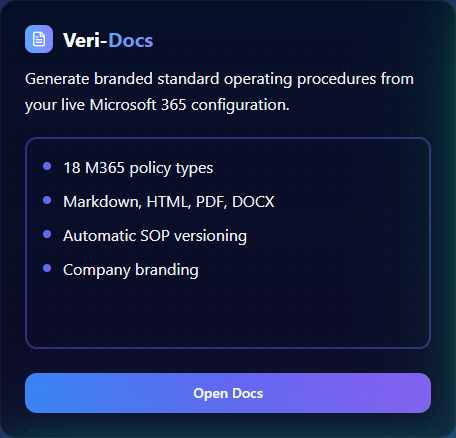
Clicking "Open Docs" lands you on the Veri-Docs overview at /docs. This is the home page for every Veri-Docs surface — there's no tab strip (the product is linear: scan → select → generate → download), and the body of the page is what's pictured below: a "Document Generation Engine" hero band with four stat pills, an Enterprise + Connected badge confirming the tenant connection, a monthly usage indicator, the primary Generate SOPs card with its two start-flow CTAs, three explanatory cards (18 Policy Categories / Multiple Formats / Live Configuration), and a Recent SOP Jobs panel showing your generation history.
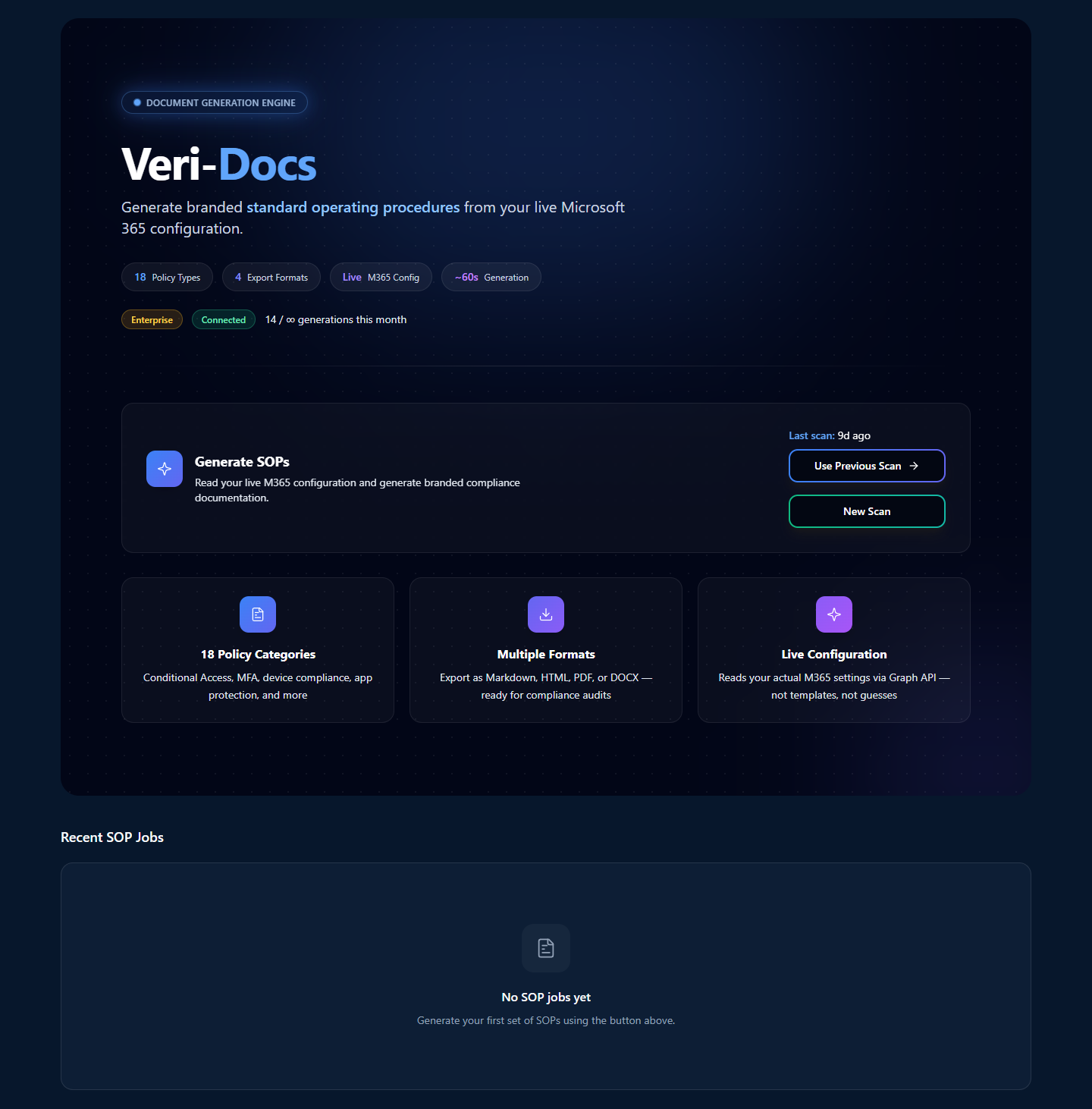
The Generate SOPs card is the entry point for the entire product. §3 walks the four-step generation flow.
3 · How Veri-Docs works
Veri-Docs is a four-step linear flow — no tab strip, no branching paths, no Enterprise-only side-routes inside the core generation surface. Walk it once and you've seen the product.
- Connect. Veri-Docs uses the same Graph API connection every other Veri-Tech product uses — X.509 certificate authentication with HSM-backed key storage. If you've already run a Veri-Guard or Veri-Tune scan, you're already connected. The /docs hub shows an "Enterprise + Connected" badge to confirm.
- Set up branding (one-time). Open Settings → Company Branding and configure your organization name, support contact, escalation contact, dashboard + SOP logos, and (Pro+) brand colors. Every SOP rendered after this carries that branding. §6 walks the page.
- Generate. From the /docs hub, click "New Scan" or "Use Previous Scan" on the Generate SOPs card. Veri-Docs runs a discovery (inventory) scan, lands you on the policy selector (§8), you pick categories + export format(s), click "Generate N SOPs," and a generation job runs to completion in ~60 seconds for a typical tenant.
- Download and archive. The job-detail page lists every generated file with a per-format download. The /documents archive (§10) is the searchable history of every SOP, assessment, runbook, and remediation across your tenant — Veri-Docs output lands there alongside everything else.
The 4-step flow has two implicit checkpoints that determine what you get:
- Tier-gated format set. Starter tier renders Markdown only. Professional, Enterprise, and MSP tiers unlock HTML, PDF, and DOCX in addition. The format selector on the inventory selection page surfaces the gate inline — locked formats render disabled with a tier-upgrade hint.
- Tier-capped monthly count. Starter caps at 5 generations per calendar month; Professional caps at 20; Enterprise is unlimited. The /docs hub surfaces the current month's usage near the hero badges so you know where you stand.
4 · Data handling and Graph permissions
One thing is true of Veri-Docs's data handling and it's enforced at the Graph permission boundary: every scope Veri-Docs requests is a Read scope. There is no write scope. There is no JIT moment. There is no path through the product, the API, or the worker that requests, holds, or uses any write capability against your tenant.
Standing read scopes (active for inventory scans + SOP generation):
Policy.Read.All— Conditional Access policies, named locations, authentication methods, security defaultsDeviceManagementConfiguration.Read.All— Intune Configuration Profiles, Compliance Policies, Settings Catalog profiles, App Protection (MAM) policiesDeviceManagementManagedDevices.Read.All— managed-device inventory (for assignment context, not for telemetry)Directory.Read.All— group + user resolution for assignment contextOrganization.Read.All— tenant licensing + organization metadata (for SOP cover-page rendering)
No Just-in-Time scopes. No write scopes anywhere in the manifest.
What this means in practice: a compromise of Veri-Tech's infrastructure cannot do anything destructive to your tenant via Veri-Docs. The worst-case scenario is unauthorized read of your configuration (already non-secret in most threat models — it's what an attacker discovers in the first minute of a tenant breach via their own Graph reads). Veri-Vault's "what could Veri-Tech do to my tenant if its infrastructure was compromised?" trust-boundary question has the cleanest answer here: read your config. Nothing else.
You can revoke Veri-Docs's read consent at any time through the standard Microsoft paths: myapps.microsoft.com for the personal revoke, the Entra admin center → Enterprise applications → Veri-Tech for org-wide revoke, or delete the enterprise app entirely. Revocation is immediate; the next inventory scan will fail with a clear permissions error.
5 · Safety controls and retention
Veri-Docs's safety controls are short because the threat surface is small:
- Read-only at every layer. Worker scripts, API routes, server actions, and client surfaces all share one invariant — no write call against the tenant exists anywhere in the codebase.
- Generated SOPs live in Veri-Tech's Azure Blob Storage, not in your tenant. SOPs are not pushed back into M365 — they're served from Veri-Tech storage with one-hour signed-URL downloads.
- Retention envelope tied to plan tier. Starter retains generated SOPs for 30 days; Professional retains for 90 days; Enterprise + MSP retain for 365 days. After the retention window, the blob is deleted and the archive row records the deletion timestamp.
- Per-tenant isolation. SOPs are stored at
sops/{tenantId}/{jobId}/in Veri-Tech's blob namespace; access is gated by Vercel OIDC + the same tenant-context check every other product uses. - No content of your tenant is ever included in a generated SOP. Mailbox bodies, file contents, user passwords, audit logs — none of them enter the SOP pipeline. SOPs document configuration, not data.
- Generation is deterministic. No LLM is involved in SOP rendering. Worker scripts read policy data from Graph and render it through Markdown templates; Pandoc then converts Markdown to HTML / PDF / DOCX. Same input always yields the same output, byte for byte — useful for diffing SOPs across runs to detect intentional policy drift.
6 · Setting up company branding
Every generated SOP carries your company's branding — organization name, support contact, escalation contact, logo (in the SOP letterhead), and (Pro+) brand colors applied to headers and links. Configure all of it once at Settings → Company Branding; subsequent generations pick the config up automatically.
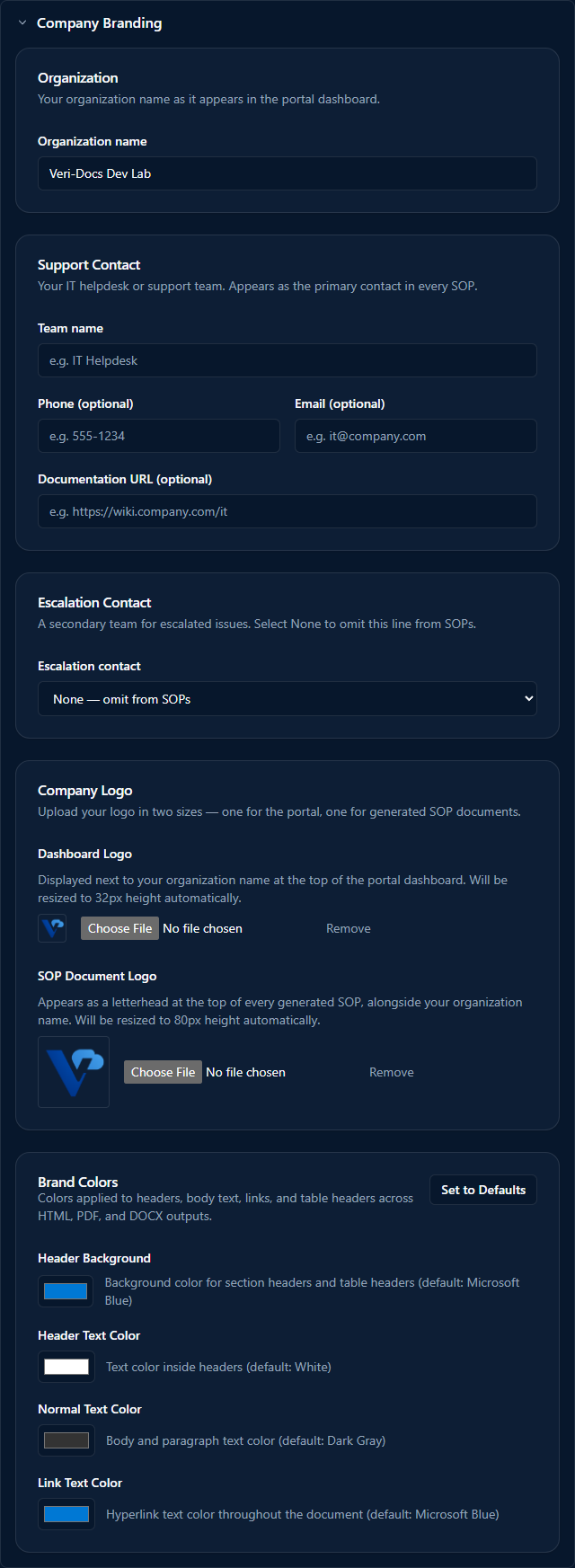
The five sub-sections in order:
- Organization — your organization name as it appears in the portal dashboard AND on every SOP's cover page.
- Support Contact — IT helpdesk or support team details (team name, phone, email, documentation URL). Renders as the primary contact in every SOP body.
- Escalation Contact — a secondary team for escalated issues. Defaults to "None — omit from SOPs," which is the right choice if you don't have a separate escalation path; explicitly setting it surfaces the second contact in every SOP.
- Company Logo — two slots, each handling its own automatic resize:
- Dashboard Logo — displayed next to your organization name at the top of the portal dashboard. Auto-resized to 32px height.
- SOP Document Logo — appears as a letterhead at the top of every generated SOP, alongside your organization name. Auto-resized to 80px height.
- Brand Colors (Pro / Enterprise only) — four colors applied to headers, body text, links, and table headers across HTML, PDF, and DOCX outputs. Defaults to the Microsoft brand palette (Header Background
#0078d4/ Header Text#ffffff/ Body Text#333333/ Link#0078d4). The "Set to Defaults" button reverts to that palette. Starter tenants see a locked card pointing to the upgrade flow.
Click "Save settings" at the top of the page after editing. Branding applies to all subsequent generations; SOPs generated before a branding change retain the branding from when they were generated.
7 · The 18 policy categories Veri-Docs covers
Veri-Docs's inventory scanner discovers and documents 18 distinct M365 policy categories. Each category is its own collapsible group in the inventory selector (§8) and produces one SOP per policy found:
Identity & Access
- Conditional Access policies
- Named Locations
- Authentication Methods Policy
- Authorization Policy
- Security Defaults
- Cross-Tenant Access Policy
Intune Device Management
- Configuration Profiles
- Compliance Policies
- Settings Catalog policies
- App Protection (MAM) Policies
- App Configuration Policies
- Enrollment Restrictions
- Feature Update Profiles
- Quality Update Profiles
- Driver Update Profiles
- Autopilot Deployment Profiles
Endpoint Security
- Endpoint Security baselines
- Antivirus + Firewall + Disk Encryption + EDR Policies
Each generated SOP follows a consistent template: cover page with your branding, policy metadata block (display name, description, ID, created / last-modified timestamps, assignment scope), the policy's configured values rendered as readable prose with raw JSON in an appendix, the framework mappings (CIS, NIST 800-53, NIST CSF, ISO 27001, SOC 2, HIPAA, EIDSCA, CISA SCuBA where applicable), and footer links to Microsoft Learn for the relevant configuration documentation.
The total number of SOPs you generate in a run equals the number of policies you selected — a fully-populated enterprise tenant might surface 200+ policies; a small tenant might surface 30–50.
8 · Running your first SOP generation
From the moment you click "Use Previous Scan" or "New Scan" on the Generate SOPs card, the next surface is the inventory selector. If you clicked New Scan, Veri-Vault first runs a discovery scan against your tenant (typically 10 to 30 seconds wall-clock) and lands you on the selector once the inventory completes. If you clicked Use Previous Scan, the selector loads immediately against the most recent prior inventory.
![Select Policies page at /docs/inventory/[jobId] with H1 'Select Policies', a description (review the policies discovered in your environment), the headline '236 Policies Discovered — 236 of 236 selected across 8 categories', Select All / Deselect All buttons, five collapsed category rows (App Configuration 1/1, App Protection 7/7, Compliance Policies 5/5, Enrollment Restrictions 6/6, Other Configurations 9/9), and a sticky footer with Format selector (Markdown selected, HTML/PDF/Word/All Formats checkboxes) and a 'Generate 236 SOPs' primary CTA](/guides/veri-docs/auth-inventory-selector.png)
Read the page top-down:
- Headline counts — total policies discovered, total currently selected, count of distinct categories. The selection count drives the CTA label at the bottom.
- Select All / Deselect All — top-right buttons that toggle every policy in every category. Useful when you want everything or want to start clean.
- Per-category collapsible rows — one row per category that surfaces in your tenant (categories with zero matches aren't shown). The "N/M" chip on the right is "selected / total" — Veri-Docs starts with all selected.
- Format selector in the sticky footer — checkboxes for Markdown, HTML, PDF, Word, and All Formats. Markdown is always selected (it's the source format; other formats are Pandoc-converted from it). Locked formats render disabled on Starter; Pro+ tiers see all four enabled.
- Generate N SOPs primary CTA — the action fires a generation job, decrements your monthly count by one, and lands you on the job-detail page.
Click "Generate N SOPs" once you've narrowed your selection. The job runs ~60 seconds per ~50 policies as a rough heuristic; large generations take proportionally longer.
9 · Reading the generation result
When the generation job completes, the job-detail page at /jobs/[jobId] surfaces the results.
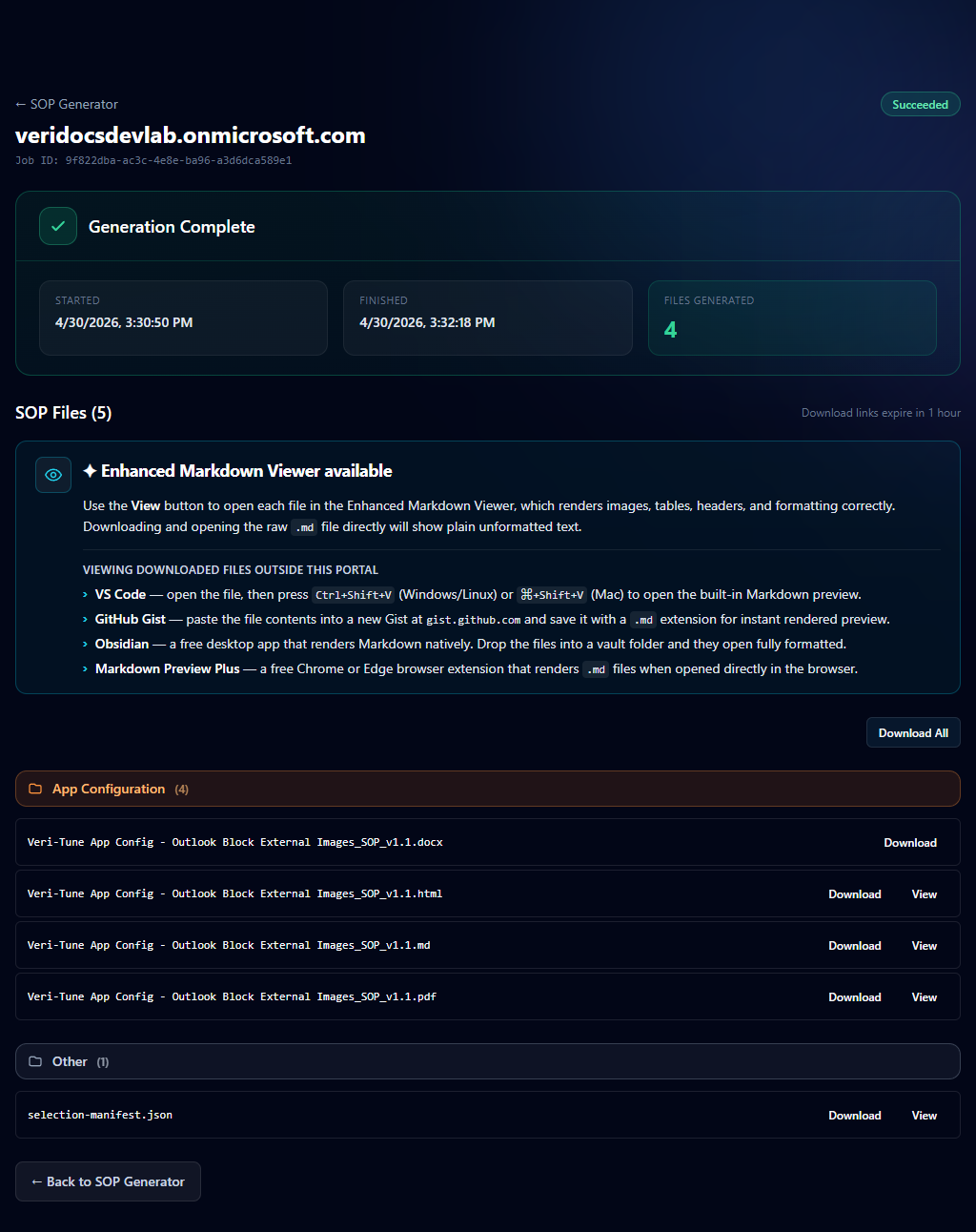
The page is intentionally simple — one job equals one batch of files. Read it top-down:
- Tenant H1 + Job ID — both surface together so the job is unambiguous in support tickets and your own audit records.
- Generation Complete chip + metrics strip — confirms the job exited cleanly. On a failed job, this surfaces a Failure chip with the error reason inline.
- Enhanced Markdown Viewer panel — only renders when Markdown is among the output formats. The four recommended viewers (VS Code, GitHub Gist, Obsidian, Markdown Preview Plus) handle Markdown tables and embedded GitHub-flavored-markdown more reliably than a plain browser preview.
- Download All button — packages every file in this job as a single ZIP. The signed URL is valid for one hour.
- Per-file rows — one row per generated file with a Download action. File names follow the convention
{tenant-id}-{policy-type}_SOP_v{version}.{ext}. The version increments automatically when content changes between consecutive generations of the same policy. - Back to SOP Generator at the very bottom — returns you to the /docs hub for the next generation.
The download links are signed URLs valid for one hour. If you let the page sit and come back later, refresh to get fresh URLs.
10 · The Document Library archive
/documents is the searchable history of every artifact Veri-Tech has produced against your tenant — Veri-Docs SOPs, Veri-Guard assessments, Veri-Guard runbooks, Veri-Tune assessments, Veri-Patch prerequisite scans, Veri-Patch remediations, everything. Useful when you need to find a specific document for an audit response without remembering which product generated it.
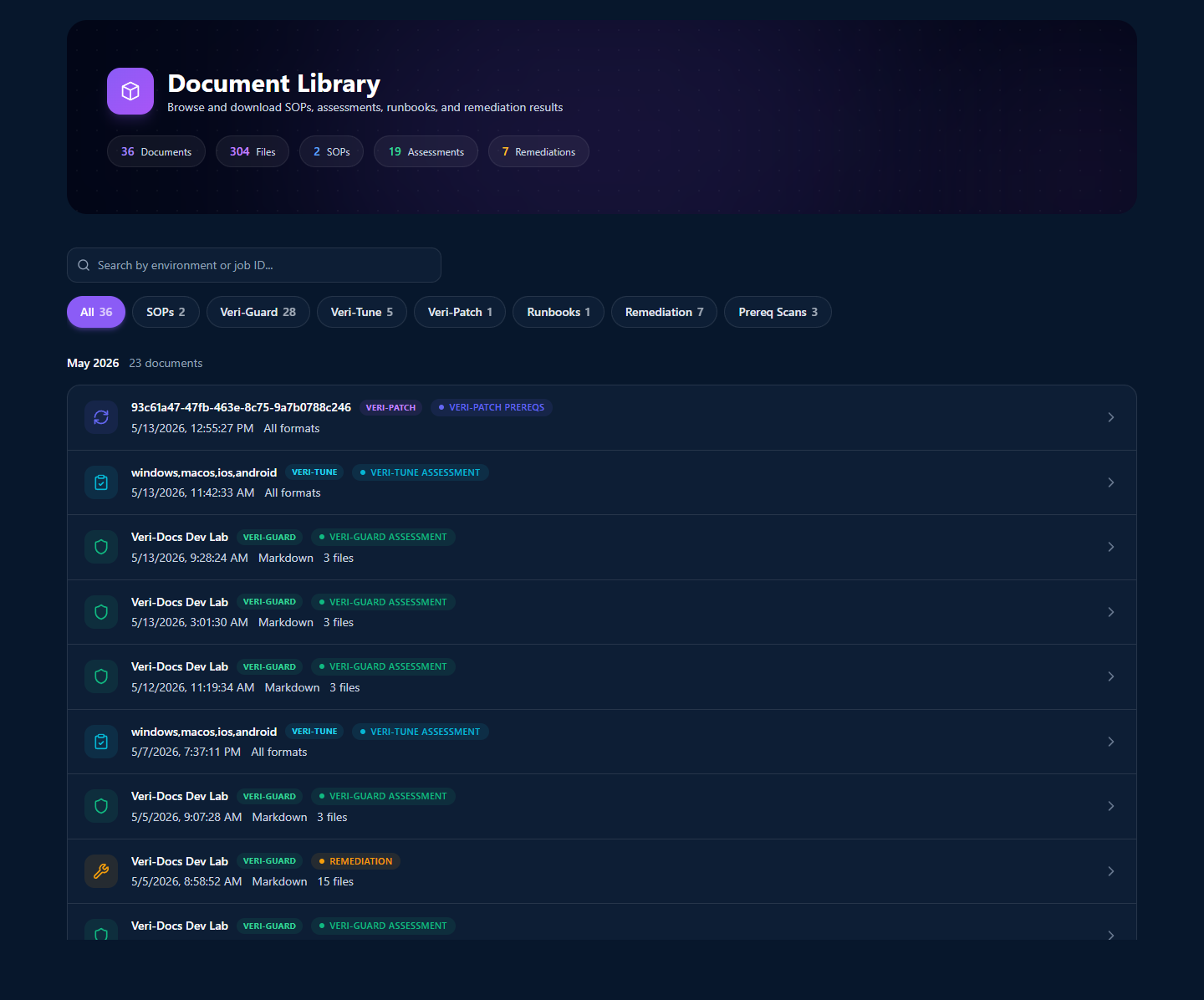
The library is a unified surface across products by design — auditors typically don't care which Veri-Tech product produced an artifact, they care what's in it. Read the page top-down:
- Five-stat strip — counts across the entire archive: documents, files, SOPs, assessments, remediations.
- Search box — finds rows by environment domain or job ID. Useful when you remember the tenant but not the date.
- Filter chips — scope by source product (Veri-Guard / Veri-Tune / Veri-Patch / etc.) or artifact type (SOPs / Runbooks / Remediation / Prereq Scans). Counts on each chip reflect the current archive.
- Month-grouped rows — newest month at the top, with a per-month document count surfaced inline.
- Per-row metadata — job ID, source-product chip, artifact-type chip (Veri-Guard Assessment, Veri-Patch Prereqs, Remediation, etc.), generation timestamp, format(s), and file count. Click any row to land on the job-detail page from §9.
Retention envelopes apply per-product, not per-archive — a Veri-Docs SOP from a Starter-tier tenant expires at 30 days; a Veri-Guard assessment from an Enterprise tenant on the same tenant page retains for 365. Expired rows fall off the archive automatically.
11 · Where to go next
You've now seen every page Veri-Docs puts in front of you. The fastest way to internalize the rest is to generate a SOP against your own tenant:
- Sign in and open Veri-Docs at
/docs. - Open Settings → Company Branding (§6) and configure your organization name + support contact + logo. This takes two minutes and brands every future SOP.
- Back on
/docs, click "New Scan" on the Generate SOPs card; wait 10–30 seconds for the inventory. - On the inventory selector, deselect everything except one category (e.g., Conditional Access). Pick Markdown as the format if you're on Starter; pick All Formats if you're on Pro+.
- Click "Generate N SOPs"; wait ~60 seconds; download the result from the job-detail page.
If anything in this guide is unclear or you'd rather walk through it with a person, the support tutorials at /support/tutorials cover the most common Veri-Docs tasks in narrower five-to-eight-step recipes, and the Book a Call link in the page footer reaches an intro session.