
This guide walks every IR Tabletops surface you'll encounter, in the order you'll encounter them — starting from the generation card that lives on each product's results page (Veri-Guard, Veri-Tune, HIPAA, and Veri-Vault), through the live drill runner with its timer and inject scheduler, to the locked auditor-evidence record in Veri-Vault that ties every drill back to the exact scan it was sourced from.
1 · What IR Tabletops is
IR Tabletops is a cross-product feature of Veri-Tech that turns your real scan findings — or your current Veri-Vault posture — into AI-generated incident-response drills, runs them as a live timed facilitator-led exercise (or a print-and-project paper drill), and locks the result as immutable auditor evidence in Veri-Vault with SHA-256 traceability back to the source scan. Same drill mechanic regardless of where you launch from; the AI specializes the scenario family — Conditional Access, endpoint, breach-response, or disaster-recovery / restore — to the source product.
Three things are true of every drill, regardless of source product:
- The scenario is grounded in your actual findings. The AI doesn't write a generic "ransomware tabletop" — it reads the specific controls your scan flagged (or your specific Vault posture metrics — backup age, restore-test recency, immutability state) and writes a scenario that exercises those gaps in your org-shape's terms. Devlab's first locked Vault drill is a "Ransomware Encryption + Vault Delete Attempt: No Restore Drill History" scenario specifically because that tenant's Vault posture had a 30-day WORM window with zero restore-test history.
- Locking produces auditor-grade evidence, not training notes. Once you lock a drill session, the resulting
session.jsonis write-once / read-many, stamped with the locker's identity, the timer state at lock, every inject's delivery drift, every participant response, the full scoring rubric output, and a SHA-256 manifest that ties back to the source-scan's own checksum. The locked artifact satisfies HIPAA §164.308(a)(8) (security incident procedures evaluation), SOC 2 CC7.4 (incident response), and ISO 27001 A.5.24 (incident management) evidence requirements on its own. - Nothing about the drill writes back to your tenant. Generation reads the source scan's already-captured findings; facilitation reads the locked bundle; locking writes the session artifact to Veri-Vault — but nothing in the drill loop calls Microsoft Graph with anything other than the read scopes the source product already holds. There is no JIT-write moment in IR Tabletops the way there is in Veri-Guard's remediation or Veri-Vault's restore flow.
The product is Enterprise tier only. Lower tiers see the upsell teaser variant of the card and an "Export sample" path that downloads a demo bundle without running real generation. The remainder of this guide assumes Enterprise.
2 · Where you'll find IR Tabletops in your portal
IR Tabletops is a cross-product feature — there isn't a single "IR Tabletops" page you navigate to. Instead, the Generate IR Tabletop card appears at the bottom of every product's main results surface, sourcing its drill scenario from whichever scan you just ran (or, for Veri-Vault, from your current DR posture). The card UX is identical across all four entry points; only the product-category badge in the header, the source-data shape, and the AI-generated scenario flavor differ.
Where drills end up after they're generated: every locked drill and every locked session is stored in Veri-Vault. That's where you'll find prior tabletops (in the IR Tabletops and Drill sessions sections of the /vault overview), where the multi-drill trends dashboard lives at /vault/tabletops/trends, and where an auditor will look for the evidence record. The four entry surfaces below are where drills are generated; Veri-Vault is where they live. §10 walks the Vault-side surfaces in depth.
The four entry surfaces — same component, different host page:
/vault— the Veri-Vault overview. The card here is titled Generate DR / Restore Tabletop and generates a disaster-recovery / restore drill against your current Vault posture (no source-scan picker — runs against the latest snapshots already in your vault)./guard/[jobId]— bottom of any Veri-Guard configuration-assessment result. Generates an identity / Conditional Access drill keyed to the controls that failed in that scan./tune/[jobId]— bottom of any Veri-Tune Intune-baseline result. Generates a device / endpoint drill keyed to the Intune controls that failed./hipaa/[jobId]— bottom of any HIPAA assessment result. Generates a breach-response drill keyed to the HIPAA safeguards your scan flagged.
For this guide we'll show the Veri-Vault entry as the canonical capture because it's the only entry that doesn't require a prior scan — but everything below the product-category badge is identical on every product's surface.
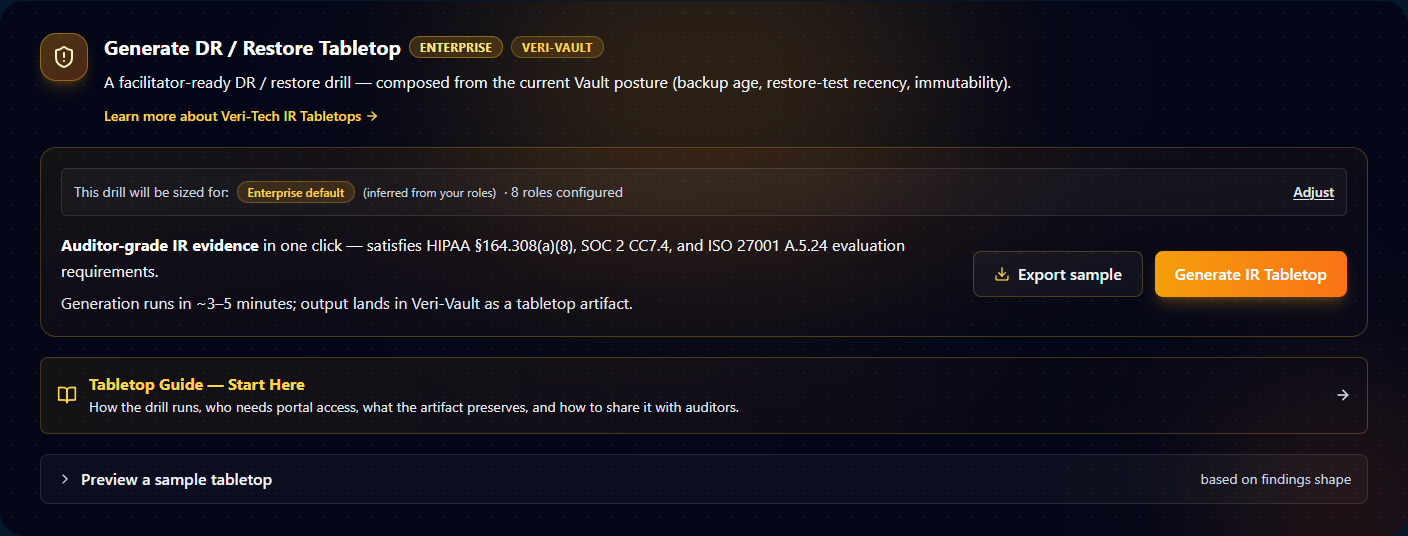
A few things in the card are worth their own callout because every drill on every product surface uses them:
- Product-category badge. Top-right of the header, next to the ENTERPRISE tier badge. The badge is the AI's source signal — it tells the worker which scan shape to read (Vault posture vs. Guard findings vs. Tune findings vs. HIPAA safeguards) and which scenario family to write (DR / Conditional Access / endpoint / breach-response).
- Org-shape sizing. The "This drill will be sized for" panel is how the AI knows whether to write the drill for a five-person SMB team or a fifty-person enterprise. The bucket (SMB / mid-market / enterprise) inherits from your
/settingsorg-shape configuration. The Adjust link in the panel overrides the bucket for this drill only without touching tenant-wide settings. The role labels you've configured (IC, Privacy Officer, SOC Lead, Comms, etc.) always inherit from settings — the per-drill override only affects participant count and role density, not the role names themselves. - Auditor-grade compliance mapping. The "satisfies HIPAA §164.308(a)(8), SOC 2 CC7.4, and ISO 27001 A.5.24" callout names the actual evaluation-requirement clauses a locked drill produces evidence for. The same three clauses apply regardless of which product surface you launch from — they're requirements about running and documenting tabletop exercises, not about the source product's domain.
- Export sample. A side-door that downloads a demo bundle without burning a real Anthropic generation. Useful for pre-flighting a drill with stakeholders before committing to a real generation against your tenant.
- Generate IR Tabletop. The primary CTA. Dispatches a background worker that calls Anthropic with your scan/posture + org shape, validates the response shape, computes a SHA-256 checksum tying the manifest back to the source scan, and writes the locked bundle to Veri-Vault. Typically 3–5 minutes wall-clock. When it finishes, the card's success state swaps in an Open Drill → link pointing at
/vault/tabletops/[jobId](§8). - Tabletop Guide — Start Here banner. Points first-time facilitators at the onboarding pages explaining how the drill runs, who needs portal access, what the artifact preserves, and how to share it with auditors. Worth opening once per organization; not per drill.
- Preview a sample tabletop accordion. Expands inline to show what a generated bundle looks like, based on your current findings shape. Read-only — clicking through doesn't generate a real drill.
3 · How an IR Tabletop drill works
Every drill follows the same four-step lifecycle regardless of which product surface you launched from:
- Generate. You click Generate IR Tabletop on the card (§2 / §7). A background worker reads the source scan findings (or your current Vault posture), enriches them with your
/settingsorg-shape configuration, calls Anthropic with a structured prompt, validates the response shape against a JSON schema, computes a SHA-256 checksum tying the manifest back to the source scan, and writes the locked source bundle (scenario.md,facilitator-guide.md,injects.md,scoring-rubric.md, plusmanifest.json) to Veri-Vault. Typical wall-clock is 3–5 minutes; the card surfaces a polling progress indicator while the job runs. - Facilitate. Once generation succeeds, the card flips to an Open Drill → state that points at the drill artifact at
/vault/tabletops/[jobId](§8). From there you have two facilitation paths: the live runner at/vault/tabletop-sessions/[sessionId](§9) — an in-portal timer with inject auto-highlighting, response capture, and a scoring rubric — or the print-and-project path that downloads the same bundle as markdown files and lets you run the drill with a stopwatch in a conference room. Both modes produce the same locked artifact at the end. - Lock. When the facilitator clicks Lock & Save on the live runner (or finishes the manual session and submits the scoring form), the session becomes WORM — the timer state, every inject's delivery drift, every participant response, every score is frozen. The worker writes
session.jsonto Veri-Vault withir-tabletop-sessionsource type, emits an audit event, and registers aVaultBackupRecordrow so the locked session appears in the Drill sessions list on/vault(§10). - Audit. The locked drill artifact and locked session record together are the auditor-traceable evidence. Both are downloadable from
/vault/tabletops/[jobId]and/vault/tabletop-sessions/[sessionId]as auditor / team / exec evidence packs, both expose their SHA-256 manifests, and the trends dashboard at/vault/tabletops/trendsrolls up multiple drills over time so IR maturity is itself an audit-grade metric.
The lifecycle is the same across all four product entry points; the only thing the product category changes is what the AI reads in step 1 and what scenario family it writes.
4 · Data handling and AI scope
The honest version of "what does the AI see" matters for any auditor who's going to ask. IR Tabletops is conservative on this — the model never sees user content, never sees PHI message bodies, never re-reads your tenant, and never has its responses written back to your tenant. Specifically:
What the AI reads (input):
- Failed-control identifiers + severities + domains from the source scan. For Veri-Guard, that's the list of control IDs flagged as failed (e.g.,
BlockLegacyAuth,MfaRequiredAllUsers) with their severity and domain. For Veri-Tune, the failed Intune-baseline control IDs. For HIPAA, the failed safeguards with their Required / Addressable tags. For Veri-Vault DR, your current vault posture metrics — newest backup age, oldest backup age, restore-test recency, immutability window length. - Your org-shape configuration from
/settings: size bucket (SMB / mid-market / enterprise), and role labels (IC, Privacy Officer, SOC Lead, Comms, etc. — whatever you've configured). No names, no emails, no reporting lines. The chip lets you override the bucket for a single drill without touching the tenant-wide setting. - The product-category badge (identity / device / breach / dr) so the AI selects the right scenario family.
- Up to 3 focus controls if you picked any in the card; otherwise the AI auto-selects the top 15 failed controls by severity.
What the AI does NOT read:
- Microsoft Graph. Generation never re-queries your tenant. It works exclusively off the scan findings the source product already captured.
- Any user, group, role, or device beyond the labels in your org-shape (and even those are just role names like "Privacy Officer," not identities).
- Email message bodies, file contents, sign-in logs, audit logs. None of these are scanned by any Veri-Tech product, so the AI couldn't see them even if it wanted to.
- PHI. For HIPAA drills, the model receives only the control-IDs and severity buckets of the assessment — never any patient record, treatment data, or protected identifier.
What the AI produces (output):
A bundle of four markdown files (scenario.md, facilitator-guide.md, injects.md, scoring-rubric.md) plus a JSON manifest. The manifest records drillId, productCategory, nistCsfPillar (which NIST CSF function the drill exercises — typically Respond or Recover), sourceJobId, sourceJobChecksum (SHA-256), focusControlIds, and generatedAt. The four markdown files are inert text — they describe a scenario for humans to read; they don't execute against your tenant.
No JIT writes, no Graph writes, ever. Unlike Veri-Guard's remediation flow (which requests delegated write scopes at the moment of execution) or Veri-Vault's restore flow (which does the same for tenant-state restores), the IR Tabletops lifecycle is end-to-end read-only against your tenant. The only writes happen within Veri-Vault's own storage — the source bundle on generation, the session artifact on lock — and the storage write uses Veri-Tech's own service identity, not your admin's.
5 · Safety controls and audit guarantees
Five safety properties hold for every locked drill and every locked session — none of them are opt-in:
- WORM lock on the source bundle. Once the generation worker writes the locked bundle to Veri-Vault, the source files (
scenario.md,facilitator-guide.md,injects.md,scoring-rubric.md,manifest.json) are write-once / read-many. You can read them, download them, view them inline, share them — but no UI or API path lets you mutate the locked content. The only way to "change" a locked drill is to use the Regenerate this drill button (§8) which generates a new drill from the same source scan; the original locked drill stays untouched. - WORM lock on the session record. Once the facilitator clicks Lock & Save, the
session.jsonis similarly write-once — the timer state, the inject delivery timestamps, the per-participant responses, the score values, and the locker's identity are all frozen. Even if the original facilitator is the one looking at the locked record later, the UI surfaces it as read-only with no edit affordance. - SHA-256 manifest provenance. Every drill bundle's manifest carries a
sourceJobChecksumfield — the SHA-256 of the source scan or vault posture the drill was generated from. An auditor can cross-check the drill's claimed source against the actual scan record by comparing checksums; if they don't match (because someone tampered with the scan record afterwards), it's immediately visible. - Append-only edit history (versioned bundles). Between generation and lock, the bundle viewer at
/vault/tabletops/[jobId]lets a facilitator make limited per-field edits to the pre-frozen drill (typo fixes, role-name corrections, etc.). Every edit creates a new version; prior versions stay readable. The version switcher in the bundle viewer surfaces this chain so auditors can see exactly what changed between v0 and the active version. - 6-year retention. Locked drill bundles and locked session records are retained for 6 years — the regulatory minimum for SOC 2, the long end of HIPAA's documentation retention requirement, and well beyond ISO 27001 A.5.24's 3-year guidance. The retention badge on the manifest hero ("AUDIT EVIDENCE — RETAINED 6 YEARS") is visible on every locked artifact.
Plus a couple of cross-cutting controls worth naming:
- Locker identity is preserved on every lock. The
LOCKED BYfield on the session record names the admin who clicked Lock & Save. Lock-attribution is non-repudiable; you can't lock a drill anonymously. - Audit-event emission on lock. Locking a session emits an
ir-tabletop.session.lockedaudit event with the drill ID, session ID, locker identity, and timestamps. The event lands in the same audit pipeline as Vault restore approvals and emergency-access logins — so a locked drill counts as the same class of audit-significant event.
6 · Drill bundle anatomy
A locked drill is a bundle — multiple files indexed by a single drillId. Knowing what's in each piece is what lets you decide which file to print, which to project, and which to hand an auditor.
The manifest (manifest.json) records the drill's provenance and is signed end-to-end by the generation worker. Fields:
drillId— UUID identifying this drill.productCategory—identity(Veri-Guard),device(Veri-Tune),breach(HIPAA), ordr(Veri-Vault).nistCsfPillar— which NIST CSF function the drill exercises. Most identity / device drills are Respond (RS.AN,RS.MI,RS.CO); DR drills are typically Recover (RC.RP,RC.IM) as the devlab example in §8 shows.sourceJobId— the scan job ID this drill was generated from. Empty (—) for DR drills since they run against current Vault posture, not a single scan.sourceJobChecksum— SHA-256 of the source scan record at generation time. Empty for DR drills (same reason).focusControlIds— the up-to-3 controls the user picked, or empty if the worker auto-selected.generatedAt— ISO timestamp of when the worker wrote the bundle.
The four markdown files:
scenario.md— the brief. A one-to-two-page narrative the facilitator reads aloud at the start of the drill (or projects on the conference-room screen). Names the threat actor, the attack vector, the initial conditions, the in-flight state. Designed to be read in 5–8 minutes.facilitator-guide.md— the playbook. Section-by-section discussion points, expected response checklist, "if the team says X, push back with Y" scripts, debrief questions. This file is facilitator-only — you don't share it with the team during the drill, only after.injects.md— the timeline. Pre-scripted events the facilitator drops on the team at specific drill-clock timestamps (T+5 min,T+15 min,T+30 min, …). Each inject has a body to read aloud and an "Expected action" line for the debrief.scoring-rubric.md— the measurement. A weighted criteria sheet (typically 6–10 criteria) with a 1-to-5 scale per criterion and a sum-to-100 weights column. After the drill, the facilitator scores each criterion; the runner computes the weighted total automatically (or the manual facilitator does the multiplication by hand).
The session record (session.json, written when a session is locked):
drillId+sessionId— pairs the session back to its source drill.startedAt+lockedAt+lockedBy— the lifecycle bookends, with the locker's identity attached.injects[]— per-inject delivery record:deliveredAt,elapsedSec,driftSec(positive = late, negative = early, ±30s = "on time"),response(free-text capture from the facilitator).scores— per-criterion score (1–5), weighted contribution, and the weighted total.pacing— a summary derived from the injects: median drift, worst drift, on-time count.
The bundle viewer at the bottom of /vault/tabletops/[jobId] lets you read every one of these files inline, with a tabbed switcher between scenario / facilitator-guide / injects / scoring-rubric. The same files are downloadable as .md blobs via SAS-signed URLs for offline use.
7 · Generating a drill
The generation card (§2) is functionally the same across all four entry points; this section walks the form fields one at a time so you know what each one does to the drill the AI writes.
7.1 · Source
The card uses one of two source modes depending on the surface:
- Source-scan mode — on
/guard/[jobId],/tune/[jobId], and/hipaa/[jobId]. The source is fixed to the scan you're looking at; there's no scan-picker dropdown because you're already on the scan's results page. The drill will be generated from the failed-control list of that scan. - Current-posture mode — on
/vault. There's no scan picker because Vault DR drills run against your current vault posture (backup age, restore-test recency, immutability window) rather than a single point-in-time scan. The drill will be generated from the metrics visible on the /vault overview at the moment you click Generate.
7.2 · Focus controls
The focus-control picker (visible on Guard / Tune / HIPAA entries; hidden on Vault since DR doesn't have a per-control failure list) lets you narrow the AI's entry-vector to a specific subset of your failed controls:
- The picker shows your failed controls sorted by severity descending (critical → high → medium → low), with the control ID, title, severity chip, and domain label.
- You can select up to 3 controls. Selecting more is blocked.
- If you don't pick any, the worker auto-selects the top 15 failed controls by severity. That's the default and works fine for most drills.
- Picking 1–3 controls narrows the AI: the scenario will be written around how those specific gaps get exploited, rather than the broader top-15 failure pattern. Useful when you want the drill to exercise a specific weakness you've been worried about.
7.3 · Org-shape
The "This drill will be sized for:" panel — visible in the §2 capture — surfaces three pieces of org-shape context:
- Size bucket — SMB / mid-market / enterprise. Drives participant-count assumptions in the scenario (a 5-person SMB drill is written differently than a 50-person enterprise drill).
- Role inheritance — pulls the role labels you've configured on
/settings. The scenario will name the same roles the AI sees in your config (IC, Privacy Officer, SOC Lead, Comms, etc.). - Adjust link — overrides the size bucket for this drill only without changing the tenant-wide setting on
/settings. Role labels always inherit from settings; the per-drill override only touches the size bucket.
If your /settings org-shape is unconfigured, the panel surfaces a "Roles not configured" hint and the AI falls back to a generic role set. Configure /settings first for best results.
7.4 · Export sample vs. Generate IR Tabletop
The two CTAs at the bottom of the card do different things:
- Export sample — downloads a static demo bundle that demonstrates the file structure (the four markdown files + manifest) without dispatching a real generation job. Useful for pre-flighting a drill with stakeholders ("here's what the output looks like") before committing to a real generation against your tenant. No Anthropic tokens consumed; no audit-record created.
- Generate IR Tabletop — the primary CTA. Dispatches a real worker job, calls Anthropic with your scan findings + org shape, runs ~3–5 minutes wall-clock, and writes the locked bundle to Veri-Vault on success. The card surfaces a polling progress indicator (
dispatching→running {jobId}→succeeded {jobId}) while it runs. On success, the card swaps to an Open Drill → link pointing at/vault/tabletops/[jobId](§8). On failure (rare; usually a transient Anthropic timeout) the card surfaces an error message and the Generate IR Tabletop CTA is restored for a retry.
The card UX on /vault adds two extras that aren't on the other product entries: a Tabletop Guide — Start Here banner (links to the feature's onboarding page) and a Preview a sample tabletop accordion (expands inline to show a sample fixture). Both are read-only.
8 · The drill artifact
After generation completes, the drill artifact lives at /vault/tabletops/[jobId]. This page is the auditor-traceable record of what was generated — distinct from the session record at /vault/tabletop-sessions/[sessionId] which captures what happened when it was facilitated (§9 + §10).
8.1 · The manifest hero
![Manifest hero on /vault/tabletops/[jobId]. Top row of badges: amber LOCKED DRILL with a shield-alert icon, amber-outlined VERI-VAULT product badge, and white-outlined AUDIT EVIDENCE — RETAINED 6 YEARS retention badge. Below: H1 scenario title 'Ransomware Encryption + Vault Delete Attempt: No Restore Drill History' and tagline 'Your backup posture shows a 30-day WORM window and recent backups, but zero restore-test history. This scenario exercises whether your team can validate backup integrity and execute a full restore under ransom-payment pressure — and what happens when the Vault itself comes under attack.' Bottom row: a 4-column definition list with NIST CSF 'Recover (RC.RP, RC.IM)', LOCKED AT '5/11/2026, 3:35:51 AM', SOURCE JOB '—', SOURCE CHECKSUM '—'.](/guides/ir-tabletops/auth-drill-artifact-hero.png)
The 4-column manifest row is where an auditor checks provenance:
- NIST CSF — the framework function the drill exercises. Identity drills usually land in Respond (
RS.ANanalysis,RS.MImitigation,RS.COcommunications). DR drills usually land in Recover (RC.RPrecovery planning,RC.IMimprovements). The pillar is the AI's call based on the scenario it wrote. - LOCKED AT — the timestamp the bundle was written. Format is locale-dependent in the UI; the underlying manifest stores ISO 8601 UTC.
- SOURCE JOB + SOURCE CHECKSUM — for Guard / Tune / HIPAA drills, the UUID of the originating scan and its SHA-256. An auditor cross-references the checksum against the scan's record at
/{guard|tune|hipaa}/[jobId]to confirm the drill was generated from the scan it claims. Vault DR drills show—for both because there's no single source-scan record — DR generation runs against the live vault posture.
8.2 · Run-drill CTAs — the two facilitation modes
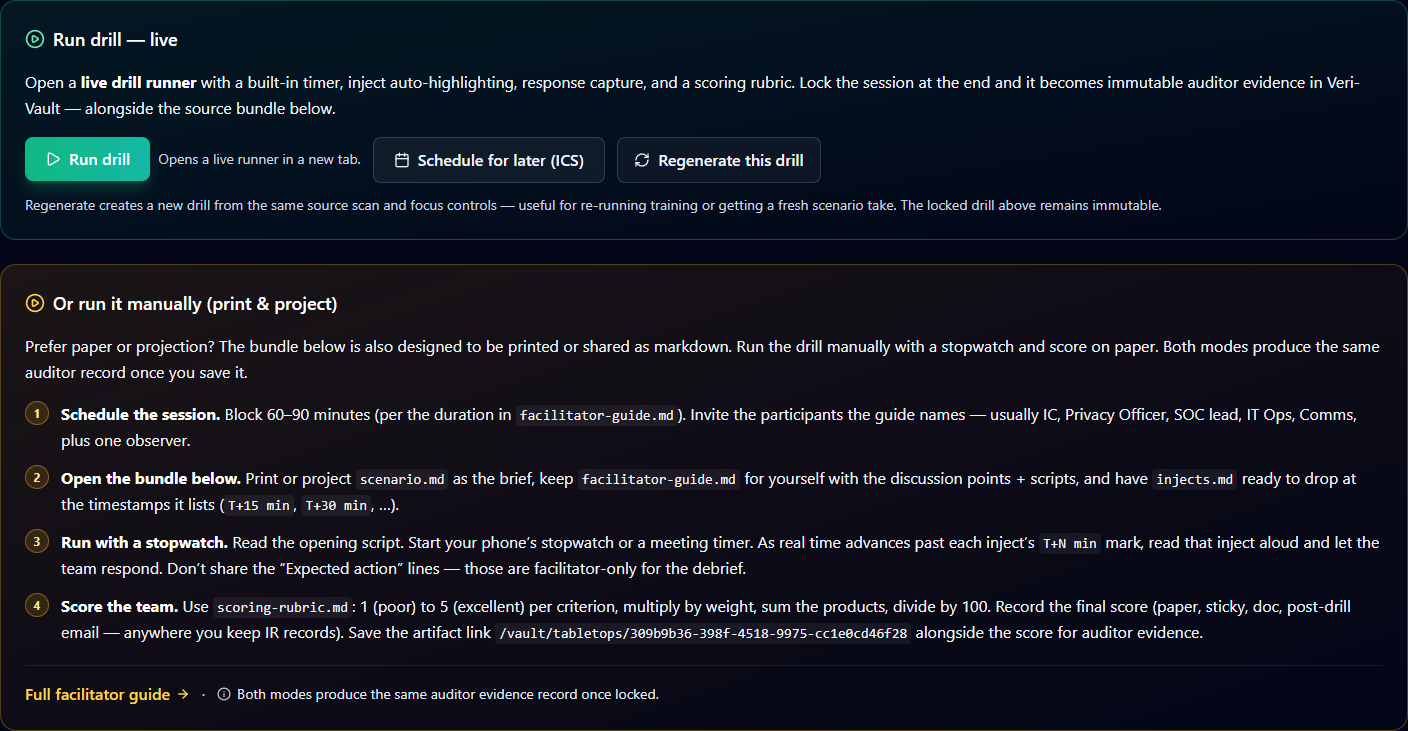
The bifurcation between live and manual is intentional: not every team's drill operates well in a portal-mediated session. Whiteboards, printed scenarios, in-person body language — these matter, and forcing them into a tab-locked browser UI is sometimes the wrong call. The manual mode is a first-class supported path, not a workaround.
8.3 · Edit history, bundle files, and the inline viewer
Below the run-drill section, three more components round out the artifact page:
- Edit history — the versioned-bundle audit chain. Each per-field edit between generation and lock (typo fixes, role-name corrections, etc.) creates a new version; this section lists them in order with the editor's identity and a diff summary. v0 is always the generation worker's original output.
- Bundle files — actual SAS-signed download links to the four
.mdfiles in the locked bundle. Useful for offline use, projecting on a conference-room screen, or attaching to a change-management ticket. - Inline bundle viewer with version switcher — a tabbed inline render of the four files (scenario / facilitator-guide / injects / scoring-rubric). The version switcher above the tabs lets you preview prior versions read-only without leaving the page. Useful for "what did the v0 scenario say vs the v3 we're about to drill against" reviews.
9 · Running the drill (live runner)
Clicking Run drill on the artifact page opens the live runner at /vault/tabletop-sessions/[sessionId]. This is the in-portal facilitator UX: a drill clock you control, a scenario panel, a list of pre-scripted injects you drop on the team at the right timestamps, free-text response capture per inject, and a scoring rubric you fill in at the end. When you click Lock & Save the session transitions to a read-only locked record — the capture below is exactly that state on a real devlab Veri-Guard drill.
![Top of the live-runner page at /vault/tabletop-sessions/[sessionId] in the locked-session state. Top row: amber LOCKED DRILL SESSION badge with shield-alert icon, emerald-outlined VERI-GUARD product badge, white-outlined AUDIT EVIDENCE — RETAINED 6 YEARS retention badge. Below: H1 scenario title 'Legacy Auth + OAuth Persistence in Finance — BEC Redirection Attack' and tagline 'Your scan revealed legacy authentication is not blocked for 847 users and Outlook add-in installation is not restricted. This scenario exercises what happens when a TA505 affiliate exploits both gaps to establish persistent mailbox access and execute a wire-fraud campaign.' Below: 'DRILL CLOCK 0:04' panel showing the timer frozen at lock time. Below that: 'ATTENDEE VIEW — Copy spectator URL — Open in new tab — read-only view of timer & current inject for attendees' row and 'PARTICIPANT VIEW — Copy participant URL — Open in new tab — IR team members pick a role + submit per-inject text' row.](/guides/ir-tabletops/auth-session-locked-hero.png)
The live runner has four functional regions that every drill walks top-to-bottom:
9.1 · Drill clock + share URLs
The drill clock is a Start / Pause / Reset timer that ticks once per second. When you click Start the first time, the runner records startedAt in the session record; every Pause / Resume cycle is captured too. Drill-clock notation is M:SS relative to drill start — not wall clock — because auditors care about pacing within the drill, not absolute time of day (which drifts by tenant timezone).
The two URL rows below the clock are the share affordances. Per the locked decision for this guide we don't walk the spectator or participant pages themselves — but the URL-row context matters:
- Spectator URL — read-only view of the current drill state for attendees who aren't actively participating. Shows the timer, the current inject, and the scenario context. Doesn't expose facilitator notes or response capture.
- Participant URL — opens a per-participant view where IR team members pick a role (from the org-shape role labels) and submit free-text responses per inject. Their submissions land in the facilitator's response-capture panel for the matching inject.
9.2 · Timed injects
The injects section is the bulk of the runner — typically 6–10 injects scheduled at T+0, T+5, T+15, T+30, T+45, T+60, … minute marks. Each inject is a card with:
- Timing label — the scheduled
T+N minmark frominjects.md. - Inject body — the text the facilitator reads aloud (or drops in the participant chat).
- Drop button — the facilitator clicks this at the actual moment they deliver the inject. The runner records
deliveredAt, computeselapsedSec(drill-clock time of delivery), and computesdriftSec(positive = late, negative = early, ±30s collapses to "on time"). - Response capture — a free-text area where the facilitator types what the team said / did in response to the inject. Auto-saves with a 1.5-second debounce.
- Expected action (facilitator-only) — a collapsed expander showing what the AI thinks the team should do for this inject. Used in the debrief; doesn't drive scoring directly.
Per-inject drift is the audit primitive of the drill — it answers "was this team able to respond on the AI's expected pacing, or were they consistently late?"
9.3 · Scoring rubric
The scoring section renders the criteria from scoring-rubric.md with a 1-to-5 selector per criterion and the criterion's weight. The runner auto-computes the weighted total as you fill in scores. Typical criteria: containment speed, communication quality, decision-authority clarity, technical accuracy, stakeholder alignment. The weighted total is what lands in the session record's scores object — the per-criterion values are also preserved.
9.4 · Lock & Save
When the facilitator clicks Lock & Save, the runner:
- Writes a final auto-save with the current responses + scores.
- Calls the lock action, which writes the WORM
session.jsonto Veri-Vault, emits their-tabletop.session.lockedaudit event, and registers aVaultBackupRecordrow withsource: ir-tabletop-session. - Transitions the UI to the locked-record view (the state captured above) — same data, no edit affordances, plus a Locked at + Locked by metadata row near the badges and a
Pacing summarypanel near the bottom. - After lock, the runner kicks off a separate AI Coaching job (~30 seconds) that reviews the session's responses + drift + scores and produces a structured coaching bundle. The locked view surfaces this as an
AI Coachingsection at the bottom once the job resolves.
The locked-record view is the same URL as the live runner — the session ID doesn't change at lock. Sharing the locked URL with an auditor gives them the same evidence the facilitator can see, minus the edit affordances.
10 · The locked session record and audit evidence
Once a session is locked, two records exist in your vault that together comprise the auditor-traceable evidence for the drill: the locked drill artifact at /vault/tabletops/[jobId] (the source bundle and its manifest, §8) and the locked session record at /vault/tabletop-sessions/[sessionId] (the facilitator's run of that drill, §9). Auditors typically want both — the source to verify provenance, the session to verify it was actually run. Both surface in Veri-Vault's overview as their own dedicated sections, and a third Veri-Vault surface — the trends dashboard — rolls multiple locked sessions up over time as a program-maturity readout.
10.1 · Finding prior drills on /vault
Veri-Vault is the home of all locked tabletop artifacts. Two sibling sections on the /vault overview list prior drills and prior sessions separately — both are visible only when you have at least one record of the matching type. Run a drill and they appear.

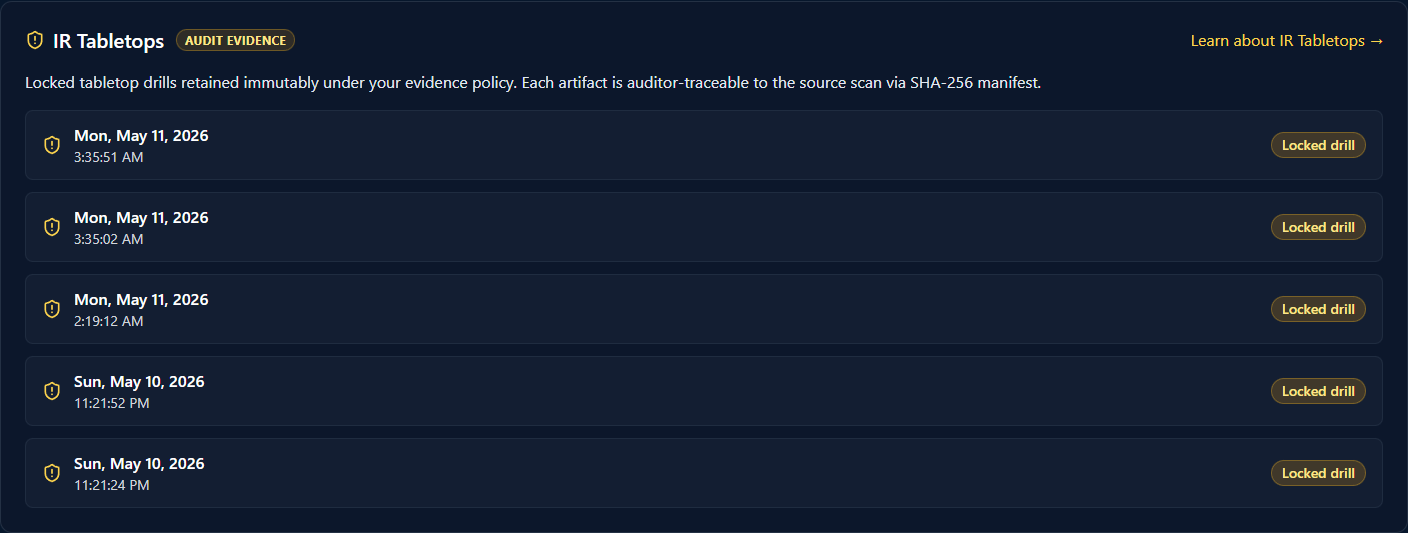
The two cards together are the main entry to the consumer side of the feature. A drill's lifecycle — generate on the product surface, facilitate in the runner, find later on /vault — keeps the generation entry-points discoverable from the source product but consolidates the audit-grade evidence into a single product (Vault). Auditors get a single URL — /vault — that lists every drill and session your org has run, regardless of which product surface originated each one.
10.2 · Evidence pack downloads
Both record pages (drill artifact + locked session) expose a Download evidence dropdown with three packs targeted at different audiences:
- Auditor pack — full bundle: scenario / facilitator-guide / injects / scoring-rubric, the session record, the manifest with checksum, the pacing summary, the AI coaching output. Designed for auditor review.
- Team pack — debrief-ready: scenario, injects with responses, scoring rubric, AI coaching. Strips the facilitator-only "Expected action" lines so the team can review without spoilers.
- Exec pack — executive summary: scenario tagline, headline scores, pacing summary, one-paragraph AI coaching highlight. A single-page artifact for stakeholders who want the outcome, not the play-by-play.
All three packs are SHA-256-signed and the signature is recoverable from the manifest.
10.3 · Trends dashboard at /vault/tabletops/trends
The View trends → link on the Drill sessions card (§10.1) opens the program-maturity dashboard at /vault/tabletops/trends. This is the auditor-grade improvement-over-time readout — what makes a tabletop program more than a one-off compliance checkbox.
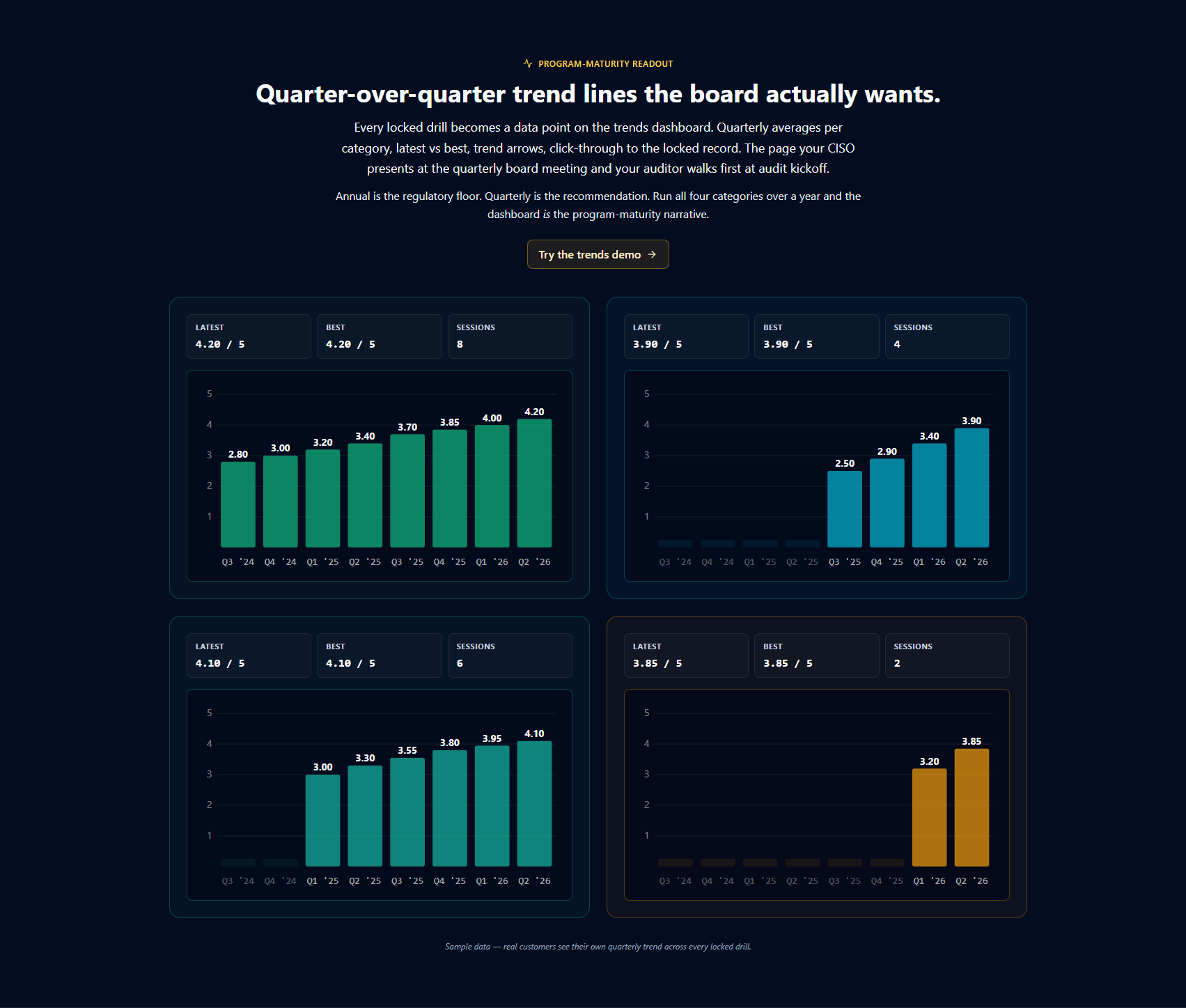
The single most valuable property of the trends view is what it tells you about direction — most audit artifacts are point-in-time snapshots. Trends shows whether your team is getting better. A few patterns to read in the sample data above:
- Improving program. Bars trend up across multiple quarters in the same category. The Identity-attack column climbs 2.80 → 4.20 across eight quarters — that's a team learning from drills and getting measurably better at the same scenario family. This is what the board wants to see.
- New program ramping. The Device-compromise column starts at Q3 '25 (four quarters back) with empty earlier quarters — that's a program that added a category mid-stream. Same upward trajectory once started; the empty leading quarters honestly show "we didn't drill device-compromise before Q3 '25."
- Newest category. The DR / restore column has only two bars (Q1 '26 + Q2 '26) — a category just added this fiscal year. Auditors don't penalize this; they want to see that it's been added.
- Inactivity stretch (not visible in sample). Empty quarters in the middle of a column render as gaps between filled bars — not as missing time-axis ticks. Six consecutive empty quarters reads as "this org stopped drilling for 18 months," not as "no data."
The trends URL is shareable — hand it to a board, an audit committee, or an external reviewer and they see the same readout you do. It's the single page that summarizes "we have an IR program, here's how it's maturing." Annual drilling is the regulatory floor (HIPAA §164.308(a)(8), SOC 2 CC7.4 evaluation cadence); quarterly is what most mature programs target.
10.4 · Calendar + email share affordances
Two more share affordances live on the drill artifact page (§8) and the locked session page that are worth surfacing together:
- Schedule drill (ICS) — generates an
.icscalendar invite for blocking 60–90 minutes on participants' calendars, with the scenario tagline as the description and/vault/tabletops/[jobId]as the location URL. Useful for putting a planned drill on the team's calendar before facilitating. - Email share — composes an email with the scenario summary, facilitator names, and a link to the relevant artifact / session URL. Useful for inviting participants ahead of time or distributing the locked artifact to stakeholders after the drill.
10.5 · Append-only audit-event chain
Every state transition in the IR Tabletops lifecycle emits an audit event into the same pipeline as Vault restore approvals and emergency-access logins:
ir-tabletop.bundle.generated— fired when the generation worker completes.ir-tabletop.bundle.edited— fired on each pre-lock edit (versioned-bundle audit chain).ir-tabletop.session.started— fired when the runner records the first Start click.ir-tabletop.session.locked— fired when the locker clicks Lock & Save.
The Vault Activity Log on /vault/activity surfaces all four event types alongside the standard backup / restore / emergency-login events. A locked drill counts as the same class of audit-significant action as a Vault restore — the audit pipeline treats them equivalently.
11 · Where to go next
You've now seen every IR Tabletops surface end-to-end. The fastest way to internalize the loop is to actually run a drill against your own tenant:
- Pick an entry point. If you've already run a Veri-Guard, Veri-Tune, or HIPAA scan recently, open that scan's result page and scroll to the Generate IR Tabletop card at the bottom — that gives you a drill grounded in actual findings. If you haven't, open
/vaultand use the Generate DR / Restore Tabletop card, which works against your current Vault posture without needing a prior scan. - Configure once. Make sure your
/settingsorg-shape is set (size bucket + role labels) before generating — the AI's scenario quality is materially higher when role names match your team rather than the generic fallback set. - Pre-flight with Export sample. Click Export sample first to download a demo bundle. Skim it with a stakeholder. If the file structure and depth look right, you're ready for a real generation.
- Generate, schedule, facilitate, lock. Click Generate IR Tabletop (3–5 min wait). Open the resulting drill at
/vault/tabletops/[jobId]. Click Schedule drill (ICS) to block 60–90 minutes on participants' calendars. At drill time, click Run drill (or print the bundle for the manual mode). Run the timer, drop the injects, score the team, and click Lock & Save. - Hand the locked URLs to your auditor. Once locked,
/vault/tabletops/[jobId]and/vault/tabletop-sessions/[sessionId]together are the auditor-traceable evidence record — satisfying HIPAA §164.308(a)(8), SOC 2 CC7.4, and ISO 27001 A.5.24 requirements without any additional documentation.
If you're about to facilitate a drill right now and want a tighter operational reference — roles, lifecycle stages, resilience playbooks, FAQ — see the operational quickstart at /features/ir-tabletops/guide. It's a sibling artifact to this guide: this page is the page-by-page product walk; that page is the "what do I do in the next 60 minutes" facilitator reference.
Shorter task-specific recipes live at /support/tutorials — pick a tutorial when you know exactly what step you're trying to learn (e.g., "how to schedule an IR Tabletop," "how to score a session"). If anything in this guide is unclear or you'd rather walk through a drill with a person, the Book an intro call link in the page footer reaches a 30-minute intro session.